

In shortIf a site stopped because its account went over its bandwidth: first raise the limit in Limit Bandwidth Usage if it is too small, then in WHM, Account Functions, Reset Account Bandwidth Limit choose the account and reset it to bring the site back.
This guide is for server owners if you have a VPS or dedicated server with WHM. If you would rather not manage the server yourself, our server management service can do it for you.
When an account exceeds its monthly bandwidth limit, visitors see an error instead of the site until the next month. If the traffic is real, raise the limit. If you want the site back now, reset the account’s limit.
Steps #
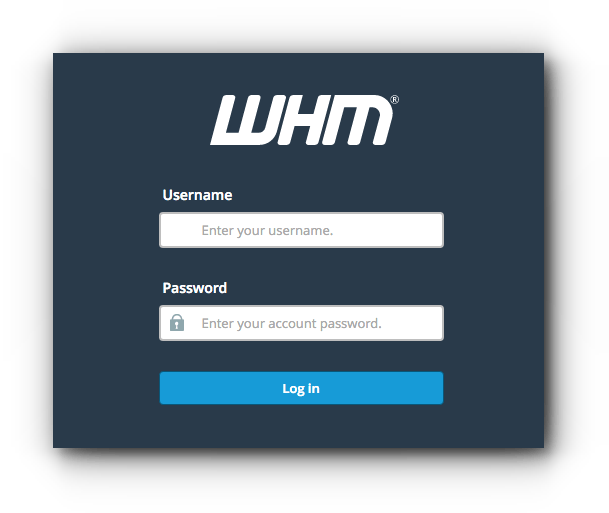
- Log in to WHM in your browser at
https://server-IP:2087orhttps://server-hostname:2087as root. - Open Account Functions, then Reset Account Bandwidth Limit.
- Choose the account that stopped.
- Click reset, then check the site is back.


Before resetting: check why usage jumped. Real visitors? Raise the limit as in changing the bandwidth limit. Bad bots or large files others are downloading? Fix the cause first.
Summary #
- Going over the limit stops the site until the next month.
- Reset Account Bandwidth Limit brings it back.
- Raise the limit if the traffic is real.
Need a server with cPanel and WHM? See VPS servers and the cPanel and WHM on VPS guide.
Frequently asked questions #
Why did my site suddenly stop at the end of the month?
The account may have exceeded its monthly bandwidth limit.
Does resetting delete site statistics?
No, it only lets the account work again.


