

Is your site slow? Is your disk nearly full? The answer is in two places in cPanel: the Statistics column on the home page and the Metrics section.
The Statistics column #
On the Tools page, below General Information, you will find Statistics. Each line shows what you have used against the limit, such as Disk Usage and Bandwidth. The ∞ symbol means unlimited.
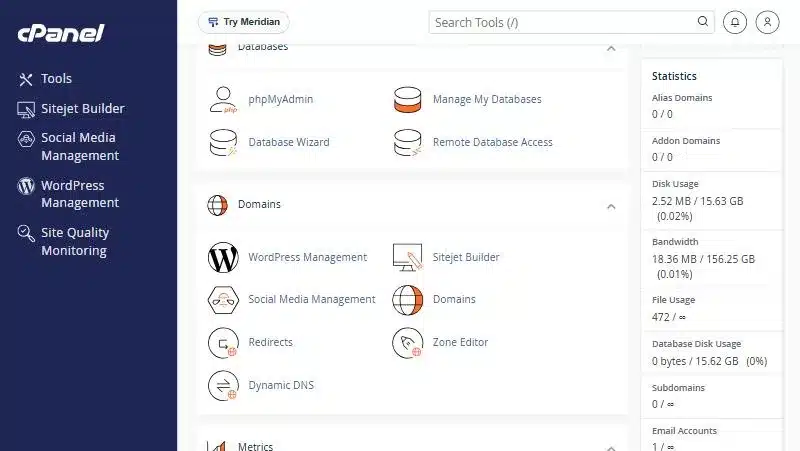
| Line | Meaning |
|---|---|
| Disk Usage | Space taken by your files, email and databases |
| Bandwidth | Data transferred by your site and email this month. See what bandwidth is |
| File Usage | The number of files and folders in your account (inodes) |
| CPU Usage | Processor usage right now |
| Physical Memory Usage | Memory in use right now |
| Entry Processes | Visits being processed at the same moment |
| Number Of Processes | Processes running in your account |
The Metrics section #
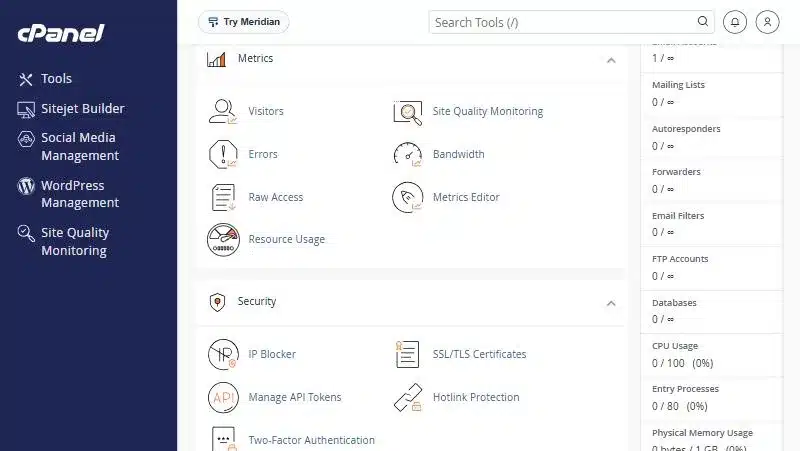
| Tool | When to use it | Guide |
|---|---|---|
| Visitors | To see recent visits and which pages were opened | recent visitors |
| Errors | When you get a blank page, a 500 error or a broken page | |
| Bandwidth | To see bandwidth use in daily and monthly graphs | checking bandwidth |
| Raw Access | To download the full access log | |
| Resource Usage | When the site slows down or shows a 508 error | monitoring resource usage |
Bandwidth #
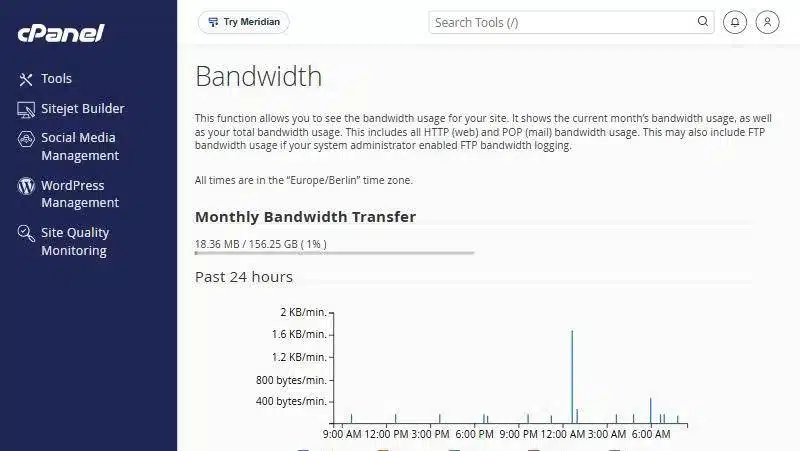
This page shows this month’s usage against your limit and a graph of the past 24 hours, then the past week and year, split by type: HTTP for the website, POP3, IMAP and SMTP for email, and FTP.
Errors #
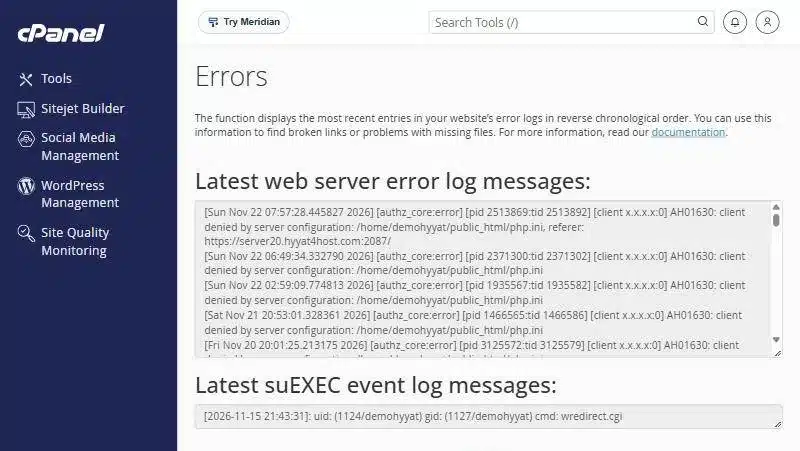
This page lists the latest entries in your website error log, newest first. It is where you find the reason for a blank page or a missing file before opening a support ticket.
How to read the numbers #
Each line shows two figures: what you have used, then the limit on your plan, sometimes with a percentage. A simple rule:
- Under half: you are comfortable.
- Over 80%: pay attention. Clean up old files, backups and old email, or consider upgrading.
- At the limit: uploads and incoming email can stop when disk is full, and the site can slow down or show a 508 error when CPU, memory or processes are maxed out.
What each resource metric means #
| Metric | What happens at the limit | Common cause |
|---|---|---|
| CPU Usage | Pages open slowly | Heavy plugins or lots of bot traffic |
| Physical Memory Usage | Errors or pages that do not finish loading | A memory-hungry script or too many plugins |
| Entry Processes | A 508 error for some visitors | Many simultaneous visits without caching |
| Number Of Processes | Some requests fail | Overlapping cron jobs or stuck scripts |
| IOPS and I/O Usage | Slow disk reads and writes | A large backup or import during peak hours |
Free up space in minutes #
- Delete old compressed backups in File Manager after downloading them to your computer.
- Clean up old email and large attachments. See removing old email messages.
- Open Disk Usage in the Files section to see which folder takes the most space.
Common problems and fixes #
- Numbers do not change after deleting files: disk usage can take a little while to update. Reload the page later.
- Sudden bandwidth spike: usually bots or large images shown on other sites. Turn on Hotlink Protection in the Security section.
- The Errors page is empty: that is good news, it means there are no recent errors on your site.
Summary #
- The Statistics column shows usage against each limit.
- Metrics holds Visitors, Errors, Bandwidth and Resource Usage.
- The Errors page is the first place to look when your site breaks.
Need more resources? Compare Shared Hosting and Business Hosting.
Frequently asked questions #
Where do I see disk usage in cPanel?
In the Statistics column on the Tools page, on the Disk Usage line.
How do I find out why my site stopped working?
Open Errors in the Metrics section to see the latest error log entries.
What does ∞ mean in Statistics?
That item has no limit on your plan.
What do I do if my disk is full?
Delete old backups and old email, open Disk Usage to find the largest folder, or upgrade your plan.
What is the difference between disk space and bandwidth?
Disk space is how much you store in your account; bandwidth is how much data your site and email send to visitors each month.
- A Tour of the cPanel Control Panel: The Tools Page, Sections, Search and Account Info
- How to Monitor Your Website Resource Usage in cPanel
- How to Check Bandwidth Usage in cPanel
- How to View Your Latest Website Visitors in cPanel
- 508 Resource Limit Is Reached: What Hosting Resource Limits Mean and When to Upgrade


