

/wp-admin to your site address. The screen has three parts: the toolbar at the top, the side menu, and the work area, which changes with what you pick in the menu. Everything on your site is managed here: content, design, plugins, users and settings.The dashboard is your site’s control room. You do not need to memorise every button on day one; it is enough to know where things live, and the rest comes with use. This guide is a map of it, from the login page to the last menu item.
- Open
https://yoursite/wp-admin - Enter your username or email and password
- Start at Dashboard, then move through the side menu
Logging in #
The usual login address is yourdomain.com/wp-admin, which takes you to wp-login.php. If WordPress is installed in a subfolder such as blog, it becomes yourdomain.com/blog/wp-admin.
Forgot your password? Click Lost your password to get an email. If the email never arrives, resetting it from phpMyAdmin always works.
The three parts of the screen #
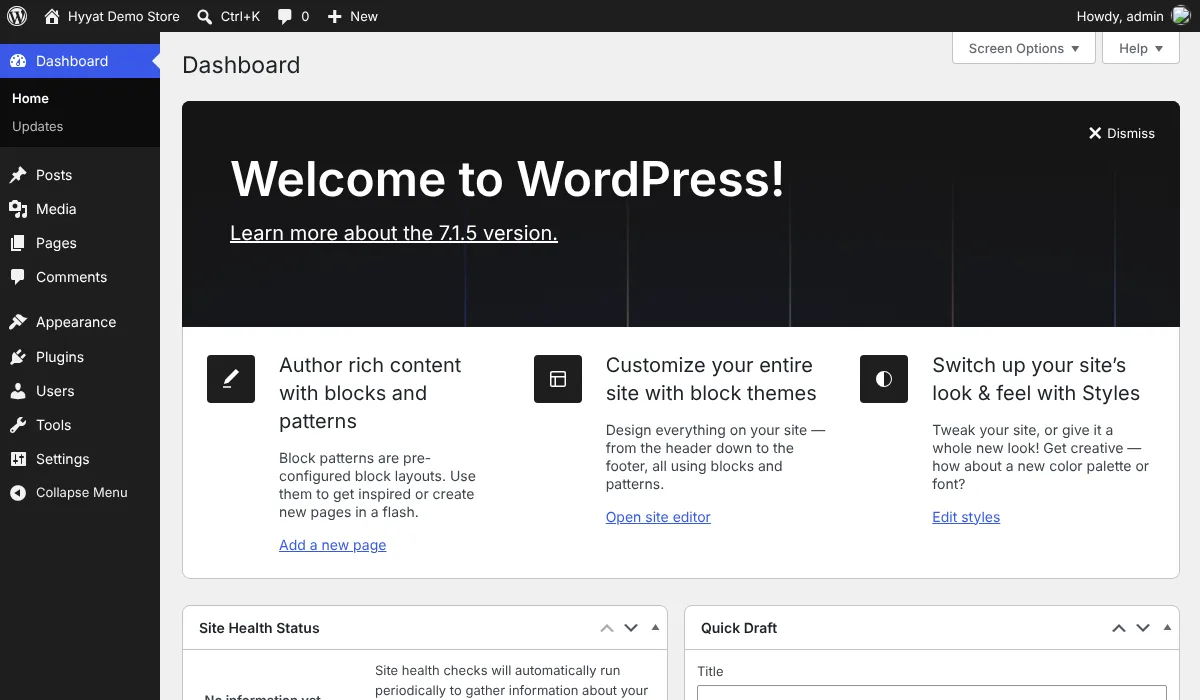
| Part | Where | What it holds |
|---|---|---|
| Toolbar | Across the top, in a dark bar | Your site name to visit it, a New button for quick content, new comments and your account |
| Side menu | Down the side | Every section of the site, with sub-items under each |
| Work area | The middle | Whatever you opened: the post list, the editor or a settings screen |
The home screen shows small boxes: a welcome for the current version, Site Health Status, and Quick Draft to save an idea as a draft. Hide any box from Screen Options at the top.
A map of the side menu #
| Section | What you do there |
|---|---|
| Posts | Posts, categories and tags: regularly updated content such as news or a blog |
| Media | Every image and file you have uploaded |
| Pages | Static content: home, about, contact |
| Comments | Review, approve or delete comments |
| Appearance | Themes, the editor or Customizer, menus and fonts |
| Plugins | Install, activate and update plugins |
| Users | Who can log in and their roles, plus your own profile |
| Tools | Import, export and Site Health |
| Settings | Site title, home page, permalinks and privacy |
Some plugins add their own sections to the menu, such as an SEO or shop plugin. That is normal; each of those sections manages only that plugin.
The first five steps after logging in #
- Update WordPress from Dashboard › Updates, then update plugins and themes.
- Set the site title and tagline in Settings › General, where you can also add a Site Icon; see the site icon guide.
- Choose your link format in Settings › Permalinks, pick Post name for readable URLs.
- Remove what you do not need the sample post and page, and unused themes and plugins.
- Create your first page with adding a new page.
Terms you will meet here #
| Term | Meaning |
|---|---|
| Dashboard | The first screen after login, and a name for the whole admin area |
| Slug | The written part of a URL, such as about in yoursite.com/about |
| Block | A building piece in the editor: paragraph, heading, image or button |
Each section in detail #
Posts #
All Posts lists your posts with search and filters by date and category, Add Post starts a new one, and Categories and Tags organise them. From the list, Quick Edit changes the title, category or status without opening the editor. More in adding a post and categories.
Media #
The library of everything you uploaded: images, PDFs and video, as a grid or a list. Open any image to see its direct URL and set its Alt text and title. An image used in a post stays if you delete the post, but disappears everywhere if you delete it from the library.
Pages #
Like posts, but for static content and without categories. The home page is chosen in Reading settings. See adding a page.
Comments #
Pending, approved and spam comments. If your site does not need comments at all, turn them off in Settings › Discussion to cut down on spam.
Appearance #
It depends on your theme type. Block themes have Editor for headers, footers, templates, colours and fonts in one place, plus Fonts for the font library. Classic themes have Customize, Widgets and Menus. Both have Themes to switch themes: installing a theme; menus are in the menus guide.
Plugins #
Installed plugins with activate, deactivate, delete and auto-update controls, and Add Plugin to install new ones. See installing plugins.
Users #
| Role | What they can do |
|---|---|
| Administrator | Everything: plugins, themes, settings and users |
| Editor | All posts and pages, including other people’s |
| Author | Write and publish their own posts and upload images |
| Contributor | Write posts without publishing; they wait for an editor |
| Subscriber | Their own profile only |
Give each person the lowest role that does the job. A writer does not need Administrator, and every extra admin account is one more door if its password is stolen.
Tools #
Import and Export to move content as an XML file, Site Health to check the PHP version, updates and settings and suggest improvements, and privacy tools to export or erase a person’s data on request.
Settings #
| Screen | Key options |
|---|---|
| General | Site title and tagline, site icon, site address, admin email, language and time zone |
| Writing | The default post category |
| Reading | The home page, posts per page, and the option to discourage search engines |
| Discussion | Comments and moderation |
| Media | The image sizes WordPress creates |
| Permalinks | The URL format |
| Privacy | The privacy policy page |
The toolbar up close #
When you visit your site while logged in, the toolbar shows at the top there too, with Edit Page or Edit Post to edit what you are looking at. If it bothers you while browsing, untick Show Toolbar when viewing site in your profile.
In WordPress 7 the toolbar also has a quick search, opened with Ctrl+K, that takes you to any admin screen by typing its name.
Our customers asked #
What is the WordPress dashboard address?
Your site address followed by /wp-admin, such as example.com/wp-admin.
How do I switch the dashboard language?
In Settings › General choose a Site Language, or set a language for your account only in Users › Profile.
Why can’t I see Plugins or Appearance?
Your account has a lower role than Administrator. Ask the site administrator to change it.
Can several people use the dashboard?
Yes. Give each person their own account in Users › Add User with the right role, rather than sharing one login.


