

wp-content/plugins, rename the old plugin folder (for example to name-old), upload the new folder with the original name, and open the Plugins screen to activate it if needed. Once everything works, delete the old folder.One-click updates work most of the time. They can stop halfway because of a dropped connection, file permissions, or a premium licence that does not allow updates from the dashboard. That is when you update manually.
When do you need a manual update? #
| What you see | Likely cause |
|---|---|
| Update failed: Download failed | The server could not download the file from the plugin source |
| Could not create directory or Could not copy file | Permissions on wp-content, or disk space |
| The site shows Briefly unavailable for scheduled maintenance | The update stopped halfway and left a .maintenance file |
| No update button for a premium plugin | The licence is not activated on this site |
Steps #
- Download the new version from the WordPress directory or your account with the developer, and unzip it on your computer.
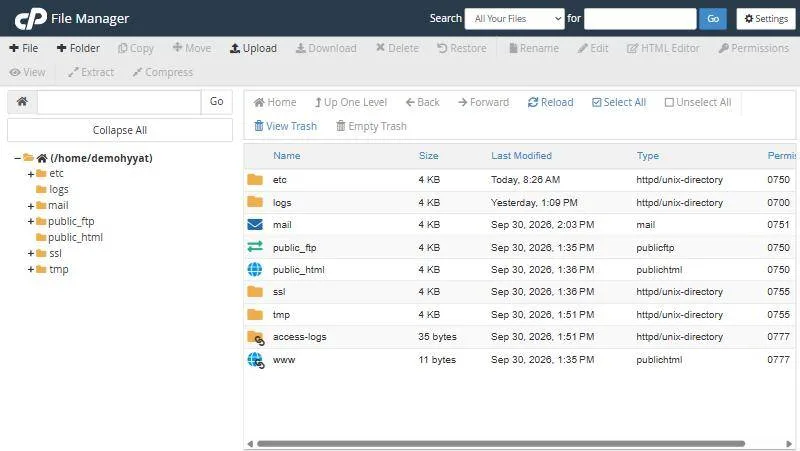
- Open the plugins folder via FTP or cPanel File Manager:
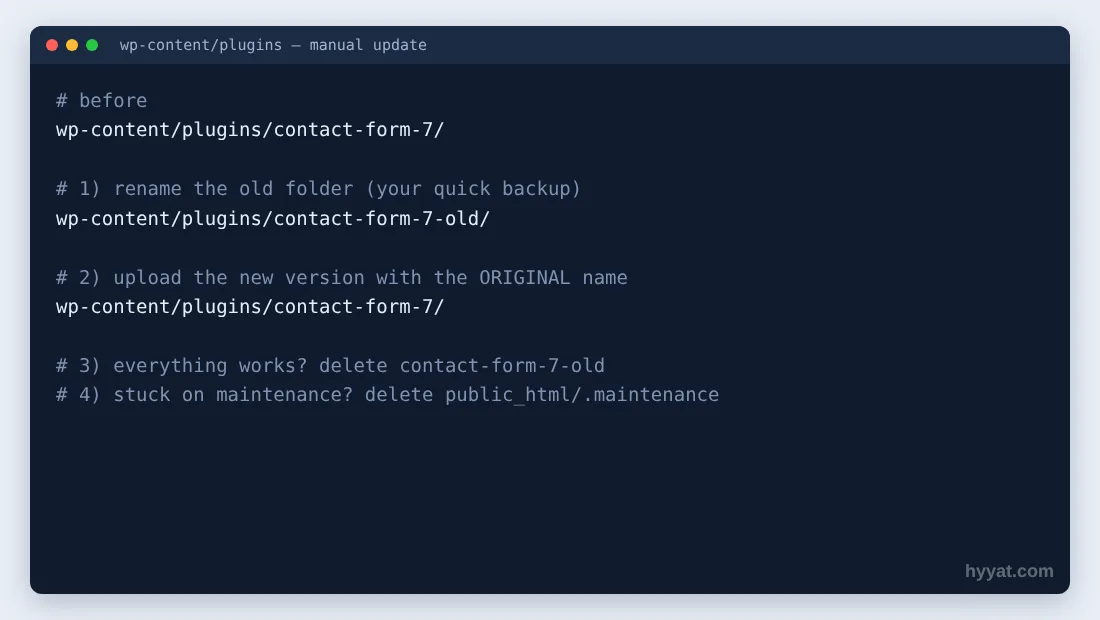
public_html/wp-content/plugins. - Rename the old one for example
contact-form-7becomescontact-form-7-old. That is your quick backup. - Upload the new one with exactly the original name. In File Manager, upload the .zip and click Extract.
- Check open Plugins in WordPress. Activate it if it shows as inactive, confirm the version number, and browse the site.
- Clean up if all is well, delete the old folder. If something breaks, delete the new one and rename the old one back.
contact-form-7-5.9. WordPress sees two plugins and the site can crash from duplicate functions.The site is stuck on the maintenance message #
During updates WordPress creates a file called .maintenance in the site’s root folder and deletes it at the end. If the update is interrupted, the file and the message stay. Fix: delete .maintenance from public_html; in File Manager, turn on hidden files under Settings to see it.
Before any big update #
- Back up the site; the easiest way is WP Toolkit: the WordPress Toolkit guide.
- Read the plugin’s changelog if it is a major update.
- Update one plugin, then check, not ten at once.
To install a new plugin manually rather than update one: the manual install guide.
Our customers asked #
Will I lose the plugin’s settings?
Usually not; settings live in the database, not the plugin folder. Back up before major updates anyway.
Can I update by uploading a .zip in the dashboard instead of FTP?
Yes. In Plugins › Add Plugin › Upload Plugin, WordPress offers to replace the current version with the uploaded one.
A fatal error appeared after updating
Rename the old folder back and delete the new one, then contact the developer. If you cannot reach the dashboard: disabling plugins from cPanel.
How long should I wait before deleting the old folder?
Until you are sure the site and plugin work; a day or two for important plugins.


