

🔧 Disabling WordPress Plugins from cPanel #
Disable WordPress plugins from cPanel is one of the fastest ways to fix issues caused by conflicting or broken plugins. In this guide, we’ll show you how.
“Why Disable Plugins via cPanel?” #
-
When WordPress crashes and you can’t log in
-
If you’re testing plugin conflicts
-
For debugging performance issues
🔴 How to Disable All WordPress Plugins #
Sometimes, a theme or plugin conflict can cause issues in your WordPress website. In such cases, we may need to disable all WordPress plugins. In this tutorial, we’ll explain how to do that using cPanel.
❓ What Are WordPress Plugins? #
WordPress plugins are tools that you can install on your WordPress website to add features and functionality without writing any code. This makes WordPress much easier to use for building and managing websites.
🛠️ Steps to Disable Plugins #
✅ 1- Access Your cPanel #
Visit: https://www.name.com:2083
Replace name with your actual domain, and enter your username and password.
✅ 2- Go to the File Manager #
“Alternative Methods” #
-
Using FTP (FileZilla)
-
Using phpMyAdmin (via database)
-
Using WP-CLI for advanced users
Navigate to the Files section and click on File Manager.

✅ 3- Open the public_html Directory #
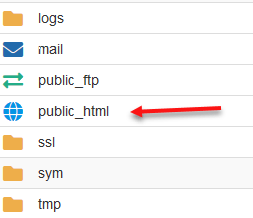
✅ 4- Navigate to wp-content/plugins #
Inside the wp-content/plugins folder, you will see all your installed plugins listed as folders.
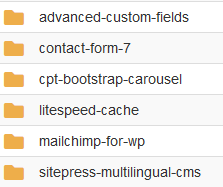
✅ 5- Rename the Plugin Folder #
To disable any plugin:
- Rename its folder (e.g.,
elementortoelementor_disabled) - To disable all plugins, rename the entire
pluginsfolder (e.g., toplugins_old) - To re-enable them later, restore the original name.
Q1: Will I lose my plugin settings when I rename the folder?
A: No, plugin settings are saved in your WordPress database and won’t be lost when disabling by renaming the folder.
Q2: Can I disable only one plugin?
A: Yes, just rename that specific plugin’s folder.
🎉 Now that you know how to disable WordPress plugins from cPanel, you can troubleshoot your site confidently. Always remember to re-enable one plugin at a time when testing, and keep backups ready before making changes.
📚 Related Tutorials #
- Enable or Disable Email from cPanel
- Disable All WordPress Plugins
- Disable Directory Listing via cPanel
💜 Best regards from the Hayat Host team.
Related service: fast WordPress hosting from Hyyat Host, with technical support that replies within 24 hours.