

This guide shows how to change the password of your cloud server from the Hyyat Host client area.
Steps #
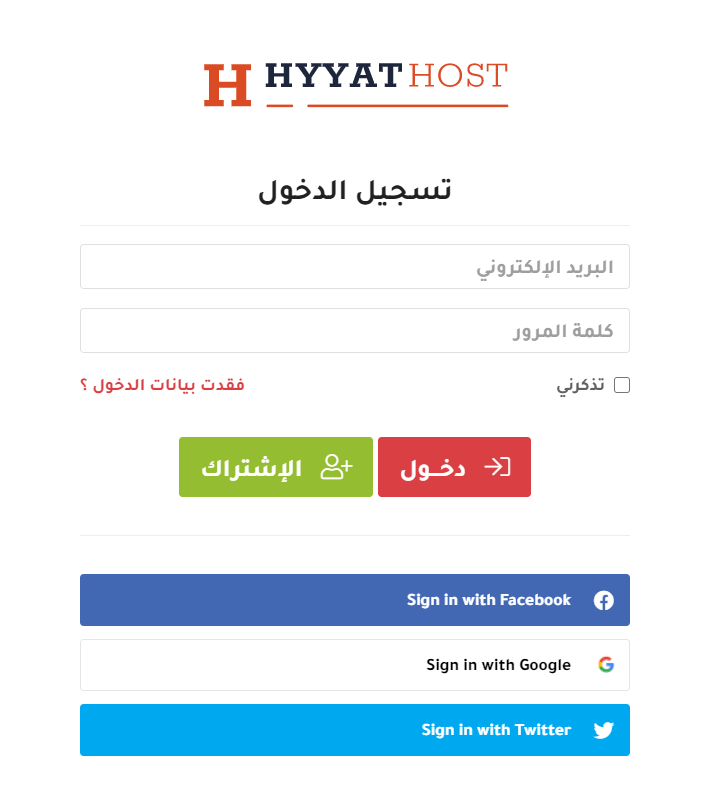
1. Log in to the client area. See how to log in to the client area.
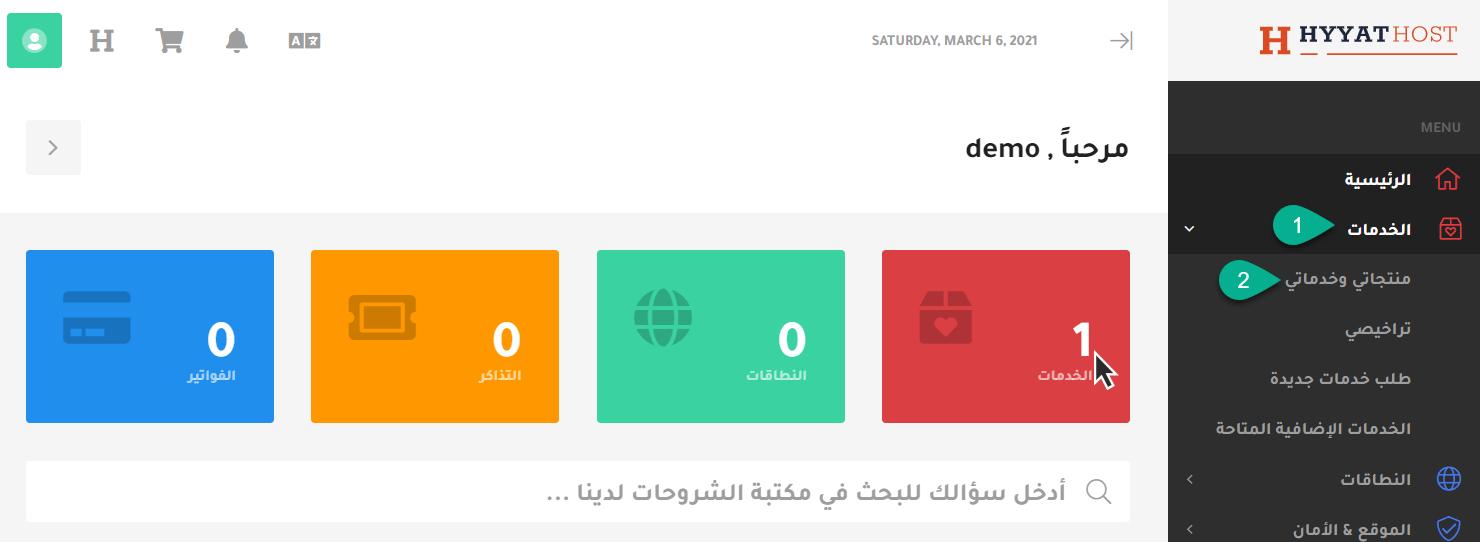
2. Click Services, then My Products & Services.
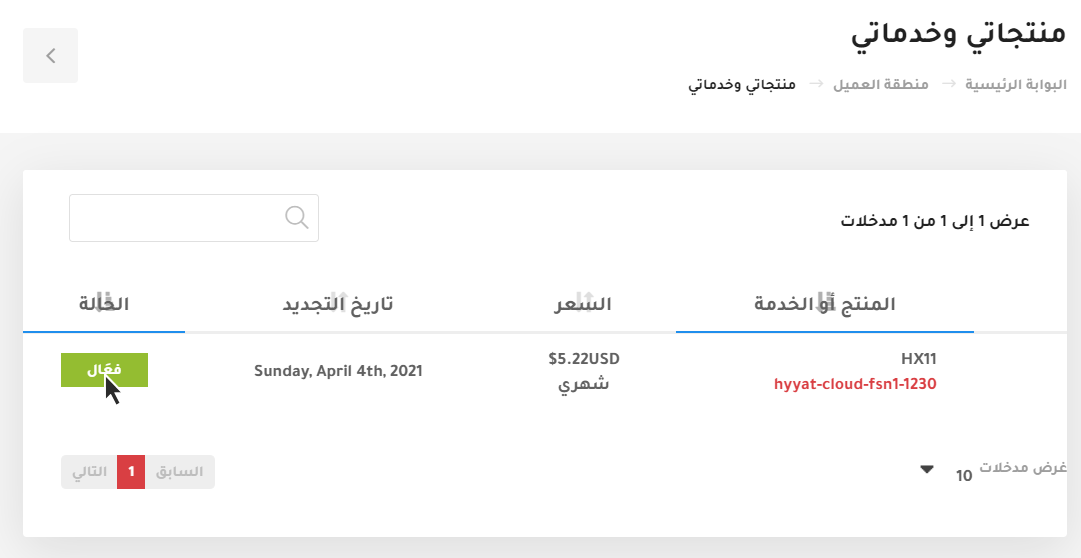
3. Your services appear. Choose the server you want to manage and click Active.
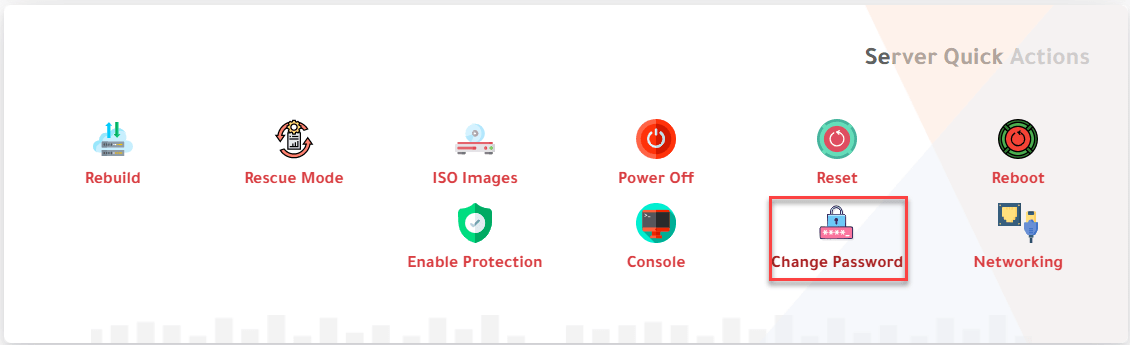
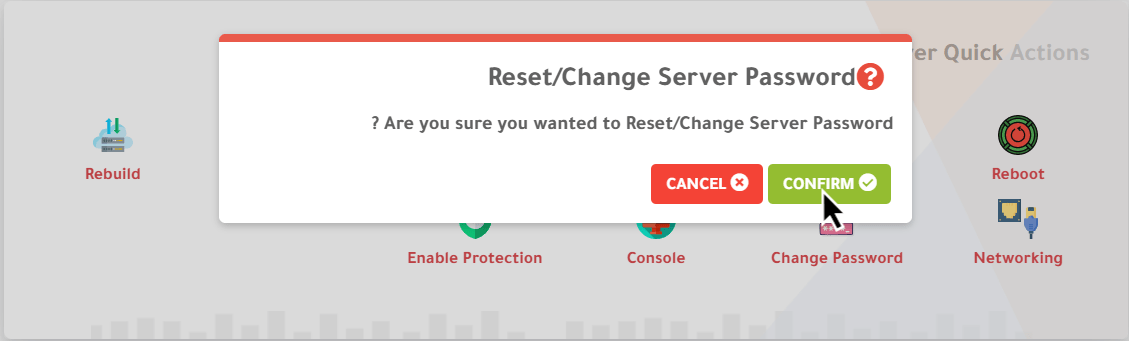
4. Scroll down to Server Quick Actions and choose Change Password. A confirmation message appears; click Confirm.
The message reads: “Are you sure you wanted to Reset/Change Server Password?”
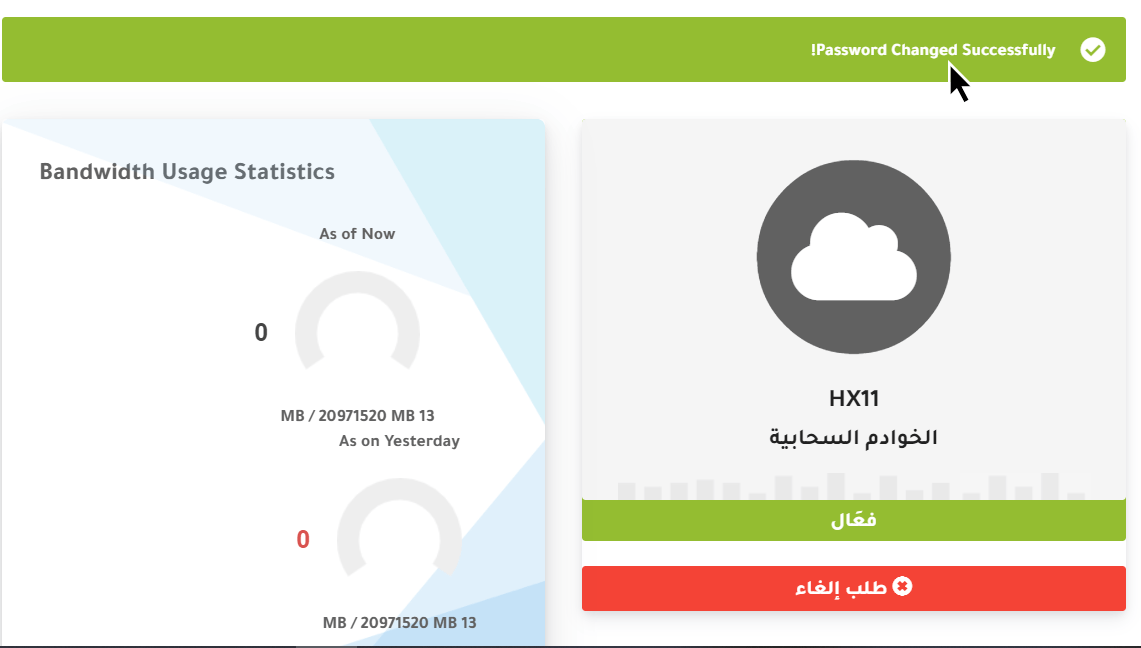
5. A message at the top confirms that the password has been changed.
6. To see the new password, go to the server details box (named Server: your server name) and click the eye icon next to Server Password.
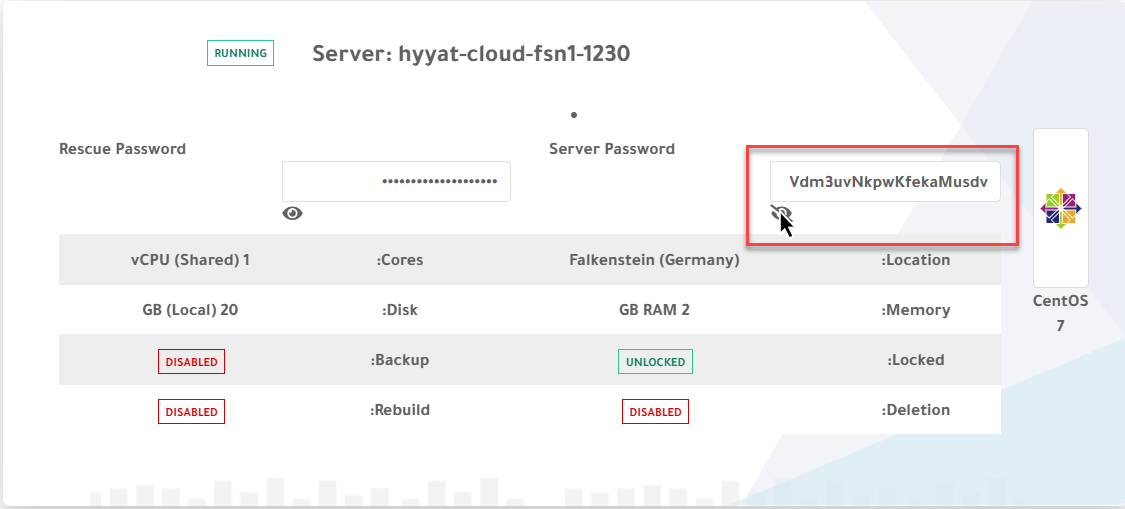
Keep the password in a safe place. You can always view it again in the client area.
Related service: Hyyat Host cloud servers with full root access and 24/7 support.


