

In short: Install an FTP client such as FileZilla, connect with Host: your domain, Username and Password: your cPanel login (or an FTP account), Port: 21, then drag your files into public_html. For a few files, you can use cPanel File Manager instead.
Method 1: Upload from cPanel File Manager #
- Log in to cPanel and open File Manager.
- Open the folder of the domain you want (usually public_html).
- Click Upload and choose your files.
File Manager uploads files one by one, so for a whole website compress it into a .zip file first, upload it, then use Extract. Full screenshots: how to upload files with cPanel.
Method 2: Upload with an FTP client #
When your hosting account is activated, you receive an email with your main FTP login, which can access all files in the account. You can also create extra FTP accounts in cPanel under FTP Accounts, each limited to a folder and a quota.
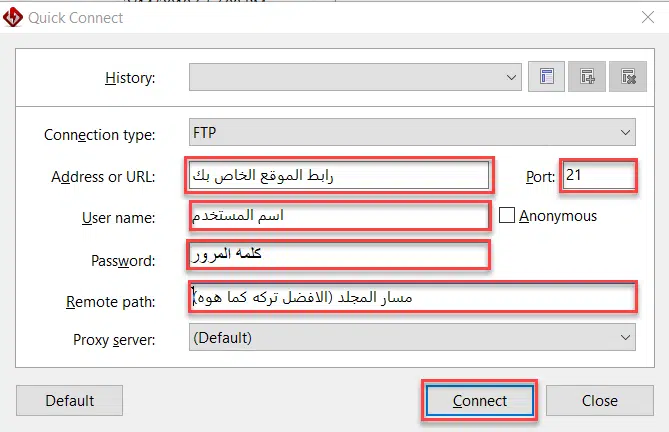
- Download and install an FTP client such as FileZilla.
- Enter the connection details:
- Host / Server: your main domain on the hosting account.
- Username: your cPanel username (or the FTP account username).
- Password: your cPanel password (or the FTP account password).
- Port: 21.
- After connecting, drag files from your computer into the folder you want on the server and wait for the transfer to finish.
- To download a file, drag it from the server to a folder on your computer.
Tip: in FileZilla, choose Use explicit FTP over TLS if available in the Site Manager so your password is sent encrypted.
Related service: shared hosting plans from Hyyat Host, with 24/7 support.


