

When do you need this? #
Sometimes you cannot log in to WordPress, or you forgot the admin password and cannot recover it by email. In that case you can change the password directly in the database with phpMyAdmin, which comes with your hosting control panel.
Steps #
In this example we change the password of the user admin.
1. Log in to cPanel (yourdomain.com/cpanel) and click phpMyAdmin in the Databases section.
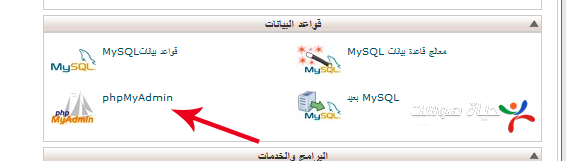
2. phpMyAdmin opens in a new window and shows the databases in your account.
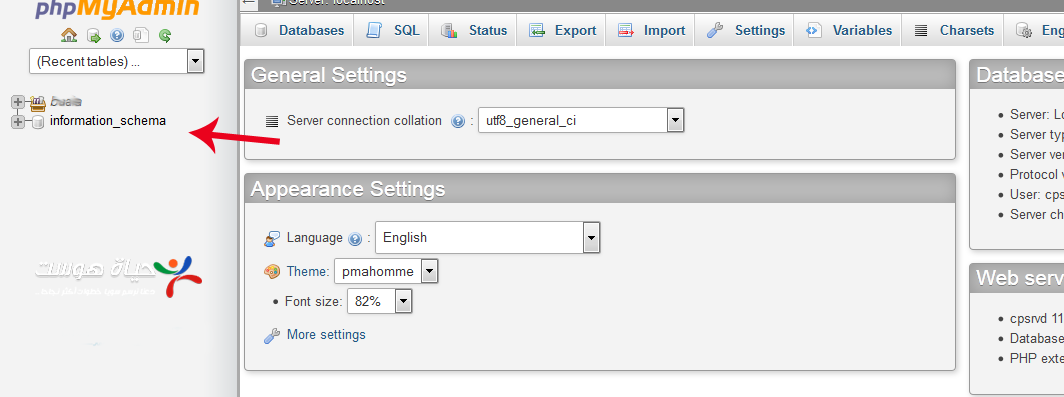
3. Click the database your WordPress site uses. If you are not sure which one, check DB_NAME in the site’s wp-config.php file.
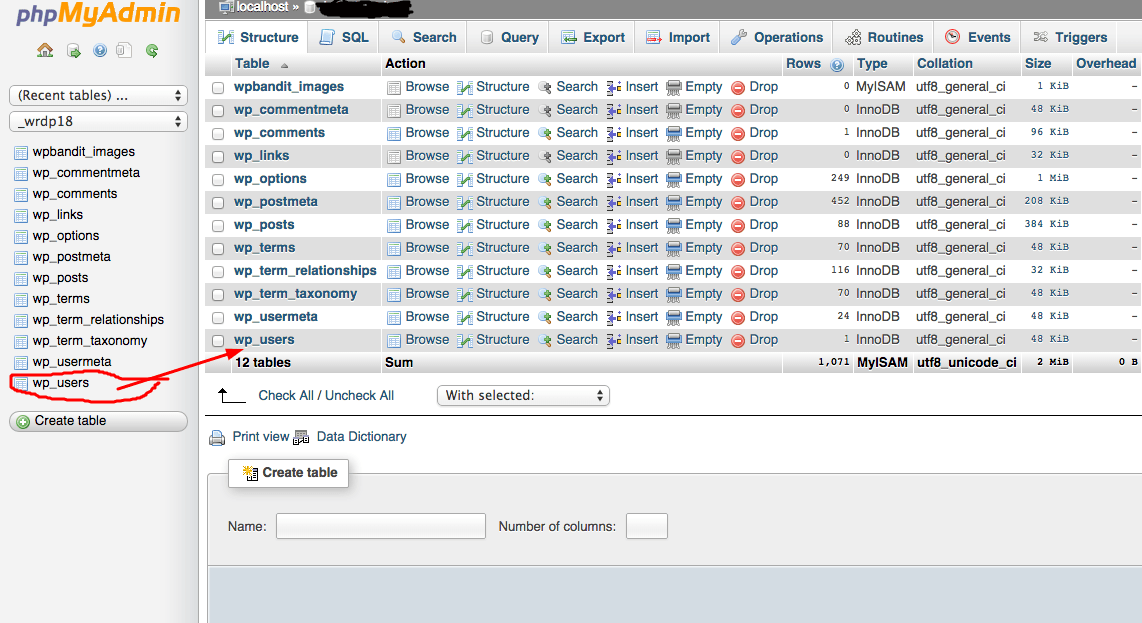
4. Find the users table, usually named wp_users (the prefix may be different), and click Search.
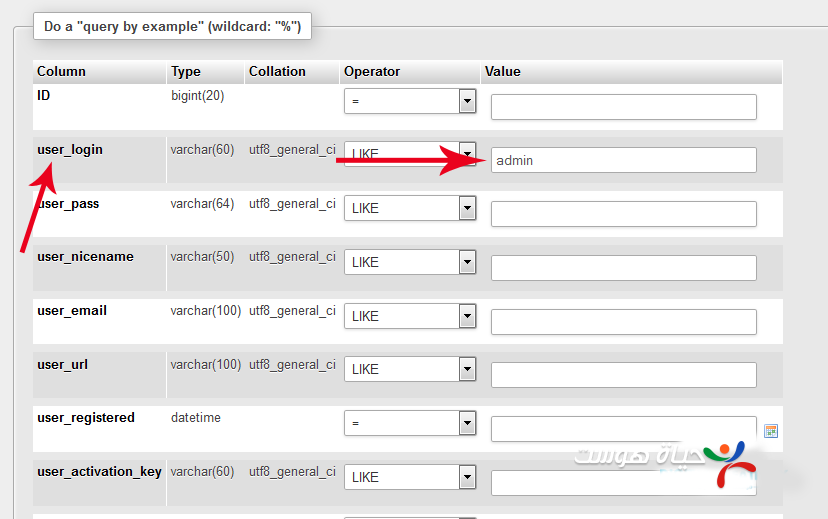
5. In the user_login field, type the username (here: admin) and click Go. The matching user appears.
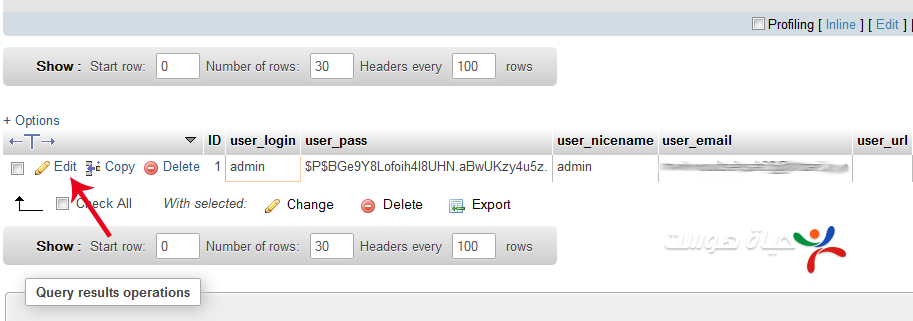
6. Click Edit next to the user.
7. In the user_pass field, type the new password and select MD5 from the Function drop-down. Do not save the password as plain text; without MD5 the new password will not work.
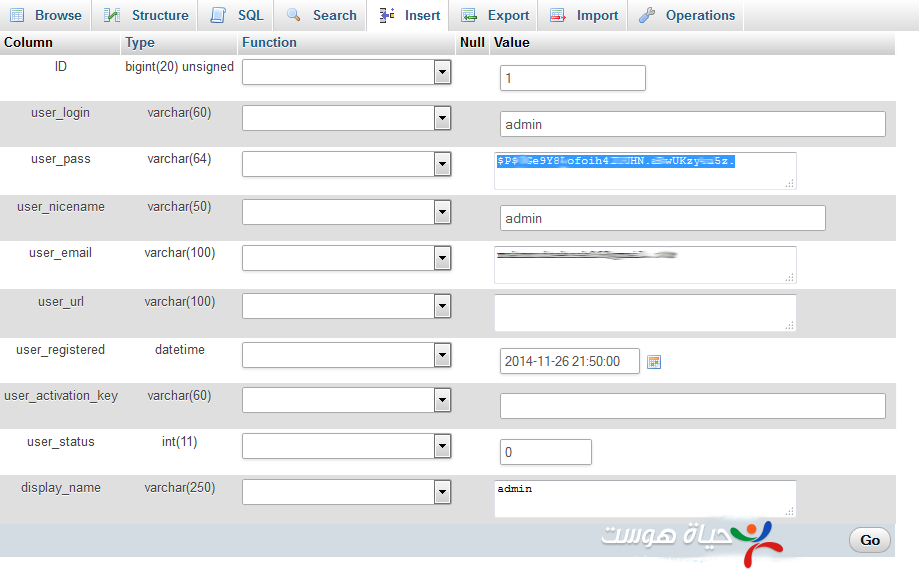
8. Click Go to save.
You can now log in to WordPress with the new password. WordPress automatically converts it to a stronger hash on your first login. For extra safety, change the password again from your WordPress profile after logging in.
Related service: Hyyat Host WordPress hosting is optimized for WordPress, from $1.93/month with free SSL and free migration.


