

A common problem: you cannot upload any image in WordPress, or uploaded images appear broken in the Media Library. Here is how to fix it.
The cause #
In most cases the uploads folder has wrong file permissions. Without the right permissions, WordPress cannot save files there, or cannot display them.
My site worked before. Who changed the permissions? #
There are several possible reasons: a server change or upgrade, a hacked site, or a theme or plugin from an untrusted source that changed permissions by mistake. If everything else works, you only need to set the permissions back to normal.
Fix the permissions #
1. Connect to your site with an FTP client such as FileZilla and open the wp-content folder. You will see the uploads folder.
2. Right-click the uploads folder and choose File permissions.
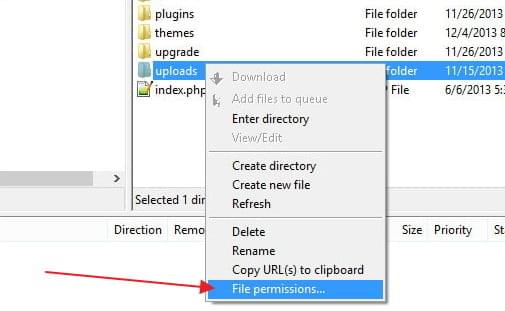
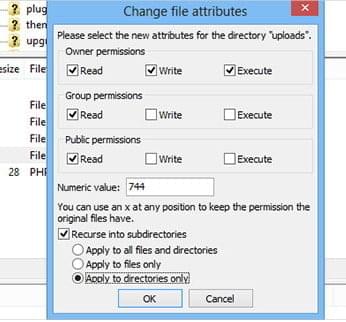
3. Enter 755 in the numeric value box, tick Recurse into subdirectories, choose Apply to directories only, and click OK.
4. Right-click the uploads folder again and choose File permissions. Enter 644, tick Recurse into subdirectories, choose Apply to files only, and click OK.
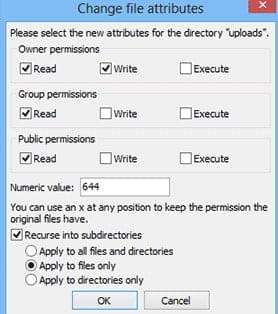
When FileZilla finishes, go back to your WordPress dashboard and try uploading images again.
Note: the correct permissions in WordPress are 755 for folders and 644 for files. Never use 777.
Related service: Hyyat Host WordPress hosting with correct server permissions, fast NVMe storage and 24/7 support.


