

In short: To set up an automatic reply for your email: go to cPanel, then Email, then Autoresponders, then Add Autoresponder. Choose the email address, enter the sender name, subject and message, set the interval between replies to the same sender, and the start and stop times, then click Create. Useful during holidays or outside working hours.
An autoresponder sends an automatic reply to incoming messages on a specific email account. It is useful when you are on holiday, unavailable, or want to send a standard message.
1. Log in to cPanel (see how to log in to cPanel).
2. In the Email section, click Autoresponders.
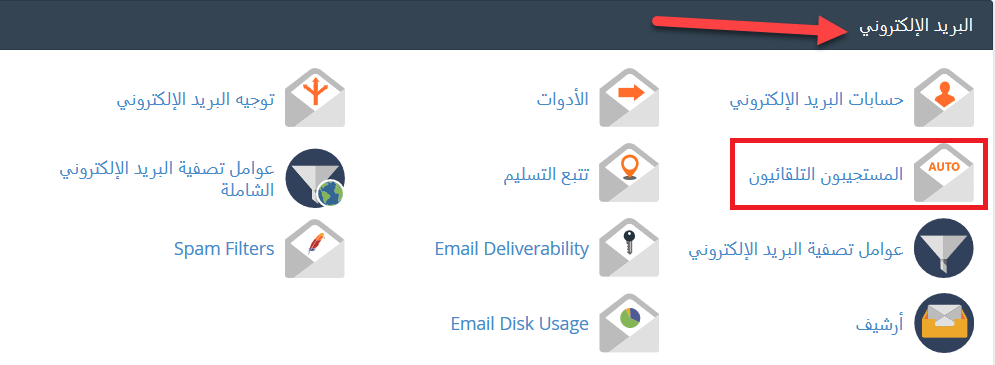
3. Click Add Autoresponder.
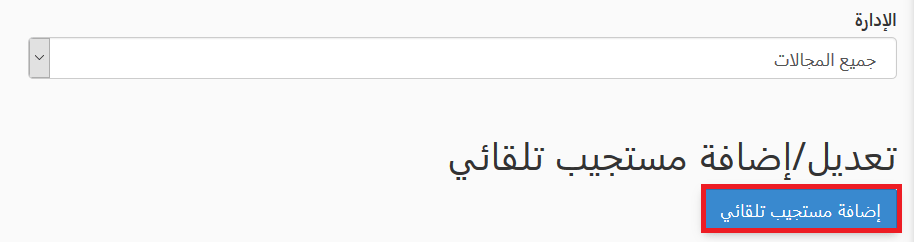
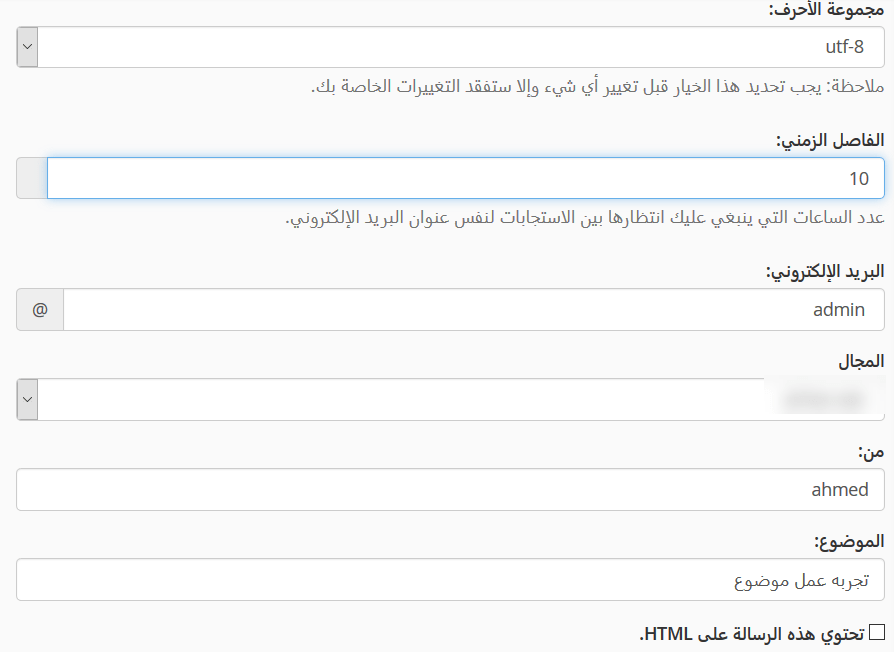
4. Fill in the form:
- Character Set: keep the default UTF-8.
- Interval: how many hours to wait before replying again to the same sender. For example, with 12 hours, if someone emails you at 10 am they get a reply at once, but no further reply until after 10 pm. With 0, every message gets a reply.
- Email: the address that sends the automatic reply.
- From: the name shown in the reply.
- Subject: the subject of the reply.
- This message contains HTML: tick it if your message uses HTML.
- Body: the text of the reply.
- Start: Immediately, or a custom date and time.
- Stop: Never, or a custom date and time after the start.
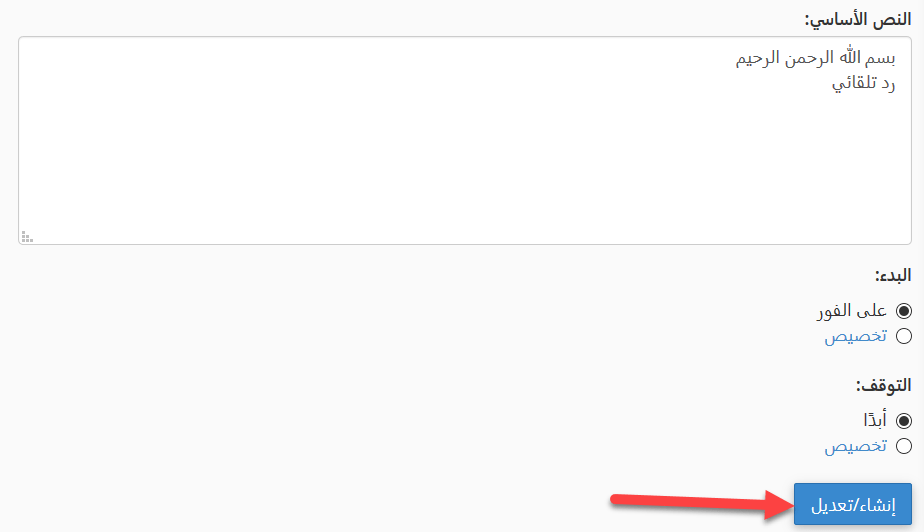
5. Click Create. Times are based on your device’s clock, so make sure it is correct.
Related service: Hyyat Host email hosting gives you professional email on your own domain, with 24/7 support.


