

In short: Log in to cPanel, open File Manager, go to public_html, click Upload, then select your files or drag and drop them. When the progress bar turns green, the upload is complete.
cPanel File Manager lets you upload, edit and delete your website files from the browser. Your site configuration may require files in a different folder than described here; if you need help with your code or content, consult your web developer.
- Log in to cPanel (see how to log in to cPanel).
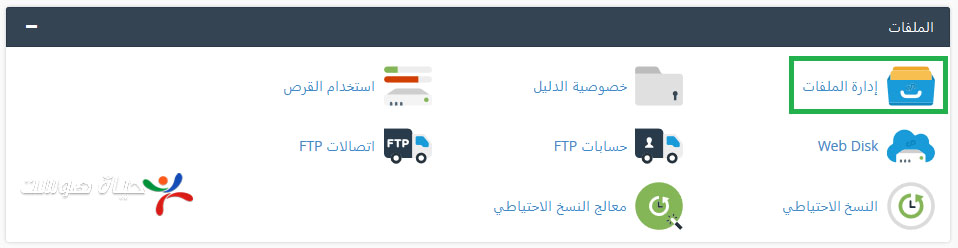
- In the Files section, click File Manager.
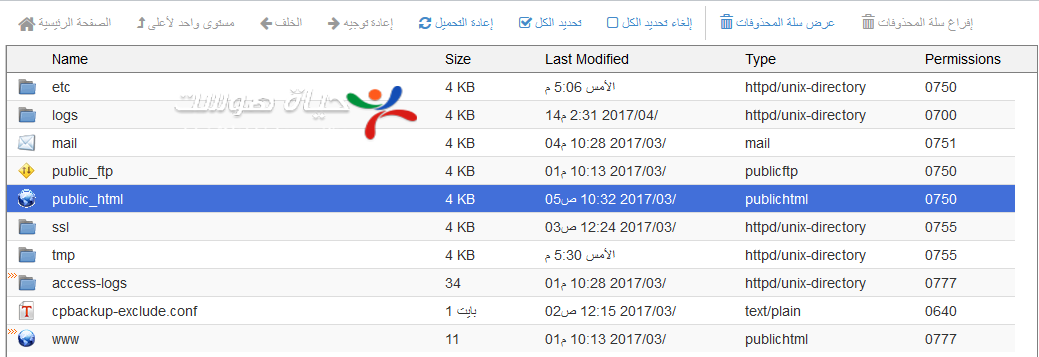
- Open public_html, the main folder of your website.

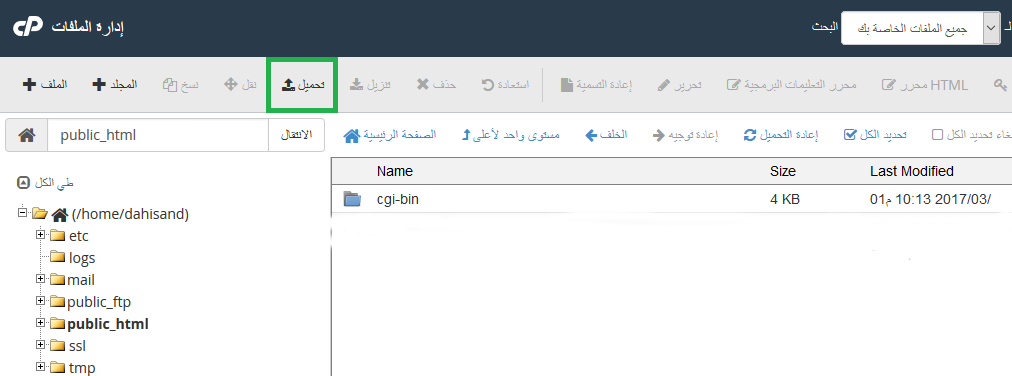
- Click Upload in the toolbar.

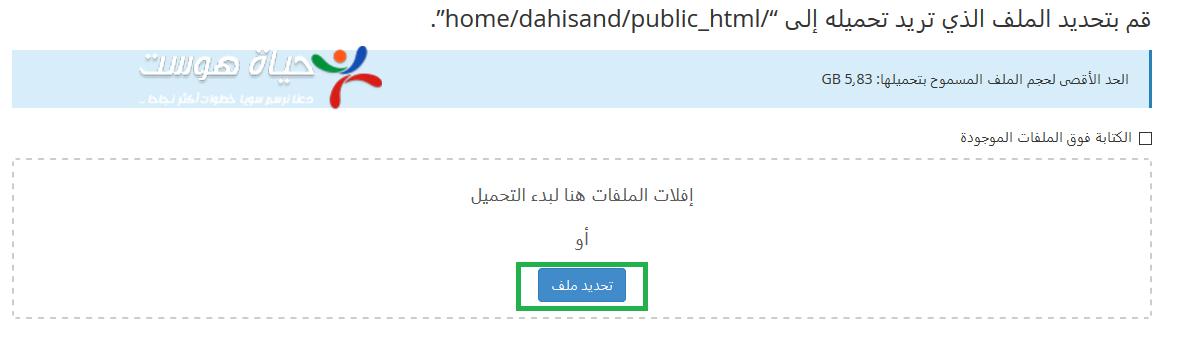
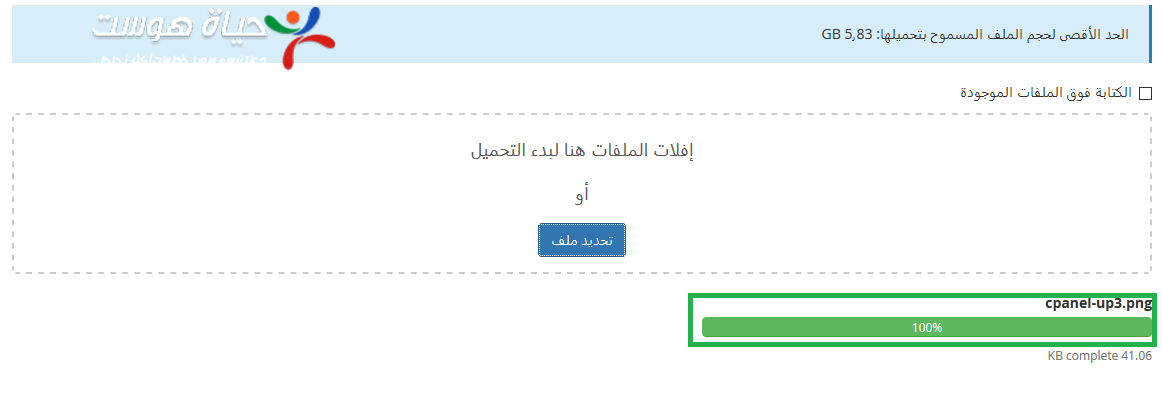
- On the upload page, click Select File or drag and drop your file onto the page.

- Wait for the progress bar to reach 100% and turn green, which means the upload is complete.

Tip: for many files, upload one .zip file, then right-click it in File Manager and choose Extract. For large sites, FTP is faster.
Related service: cPanel shared hosting from Hyyat Host, with 24/7 support.


