

WordPress usually just works, but errors in a plugin, theme or custom code can cause unexpected behavior. WordPress has built-in debugging tools, but they are off by default and cannot be set from the dashboard. WordPress Toolkit in cPanel gives you a simple interface to:
- Turn on and configure WordPress debugging.
- Find faulty plugins.
- Turn on and customize maintenance mode.
- Restore a backup.
Turn on and configure debugging #
Debug mode makes WordPress log the errors and warnings produced by PHP code. It is usually off because it uses server resources and can reveal internal information, so keep the logs private. To turn it on, select your site in WordPress Toolkit and click the Debugging switch in the Tools section.
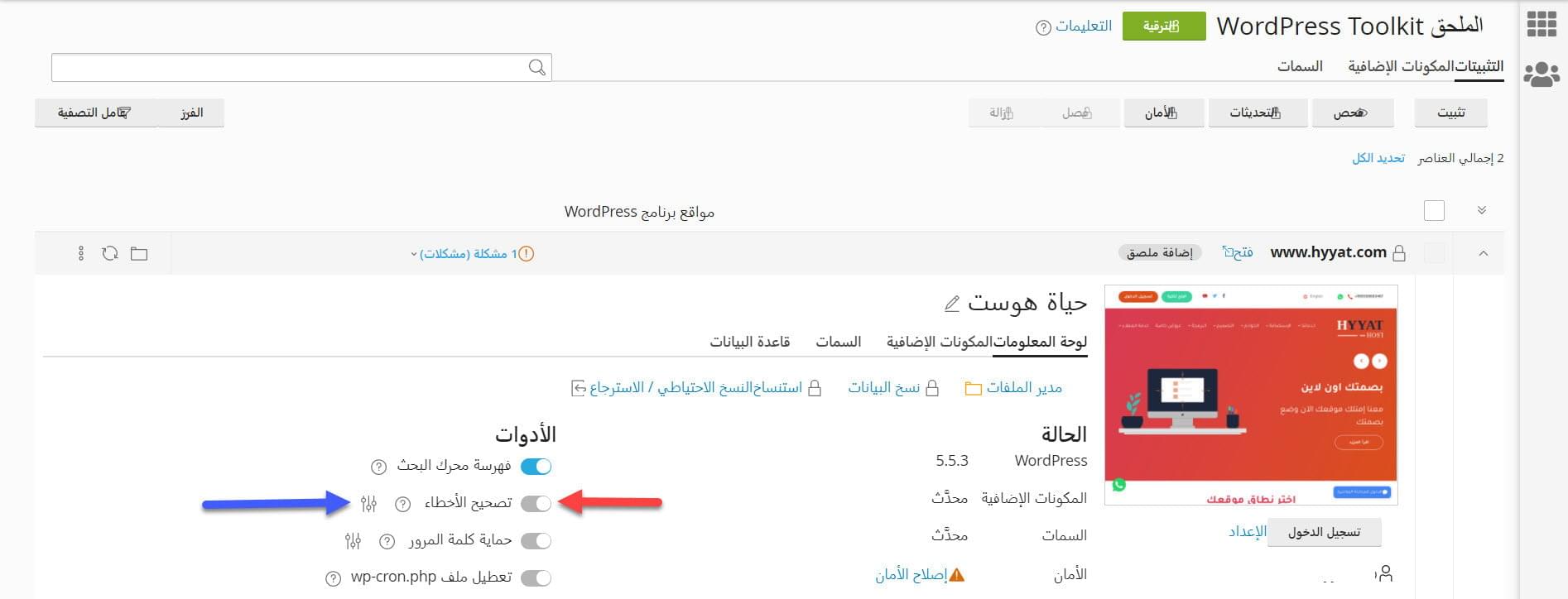
By default, errors are printed on the site’s pages. Click the settings icon next to the switch to change this.
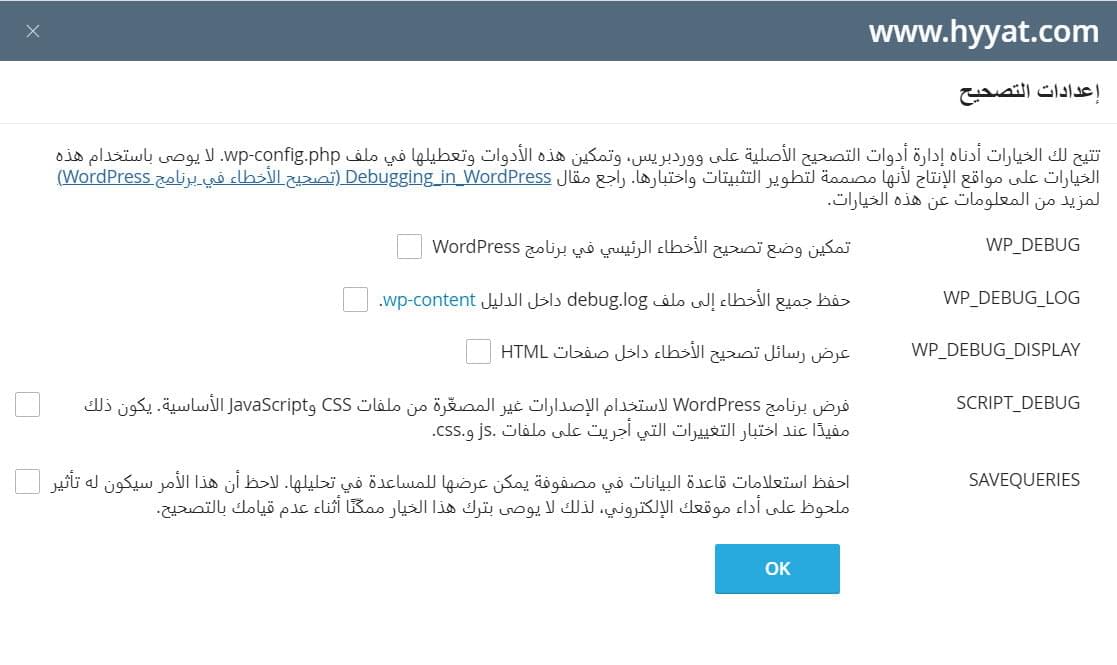
- WP_DEBUG turns debug mode on or off. Keep it off during normal operation.
- WP_DEBUG_LOG writes errors to a file named debug.log in the site’s wp-content folder.
- WP_DEBUG_DISPLAY controls whether errors are shown on the pages. Useful on a test site; on a live site, turn it off and use the log instead.
- SCRIPT_DEBUG makes WordPress use the non-minified CSS and JavaScript files, which helps find front-end errors.
- SAVEQUERIES saves database queries for inspection. It can slow the site down a lot, so turn it off when you finish.
Click OK to save. If you turned on WP_DEBUG_LOG, open File Manager, go to the site’s wp-content folder and open debug.log to read the errors.
Find a faulty plugin #
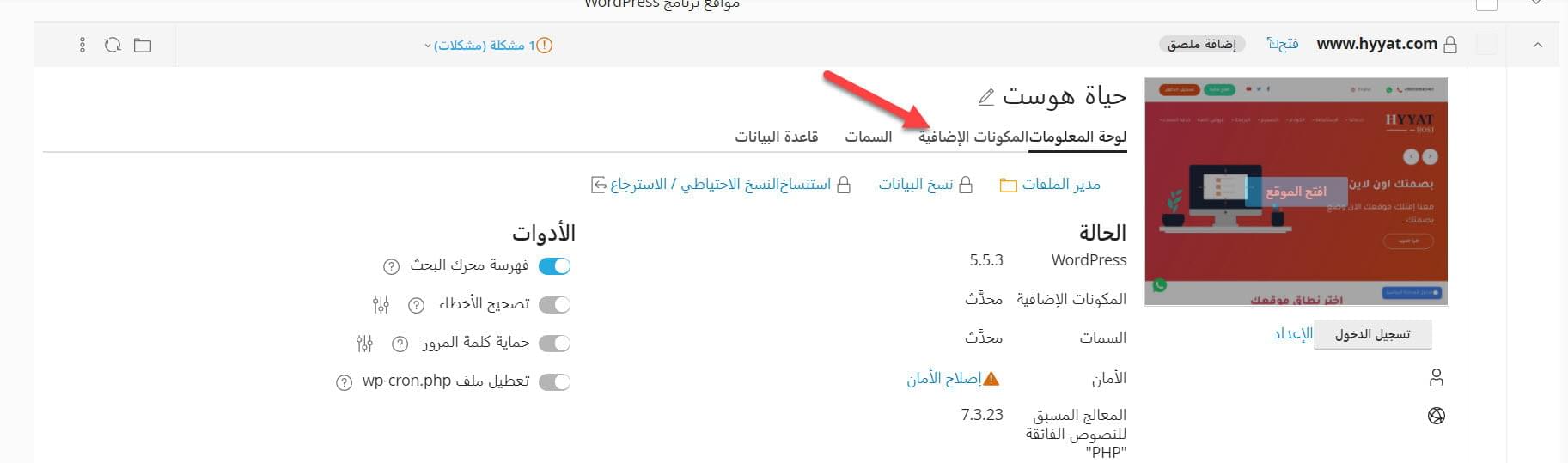
Reading PHP logs can be hard for non-developers. A simpler way is to deactivate plugins one by one until the problem disappears; the last plugin you deactivated is the cause. Select your site in WordPress Toolkit and open the Plugins tab.
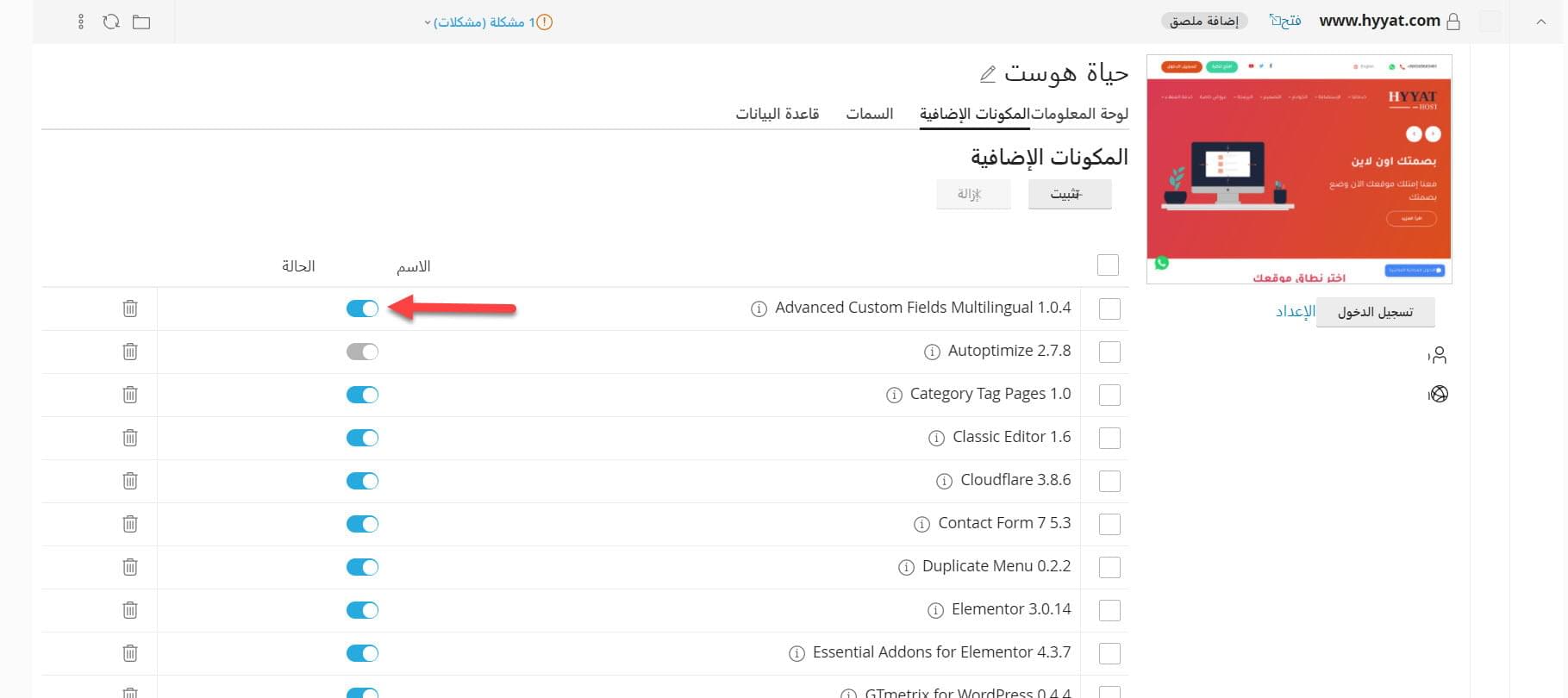
To deactivate or remove a plugin from all WordPress sites in your cPanel account, open the global Plugins tab, select the plugin and click the right button.
Turn on maintenance mode #
Debug mode is meant for test sites. If you find an error on a live site that affects visitors, combine it with maintenance mode, which shows a simple page telling visitors the site is being worked on. WordPress Toolkit includes an improved maintenance page with a customizable text and countdown. Select your site and click the maintenance mode switch.
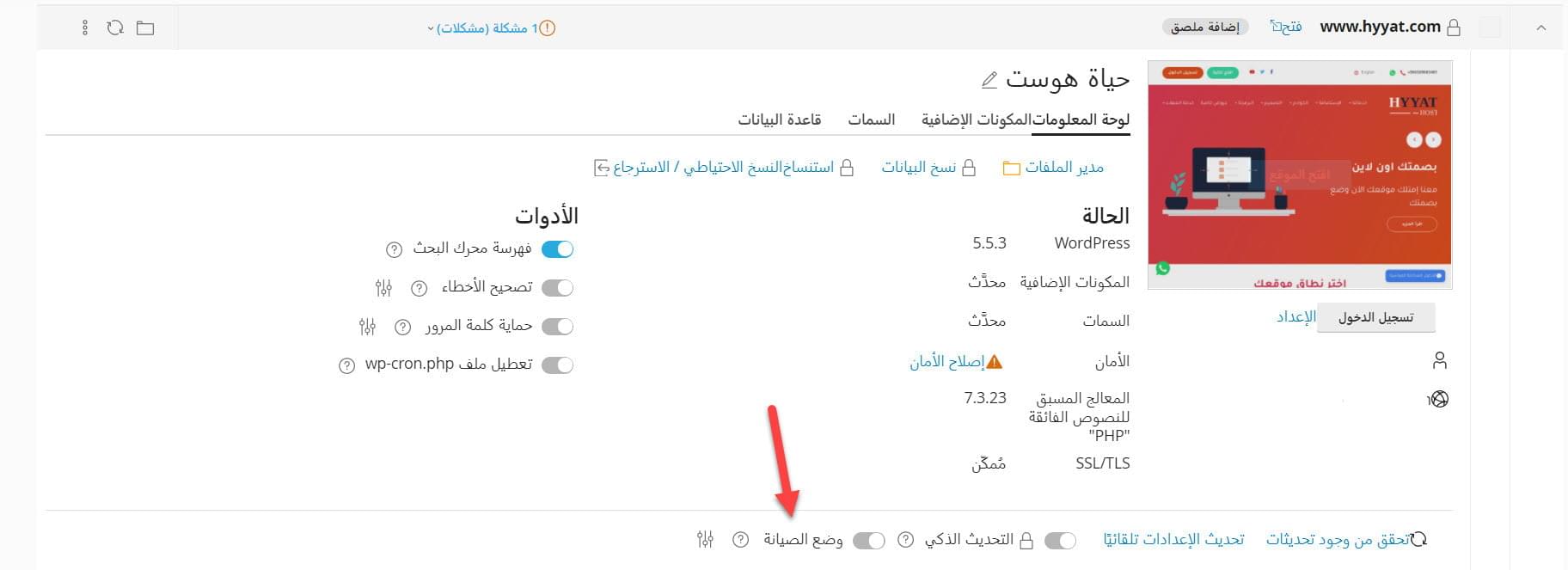
To customize the page, click the maintenance mode icon, make your changes and check them with the Preview button.
Restore a backup #
The fastest fix is often to restore a backup taken before the error appeared. Open Backup / Restore for your site in WordPress Toolkit.
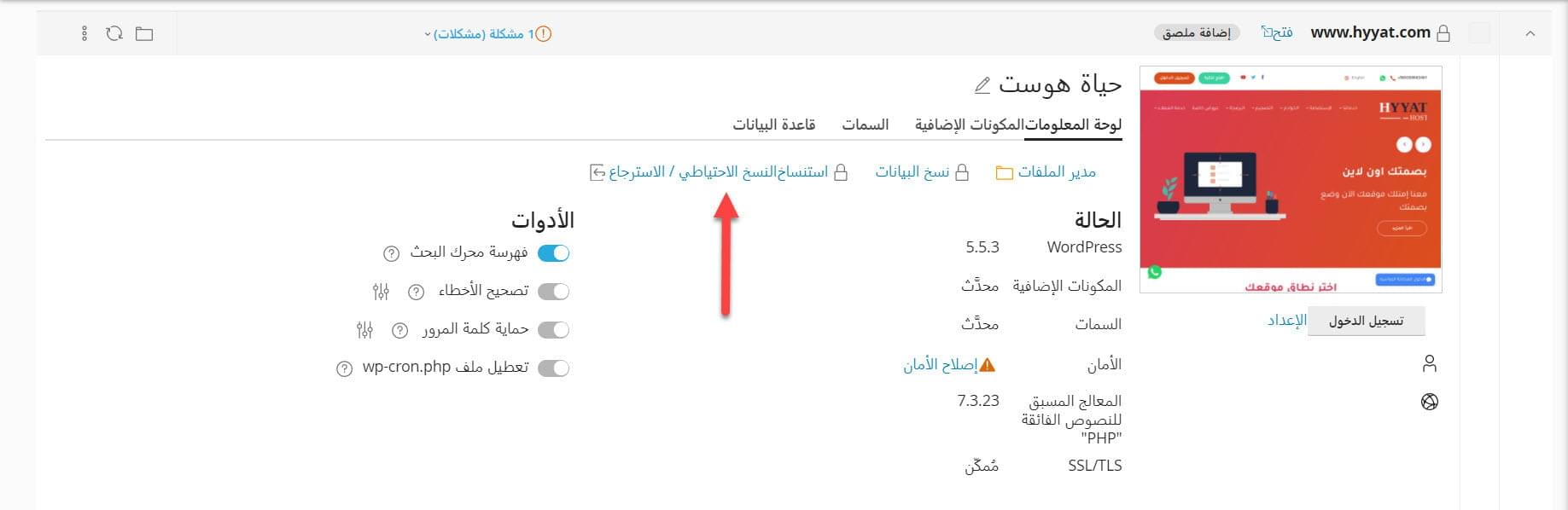
Choose a recent backup from the list and click Restore.
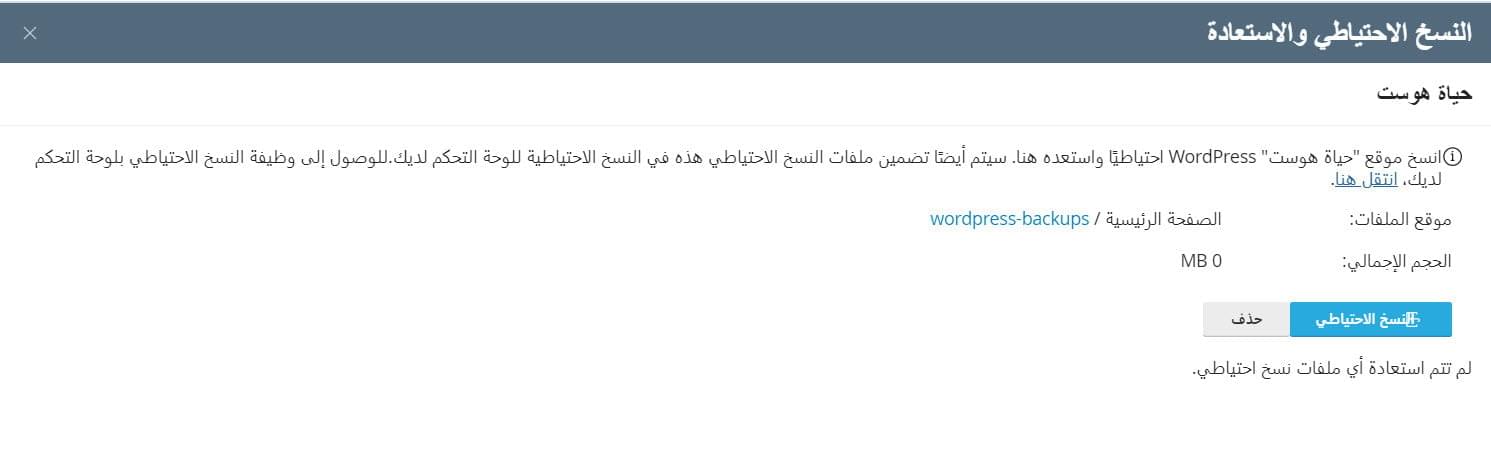
Note: restoring removes all changes made after the backup was taken, so create a new backup first.
Related service: Hyyat Host WordPress hosting includes WordPress Toolkit, automatic backups and 24/7 support.


