

In short: Email archiving in cPanel keeps copies of your incoming, outgoing and mailing list messages for a period you choose. Open cPanel → Email → Archive, select the message types and the retention period, and it applies to all email accounts on the domain.
Archived messages are stored in the mail folder of your account. Each day, a new folder is created by type and date (YYYY-MM-DD) containing all messages from that day.
Enable and configure email archiving #
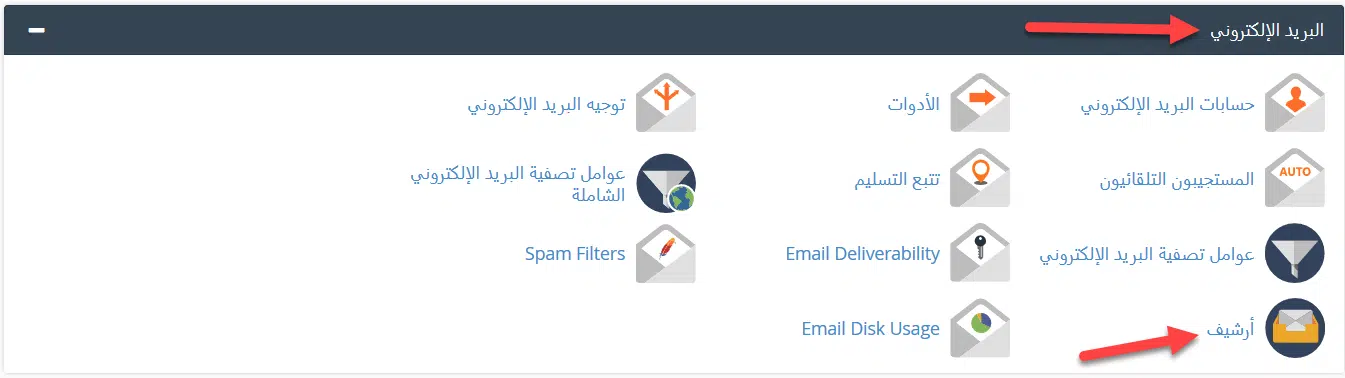
- Log in to cPanel.
- Click Archive in the Email section.
- Select the types of messages to archive.
- Choose how long to keep them: forever or a specific period.
- Wait a few seconds for archiving to be enabled for all domains on the hosting account.


Download the archive #
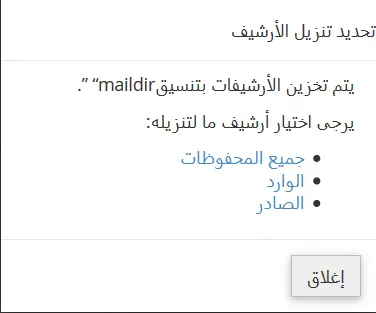
- Click Download Archive.

- Choose the folder to download: all archives, incoming or outgoing. A .zip file with the archived messages is downloaded to your computer.


View archived messages #
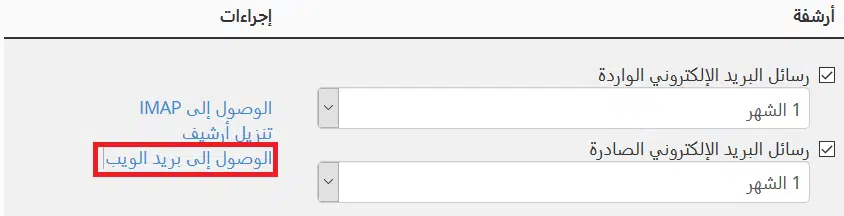
- Click Access Webmail to view the archive in webmail.

- Choose the webmail app you want to use.
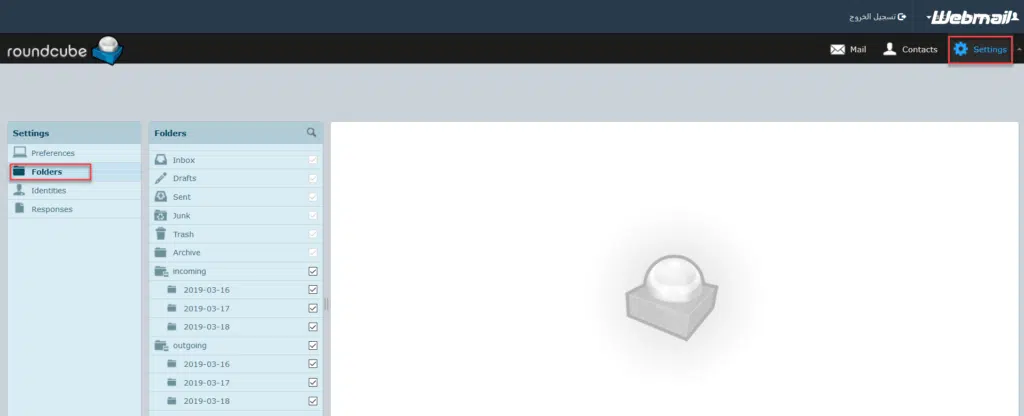
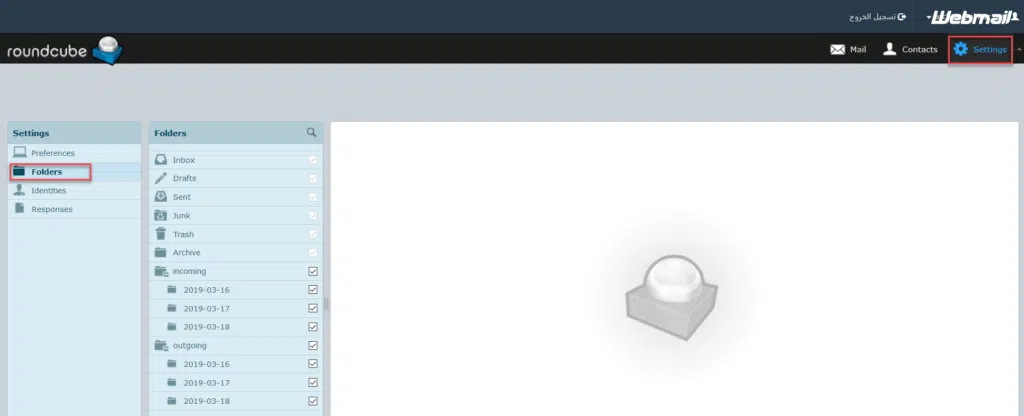
- Under the Archive folder you will find a subfolder for each type and date.
In Roundcube: open Settings, tick the subfolders you want to show, then refresh the page.
In Horde: click Archive to view all messages.
Notes #
- Archiving is enabled for all email accounts on the domain, not for a single account.
- Archived messages can only be viewed through webmail.
- You can forward a copy of all archived messages to another email address from the web interface.
- The archive uses disk space from your hosting plan; the longer the retention period, the more space it needs.
- Messages received before you enabled archiving are not archived.
Related service: cPanel shared hosting from Hyyat Host, with 24/7 support.


