

Automatic backups are one of the most important settings on a cPanel server. Here is how to turn them on in WHM.
1. Log in to WHM at https://your-server-ip:2087 with your username and password.
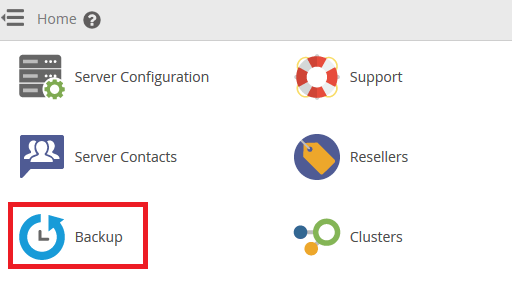
2. Click Backup, then Backup Configuration.
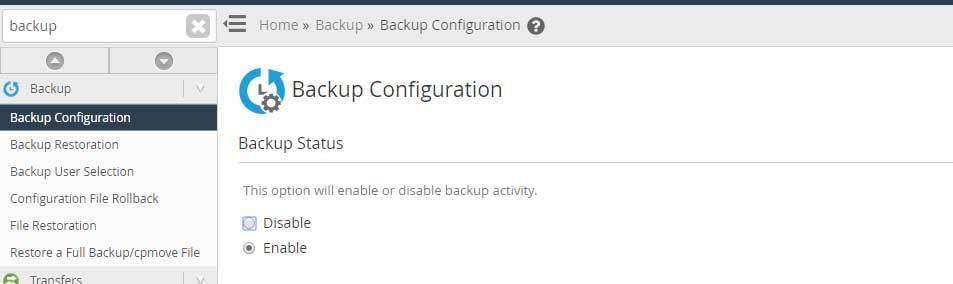
3. Click Enable to turn on the backup options.
Main options #
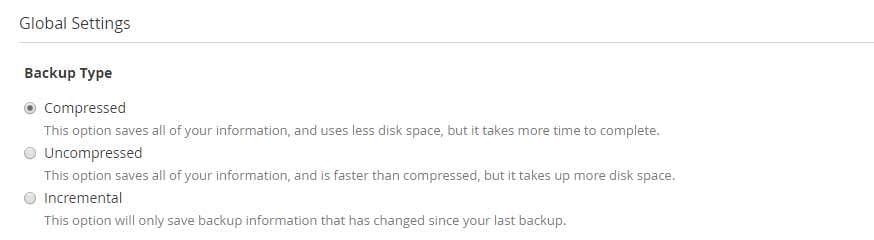
Backup Type has three choices:
- Compressed: compresses the backups; uses less disk space but takes longer.
- Uncompressed: faster, but uses much more disk space.
- Incremental: keeps an uncompressed copy and only updates the files that changed since the previous backup, so later backups are faster.
Minimum Free Disk Space Check: checks the available disk space before the backup starts, based on the value you set, to avoid filling the disk.

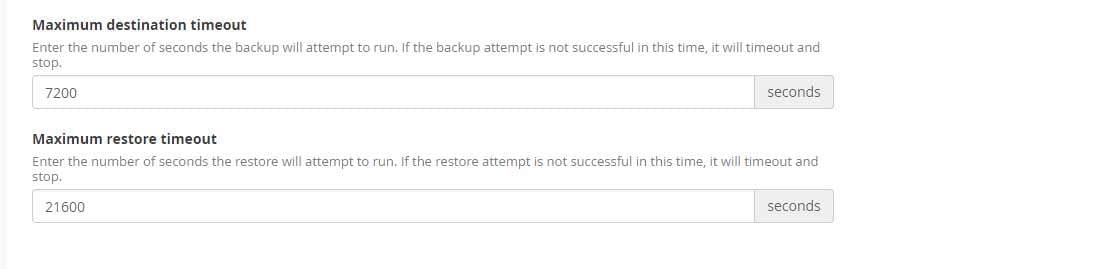
Maximum destination timeout: if you back up many accounts, enter a high number of seconds, or the backup may stop before it finishes.
Maximum restore timeout: similarly, enter a high number of seconds for restoring accounts.
Scheduling and retention #
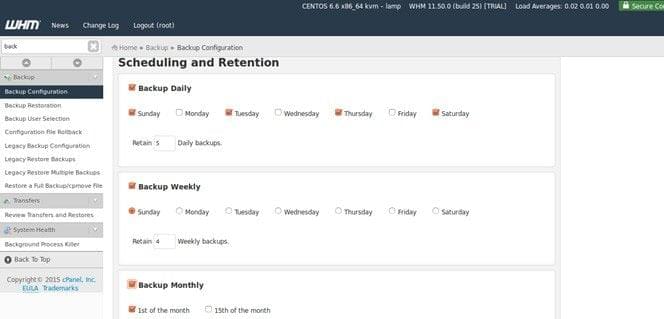
- Backup Daily: creates and keeps backups on the days of the week you choose.
- Backup Weekly: creates one backup every week on the day you choose.
- Backup Monthly: creates one backup every month on the day you choose.
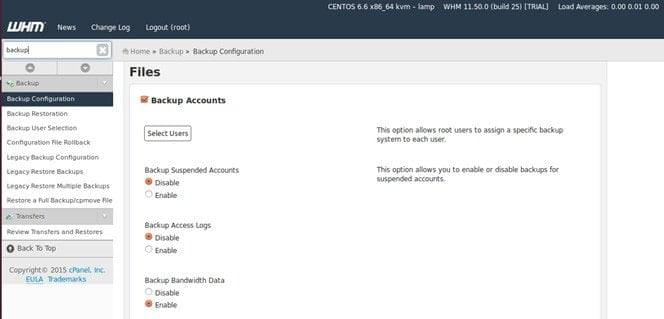
Files and databases #
Choose which files and databases to back up, and which user accounts to include if you do not want to back up every account on the server.
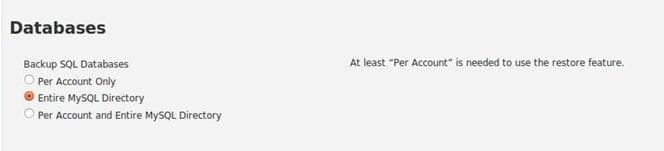
Backup SQL Databases has three choices:
- Per Account Only: backs up each account’s databases with the account.
- Entire MySQL Directory: backs up the whole MySQL data directory.
- Per Account and Entire MySQL Directory: both of the above.
Configure Backup Directory: enter the folder where backups are saved.
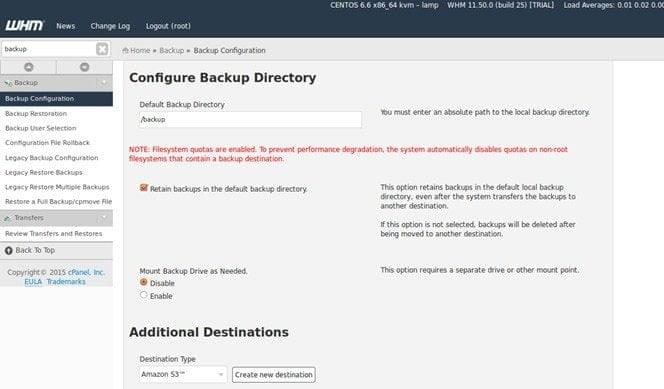
4. Click Save Configuration.
See also how to create a full backup in cPanel and how to restore a full backup in WHM.
Related service: Hyyat Host server management sets up and monitors backups on your server, with 24/7 support.


