

Before you can send and receive email, you need to create an email account for every address or person who needs one on your domain. It only takes a minute and you do it once per account.
Security tip: never share your client area or hosting login with others; create the email accounts yourself. Enable two-factor authentication on your client area for extra protection.
Steps to create a new email account #
- Log in to the client area (see how to log in).
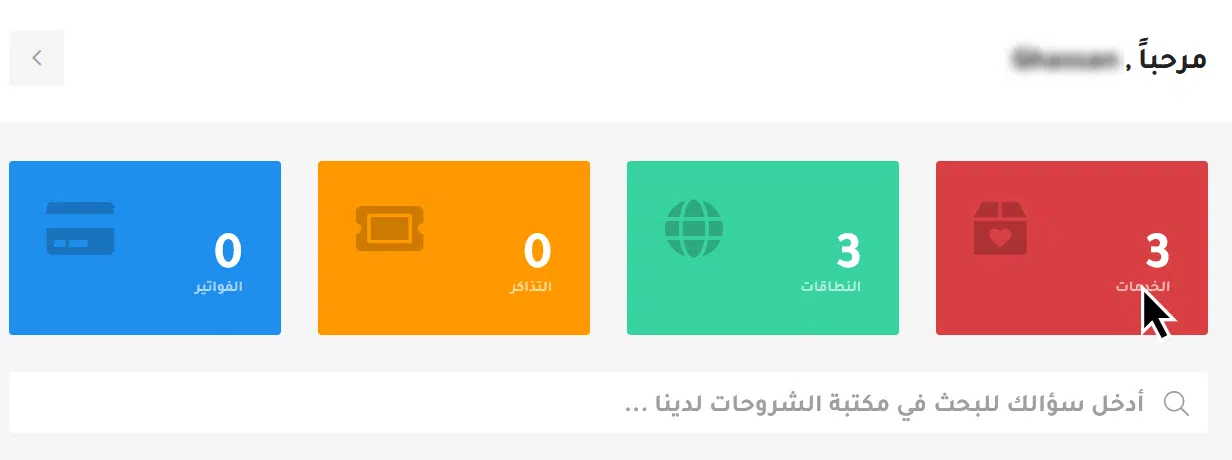
- Click Services, then My Products & Services, or use the Services box in the middle of the page.
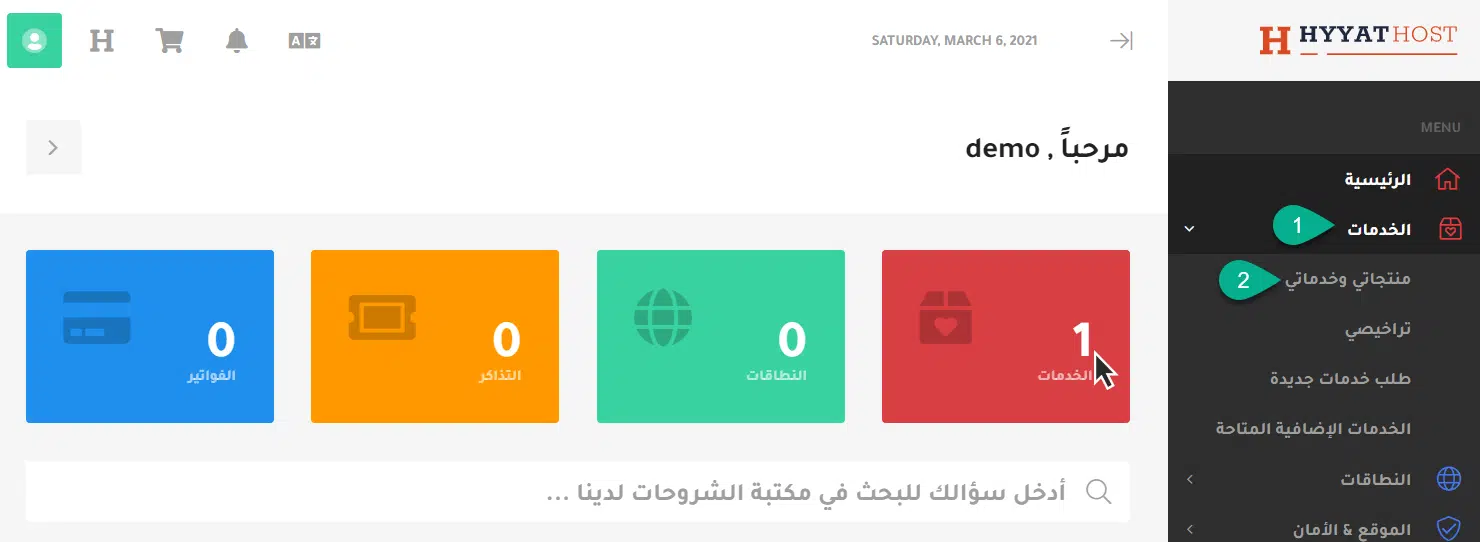

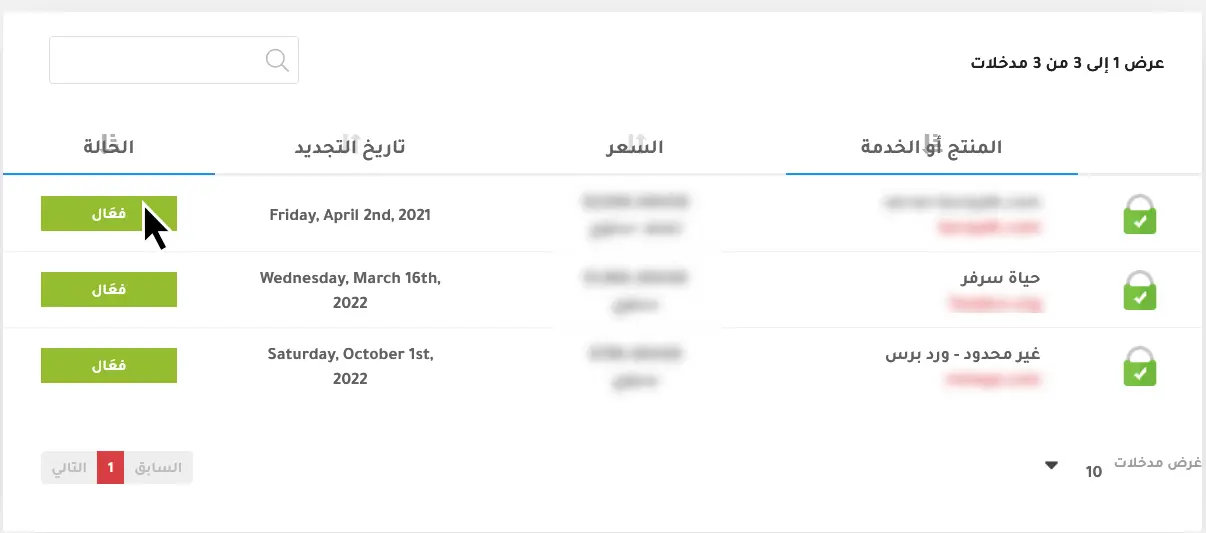
- Your services are listed. Click Active next to the hosting plan of the domain you want the email on.

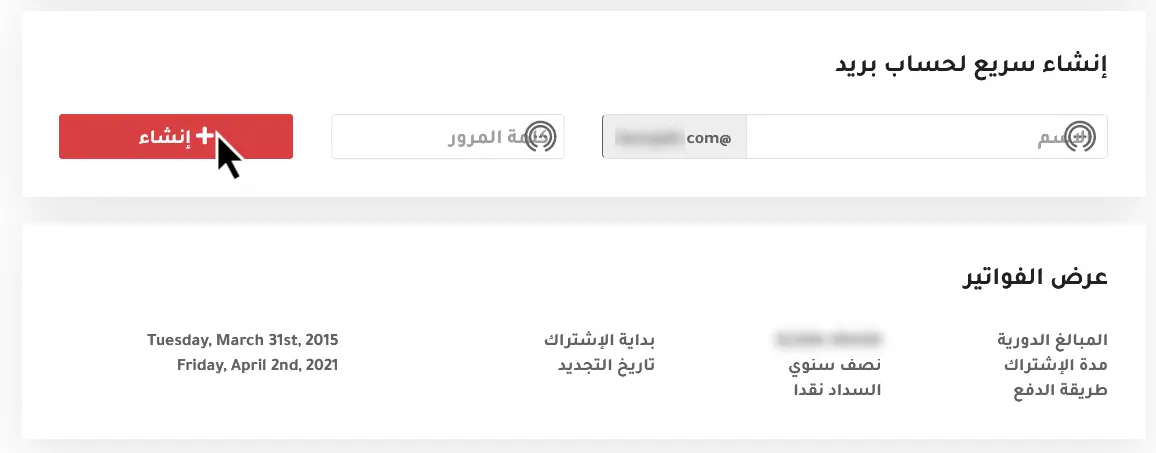
- On the service page, find the Quick Create Email Account box below the cPanel shortcuts. Enter the username and password and click Create. You will see “Email account created successfully!”, or an error explaining what went wrong.

Username rules #
- Use English letters and numbers only, with no spaces or special characters such as $ # % & * @ ! = / , ;
- A dot (.), hyphen (-) and underscore (_) are allowed.
- Upper and lower case make no difference.
- If the username is sales and your domain is example.com, the address is [email protected]; the full address is also the login username.
- You cannot rename an account later; you would need to create a new one.
Password rules #
- Use a hard-to-guess password with upper and lower case letters, numbers and symbols; avoid birthdays and simple numbers.
- The account owner can change their password later without you; ask your staff to choose strong passwords.
- As the site owner, you can reset any email password from your hosting control panel.
Open your new mailbox #
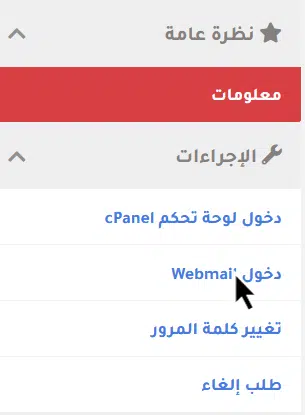
You can use the account from webmail, your phone, or an email app such as Outlook or Thunderbird. We recommend our encrypted webmail: on the service page, click Webmail under Actions in the left column, then log in with the full email address and password.
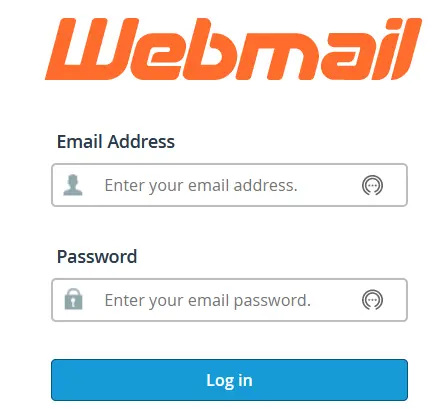
The webmail address shown in your browser can be bookmarked and shared with your staff so they can log in directly without the client area. It differs depending on which of our servers hosts your account.

What does the user need? #
Give them the full email address (e.g. [email protected]) and its password. They can then use webmail, a mobile mail app, or a desktop program. See also how to log in to webmail.
Related service: professional business email from Hyyat Host, with 24/7 support.


