

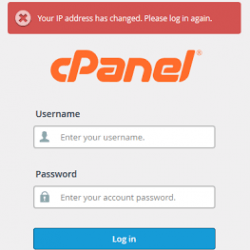
You may be able to log in to cPanel normally, but a few moments later you are logged out with the message “IP address has changed”, and the message keeps coming back every time you log in.
Why it happens #
For security, cPanel ties your login session to your IP address. If the IP changes while you are logged in, cPanel ends the session. The most common causes are:
- A proxy or VPN that changes your IP address every few seconds or minutes.
- A browser extension or program on your device that routes your traffic through changing IP addresses.
- An internet provider (for example some ADSL or mobile connections) that keeps changing your IP address.
How to fix it #
1. Turn off the proxy or VPN. If you use a proxy program, a VPN, or proxy settings in your browser, disable them. Then close the browser, open it again and log in. In most cases this solves the problem.
2. Check your internet connection. If you do not use a proxy or VPN, your internet provider may be changing your IP address. Contact your provider, explain the problem and follow their steps. Switching to another connection (for example from mobile data to Wi-Fi) is a quick way to test this.
3. Try another cPanel address. You can also open cPanel directly at yourdomain.com:2083 (secure) or yourdomain.com/cpanel.
If the message still appears, contact Hyyat Host support with your IP address and the time of the problem.
Related service: Fast, secure web hosting from Hyyat Host with cPanel and 24/7 support.


