

In short: To change your cPanel password: open cPanel, go to Preferences, then Password & Security. Enter your old password, then the new password twice, and click Change your password. Choose a long password with numbers, letters and symbols, and keep it in a password manager.
Changing your cPanel password from time to time helps keep your account secure.
1. Log in to cPanel at https://yourdomain.com/cpanel or https://yourdomain.com:2083, replacing yourdomain.com with your domain.
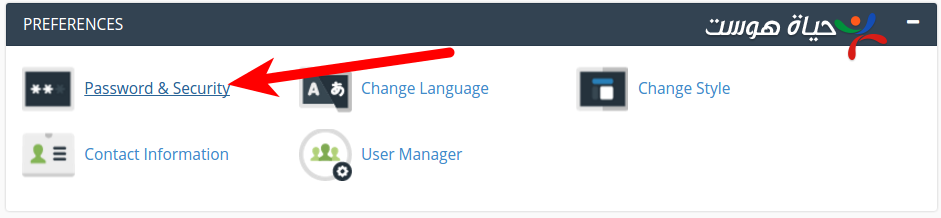
2. In the Preferences section, click Password & Security.
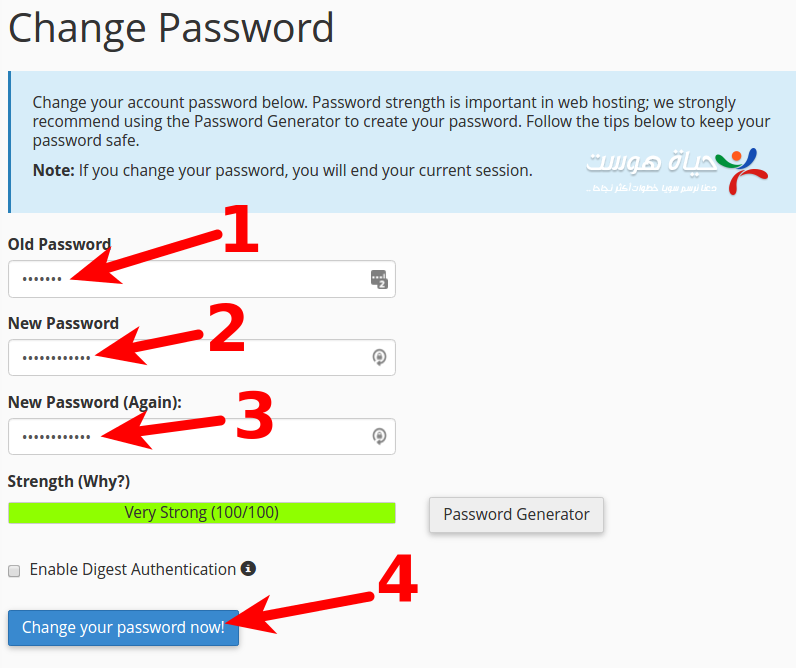
3. Fill in the form:
- Your old password.
- The new password.
- The new password again.
- Click Change your password.
Tips #
- Use a long password that is hard to guess, with numbers, letters and symbols. The Password Generator can create one for you.
- Store it in a password manager, not in a plain file or email.
- Do not reuse a password you use on other sites.
Server administrators can also change any account’s password from WHM; see how to change a cPanel password from WHM.
Related service: Hyyat Host shared hosting includes cPanel and 24/7 support.


