

A full backup includes your website files, databases, email accounts and settings. Keep a recent copy before any major change to your site.
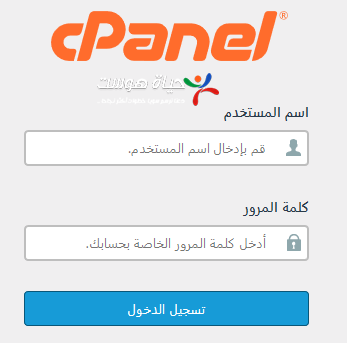
1. Log in to cPanel (see how to log in to cPanel).
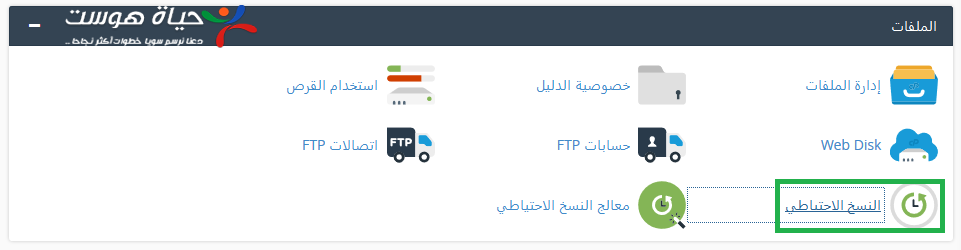
2. In the Files section, click Backup.
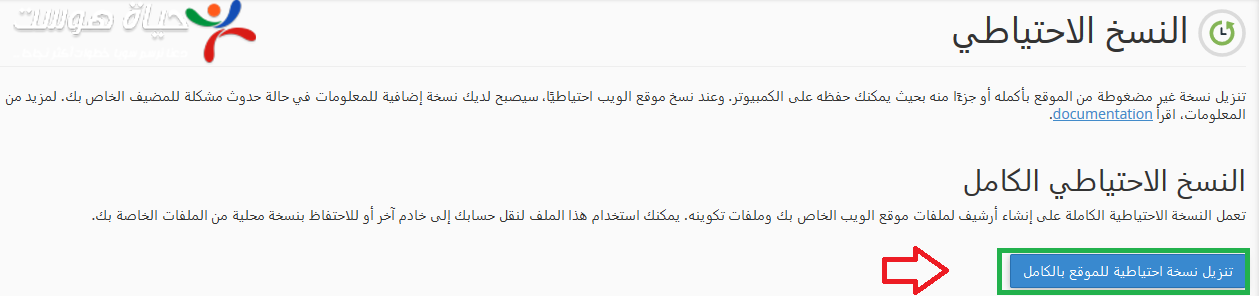
3. Click Download a Full Account Backup.
4. Keep Home Directory as the backup destination and enter your email address, so you receive a message when the backup is complete.
5. Click Generate Backup.
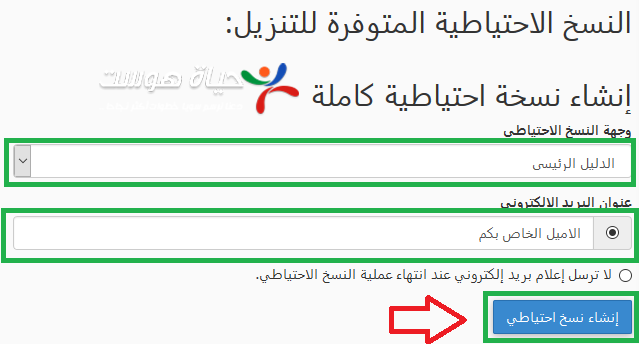

6. Wait until the backup is ready. You will receive an email when it is complete.
The backup file (backup-….tar.gz) is saved in your account’s home directory, outside public_html. Download it from File Manager or from the list on the Backup page, and keep it somewhere safe.
To restore a full backup on a server, see how to restore a full cPanel backup in WHM.
Related service: Hyyat Host shared hosting includes cPanel with regular backups and 24/7 support.


