

This guide shows how to connect the email accounts you use in Webmail to iPhone (iOS), Android and Microsoft Outlook.
Settings you need #
- Username: your full email address, for example [email protected]
- Password: your email password
- Incoming server (IMAP): mail.yourdomain.com, SSL/TLS, port 993
- Outgoing server (SMTP): mail.yourdomain.com, SSL/TLS, port 465, authentication required
Connect your email to iPhone (iOS) #
1. Open Settings, then Mail (or Mail, Contacts, Calendars on older versions), then Accounts and tap Add Account.
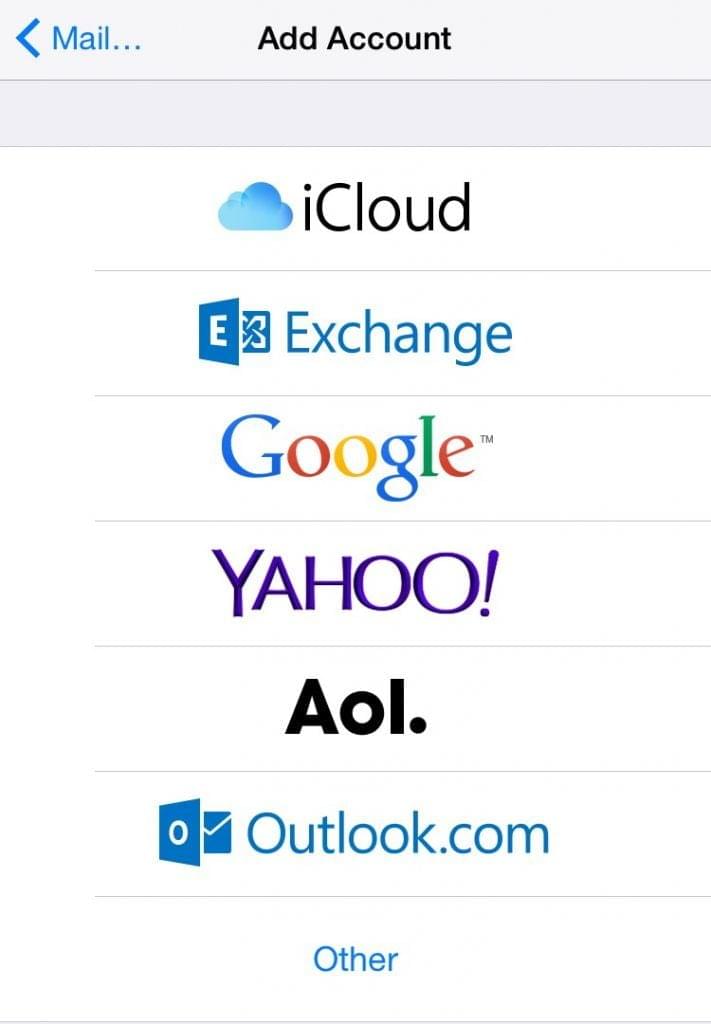
2. Tap Other, then Add Mail Account.
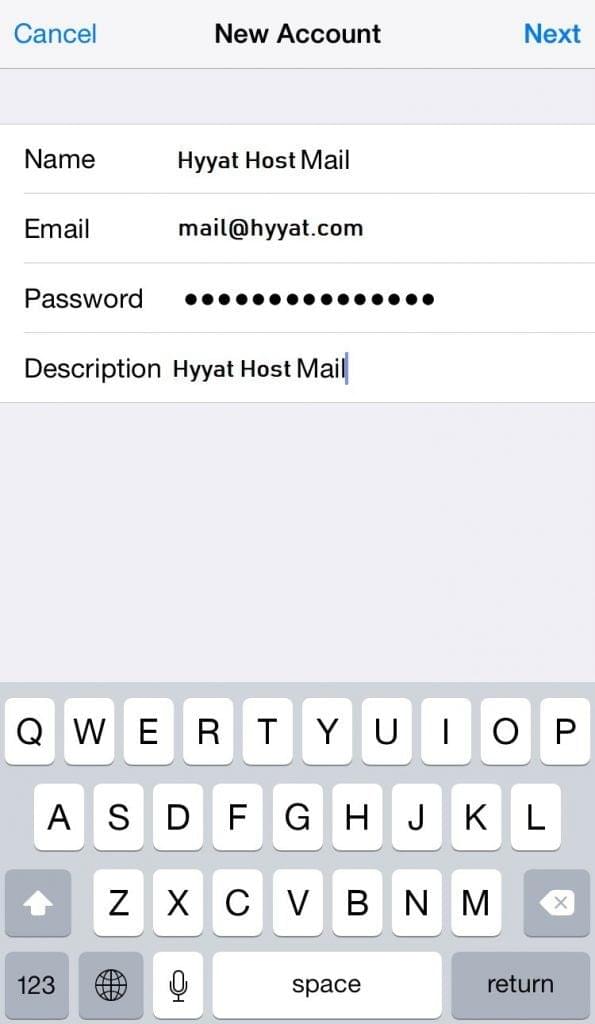
3. Enter your name, email address, password and a description, then tap Next.
4. On the New Account screen choose IMAP and fill in the Incoming Mail Server and Outgoing Mail Server using the settings above.
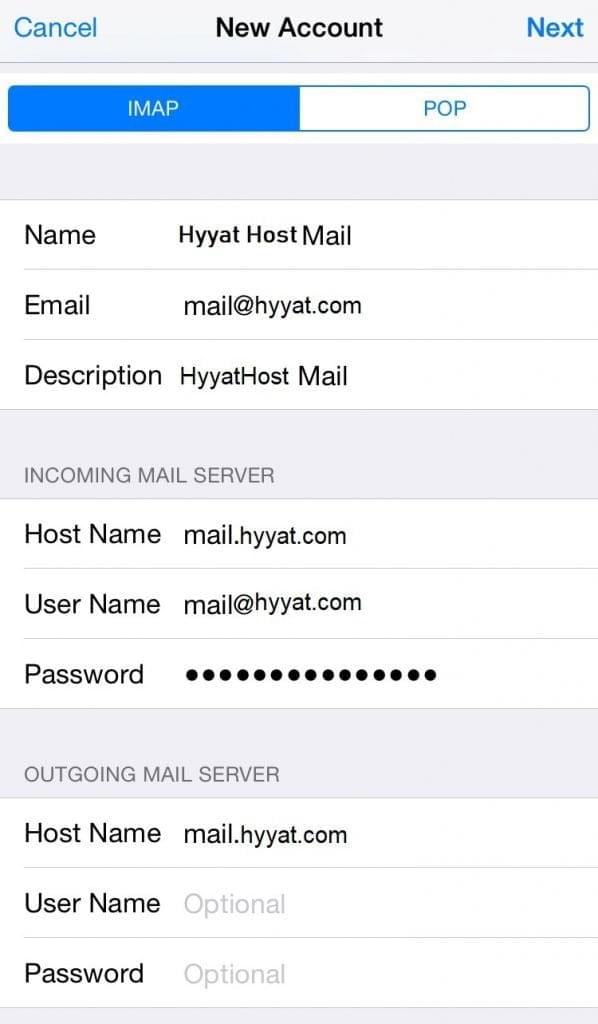
5. Tap Next. If no errors appear, the account is ready.
Connect your email to Android #
The exact menu names differ between phone brands and Android versions, but the steps are similar. You can also add the account in the Gmail app: Settings, then Add account, then Other.
1. Open Settings on your phone.

2. Tap Accounts, then Add Account.
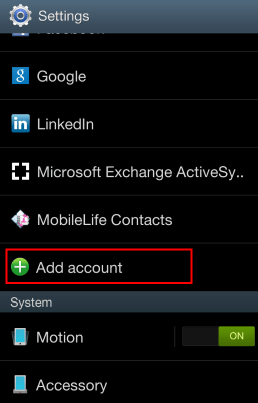
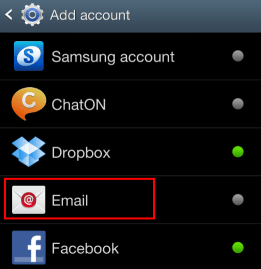
3. Choose Email (or Personal IMAP).
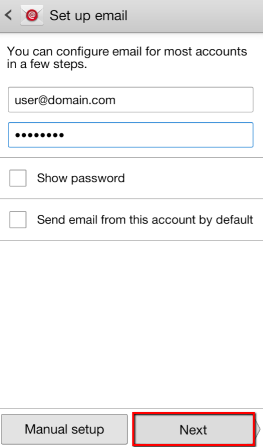
4. Enter your email address and password, then tap Manual setup or Next.
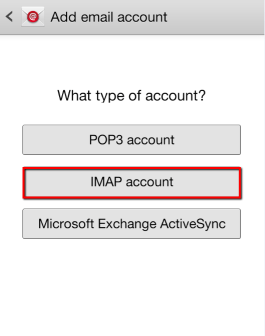
5. Choose IMAP as the account type.
6. Incoming server: username = your full email address, password, IMAP server = mail.yourdomain.com, security = SSL/TLS, port = 993. Leave the IMAP path prefix empty.
7. Outgoing server: SMTP server = mail.yourdomain.com, security = SSL/TLS, port = 465, and require sign-in with your full email address and password.
8. Choose the account name you want to see on your phone, and finish.
Connect your email to Outlook #
The screenshots below are from Outlook 2013; newer versions of Outlook use similar steps (File, then Add Account, then Advanced options, then Let me set up my account manually, then IMAP).
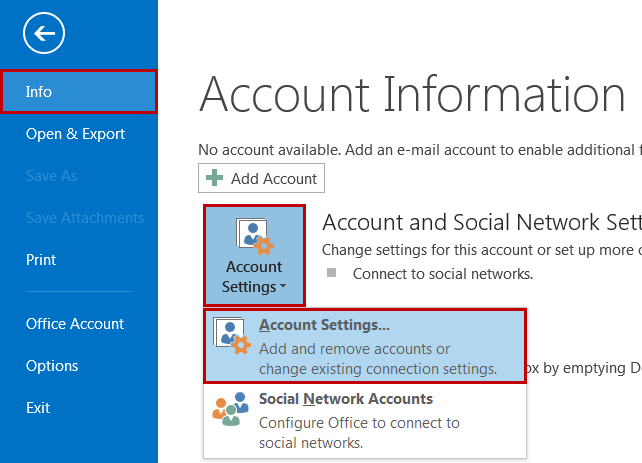
1. Open Outlook and click File, then Info, then Account Settings.
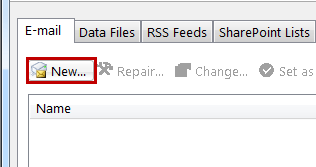
2. On the Email tab click New.
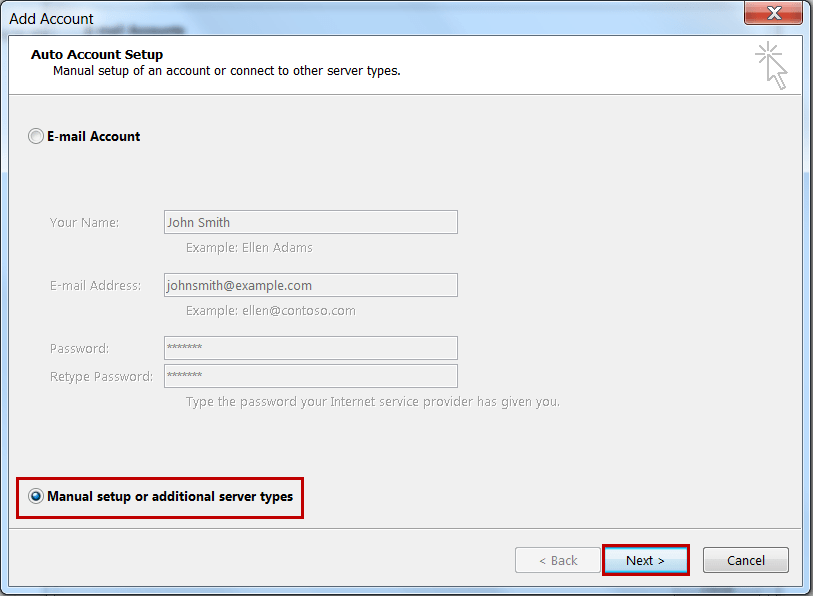
3. Choose Manual setup or additional server types and click Next.
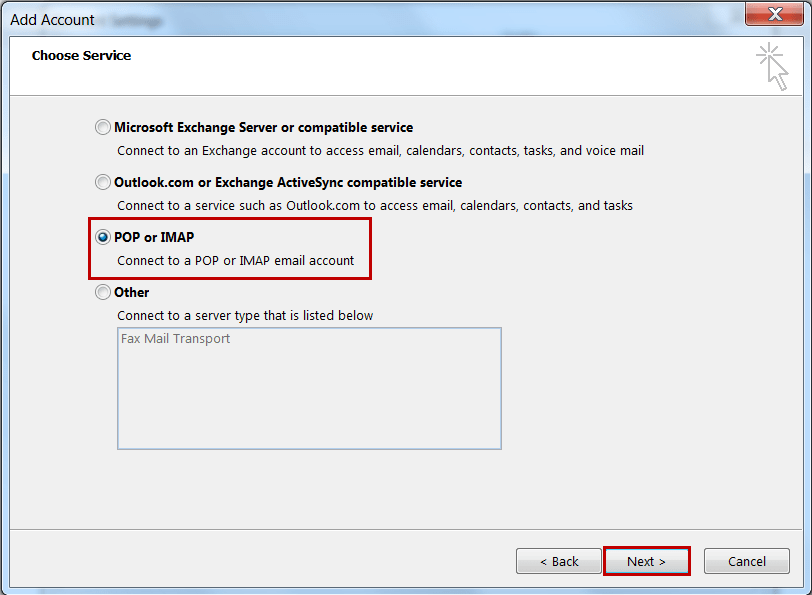
4. Choose POP or IMAP and click Next.
5. Fill in: your name, email address, account type IMAP, incoming mail server mail.yourdomain.com, outgoing mail server mail.yourdomain.com, username (your full email address) and password.
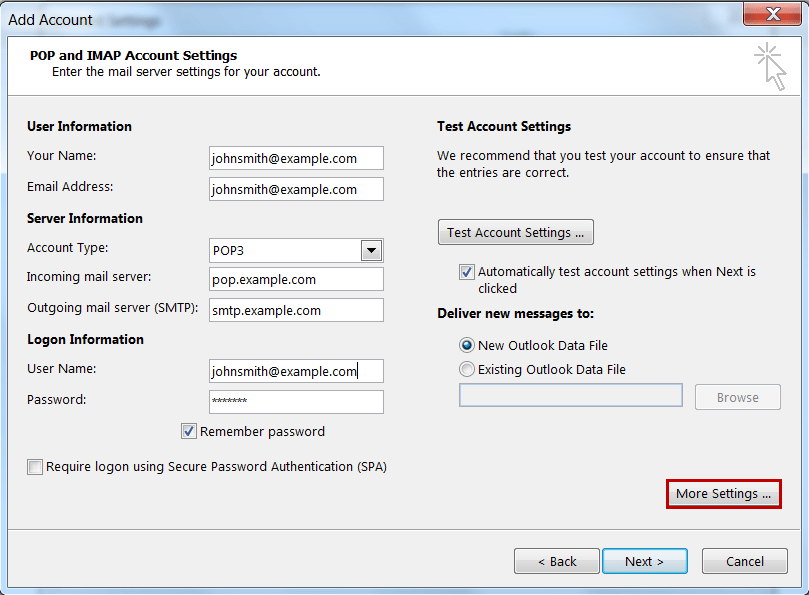
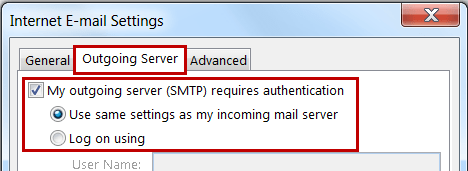
6. Click More Settings, open the Outgoing Server tab and tick My outgoing server (SMTP) requires authentication and Use same settings as my incoming mail server.
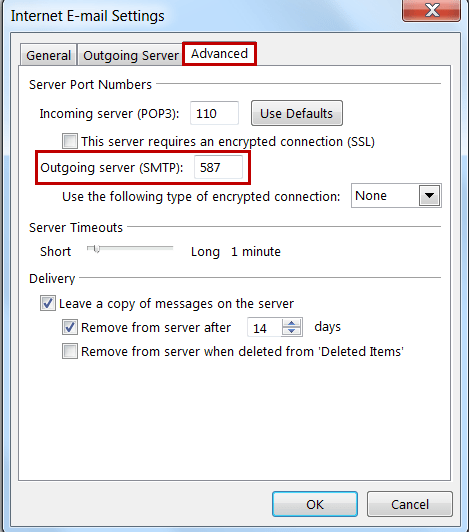
7. Open the Advanced tab and set incoming (IMAP) to port 993 with SSL/TLS, and outgoing (SMTP) to port 465 with SSL/TLS.
8. Click OK, then Next, then Finish.
For a detailed Outlook guide, see Outlook email settings.
Related service: Hyyat Host business hosting gives you your website plus unlimited email accounts on your domain from $77/year.


