

In short: In cPanel go to Domains → Domains and click Create A New Domain. Enter the domain, then either keep Share document root ticked to show the same site as your main domain, or untick it to give the new domain its own folder and upload a separate website there.
Hosting several domains on one plan is common and makes sense when you run more than one site, serve different audiences or countries, or use several brand names. Keep in mind that on shared hosting all your sites share the plan’s resources.
Before you start: the new domain must point to your hosting, either by using our nameservers (see how to change your domain nameservers) or by DNS records.
Step 1: Log in to cPanel #
Log in from the client area, or directly with your cPanel login (see how to log in to cPanel).
Step 2: Add the domain #
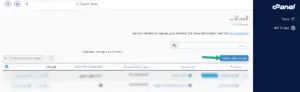
- In cPanel, go to the Domains section and click Domains.

- Click Create A New Domain at the top.

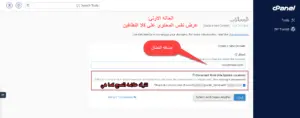
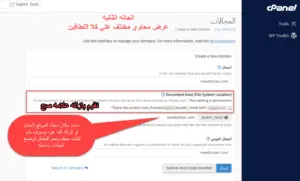
- Enter the new domain in the Domain field, then choose:
- Share document root ticked: the new domain shows the same content as your main domain.

- Share document root unticked: the new domain gets its own folder (Document Root). You can set the folder name or keep the suggested one.

- Share document root ticked: the new domain shows the same content as your main domain.
- Click Submit.
- If you chose a separate folder, open it in File Manager (usually inside public_html, named after the domain) and upload the new website’s files.
Related service: fast, secure web hosting from Hyyat Host, with 24/7 support.


