

What does a 500 Internal Server Error mean on any website? #
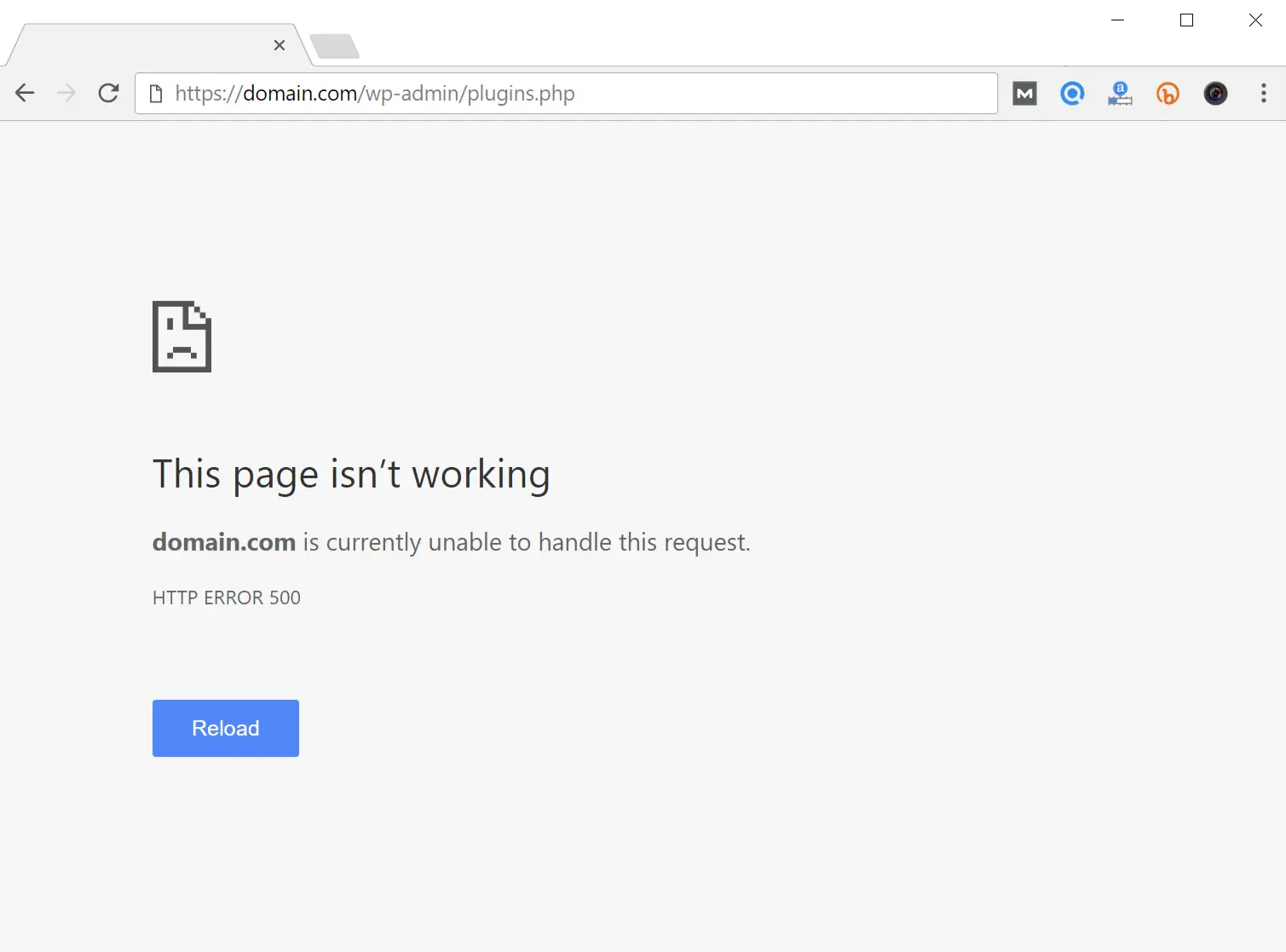
A 500 error is a generic server message meaning “something went wrong internally and I couldn’t show the page”. The problem is on the server or website, not the visitor’s device or connection, so refreshing or changing browser won’t fix it. It can appear as HTTP 500, Error 500, HTTP ERROR 500 or “This page isn’t working”.
Common causes on any website #
- A bad rule in the .htaccess file.
- A PHP code error or a conflict after an update.
- Exceeding the site’s memory or resource limits.
- Wrong file or folder permissions (normally 644 for files and 755 for folders).
- A PHP version that is incompatible with the site.
What to do first #
- Open cPanel → Metrics → Errors or the error_log file in your site folder; it usually names the file and line.
- Think of the last change you made (update, plugin, code edit) and undo it.
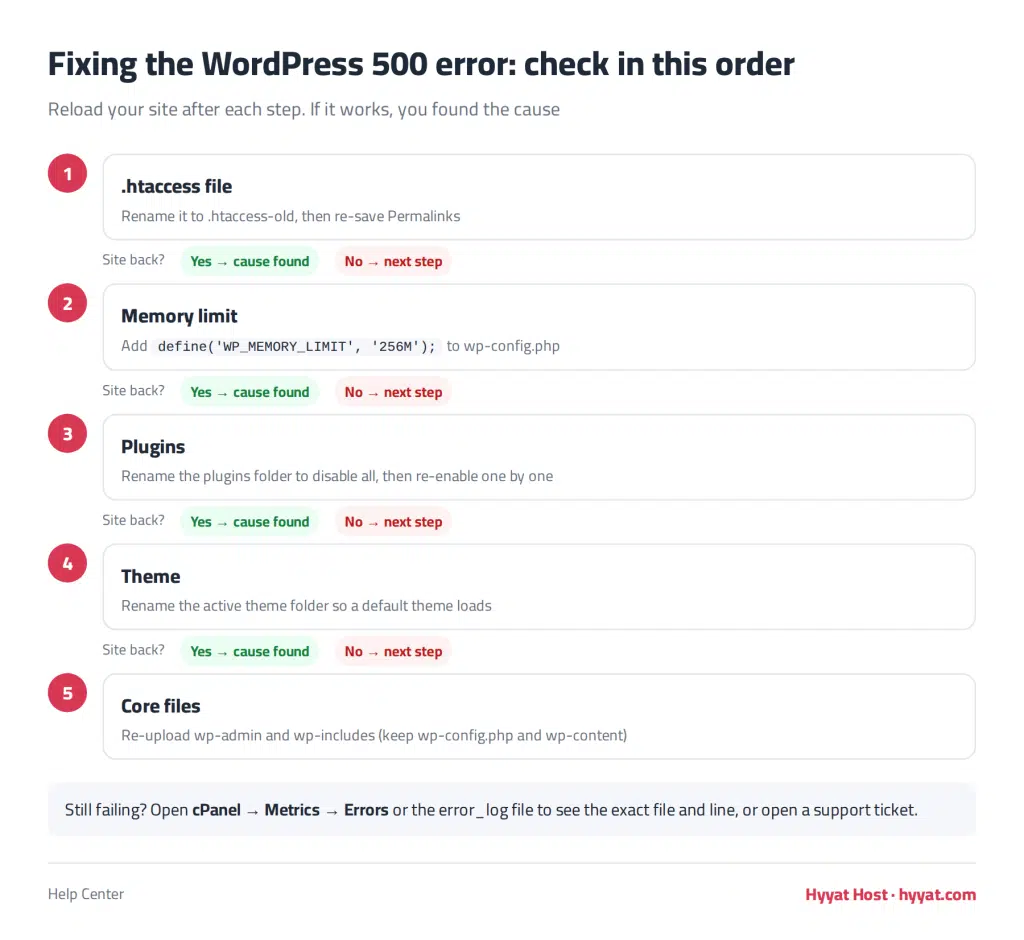
- If your site runs WordPress, follow the fixes below in order.
- If you can’t find the cause, open a support ticket and we will check the logs with you.
Fixing the 500 error in WordPress #
What is the 500 Internal Server Error? #
You may see Internal Server Error, HTTP 500 Internal Server Error or just Error 500 in your browser. They all mean the same thing: the server hit a problem and could not load the page. It can appear on the front of the site, in the WordPress dashboard, on both, or only when you do certain actions.
Fix 1: Reset the .htaccess file #
WordPress, permalinks and caching plugins write rules to .htaccess. A bad rule there causes a 500 error.
- Log in to cPanel and open File Manager (or connect with FTP).
- Open the folder where WordPress is installed; for your main site this is public_html.
- In File Manager, click Settings (top right) and enable Show Hidden Files.
- Rename .htaccess to .htaccess-old.
- Reload your site. If it works, log in to WordPress and go to Settings → Permalinks and click Save Changes to create a clean .htaccess file.
Fix 2: Increase the PHP memory limit #
If WordPress runs out of the memory PHP allows it, you get a 500 error.
- In File Manager, open wp-config.php in the WordPress folder.
- Add this line right after
<?php:define('WP_MEMORY_LIMIT', '256M'); - Save and reload your site.
Fix 3: Disable all plugins #
A faulty or incompatible plugin is a common cause. If you can’t reach the dashboard, rename the wp-content/plugins folder to plugins-off in File Manager. If the site loads, rename it back and re-enable plugins one by one to find the culprit.
Fix 4: Switch to a default theme #
Rename your active theme folder in wp-content/themes; WordPress falls back to a default theme such as Twenty Twenty-Four if one is installed. If the error disappears, the theme is the cause.
Fix 5: Re-upload WordPress core files #
Core files can be damaged by a bad edit, a deleted file or a hack. Download the same WordPress version from wordpress.org and re-upload the wp-admin and wp-includes folders. Do not overwrite wp-config.php or the wp-content folder.
Still not fixed? Check the error log #
In cPanel open Metrics → Errors to see the latest error, or check the error_log file in your site folder. It usually names the exact file and line causing the problem. You can also open a ticket and our support team will check it for you.
Related service: fast WordPress hosting from Hyyat Host, with 24/7 support.


