

An address on your domain ([email protected]) looks professional and stays yours whatever staff or software you change. With cPanel hosting you can create one in under a minute.
Steps to create the mailbox #
- Log in to cPanel. See how to log in to cPanel.
- Open Email Accounts in the Email section.
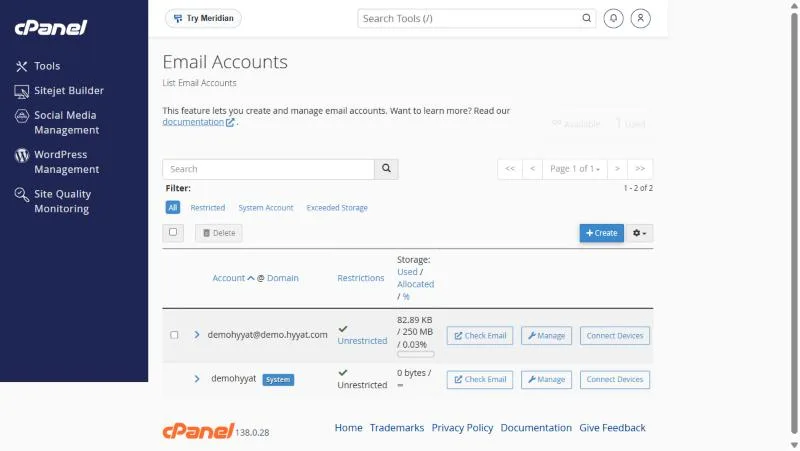
- Click Create, the blue button above the list of accounts.
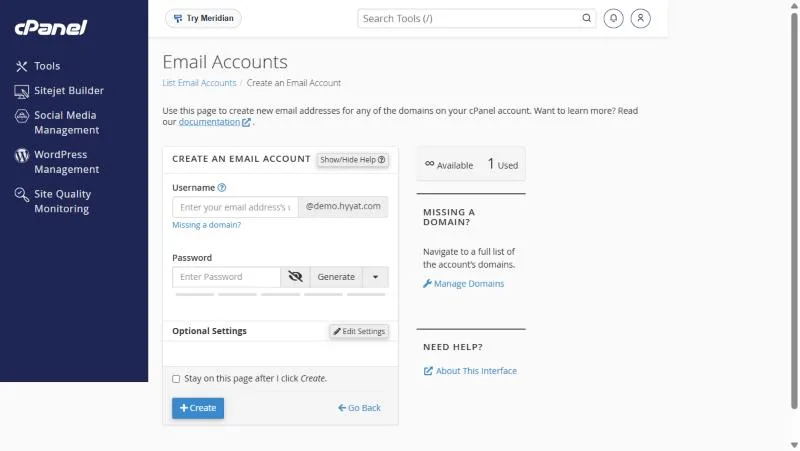
- Type the username, the part before @, such as info or sales. If you have several domains, pick the domain from the list.
- Set the password. Type your own or click Generate for a strong one, and save it.
- Choose the storage (optional) with Edit Settings under Optional Settings; otherwise the default is used.
- Click Create at the bottom of the form and the mailbox appears in the list.
Free tool from Hyyat Host
Email domain checker
Check your domain's MX, SPF, DKIM and DMARC records and see why mail lands in spam.
Choosing the address name #
| Use | Common examples |
|---|---|
| General contact | info, contact |
| Sales and orders | sales, orders |
| Support and billing | support, billing |
| Staff | the person’s name, such as ahmed |
After creating the mailbox #
- Open it in a browser: log in to Webmail.
- Connect it to your phone or Outlook: email client settings.
- Make sure your mail does not land in spam: enable SPF and DKIM.
- Change its storage later if needed: change the mailbox quota.
Errors that stop you creating or using the mailbox #
- My domain is not in the list: add it on the Domains page first, then create the mailbox.
- The address already exists: the name is taken. Pick another or open Manage for the existing mailbox.
- The password is rejected: make it stronger or use Generate.
Best practices when creating mailboxes #
- Use a password of at least 12 characters with letters, numbers and symbols.
- Do not give every mailbox unlimited storage, so one mailbox cannot fill your hosting.
- For addresses that do not need their own mailbox, use a forwarder instead.
- Keep a secure record of who owns each mailbox, to make handovers easy when staff change.
Cases we have seen #
- A customer created the mailbox but typed only info as the username in Outlook. The username is the full address, [email protected].
- A customer could not find her second domain in the create form, because it had not been added to the hosting yet. Once added on the Domains page it appeared in the list.
- A company created 20 mailboxes with unlimited storage, and one mailbox receiving huge attachments filled the hosting. A quota per mailbox prevents that.
Your mailbox is ready. Next, open it in Webmail or connect it to your phone with the email settings.
Frequently asked questions #
How do I create an email on my domain in cPanel?
In Email Accounts click Create, enter the name and a password, then click Create.
How many mailboxes can I create?
It depends on your plan. The available and used counts show at the top of Email Accounts.
Can I change the mailbox password later?
Yes, with the Manage button next to the address.
Can I delete a mailbox I created?
Yes, from Email Accounts, but deleting removes its mail permanently. Suspend it if you are unsure.
Can I create email for an addon domain on the same hosting?
Yes, pick the domain from the list next to the username.
- The Email Section in cPanel: A Guide to Every Tool and When to Use It
- How to Log In to Webmail: Links, Steps and Fixes
- Email Client Settings for Your Phone and Outlook: IMAP, POP3, SMTP and Ports
- How to Increase or Change Email Storage (Mailbox Quota) in cPanel
- Why Do Your Website and Business Emails Go to Spam? Causes and Step-by-Step Fixes


