

In shortIn WHM, Account Functions, Manage Account Suspension, choose the account, enter the reason and click Suspend. The site, email and cPanel login stop, and all data stays. To bring it back, open the same page and click Unsuspend.
This guide is for server owners if you have a VPS or dedicated server with WHM. If you would rather not manage the server yourself, our server management service can do it for you.
When to suspend an account #
- An unpaid invoice past its due date.
- A hacked site sending spam or overloading the server.
- A breach of the terms of service.
- The customer asking for a temporary suspension.
Suspending deletes nothing: files, databases and email stay, and the account returns exactly as it was when unsuspended.
Steps #
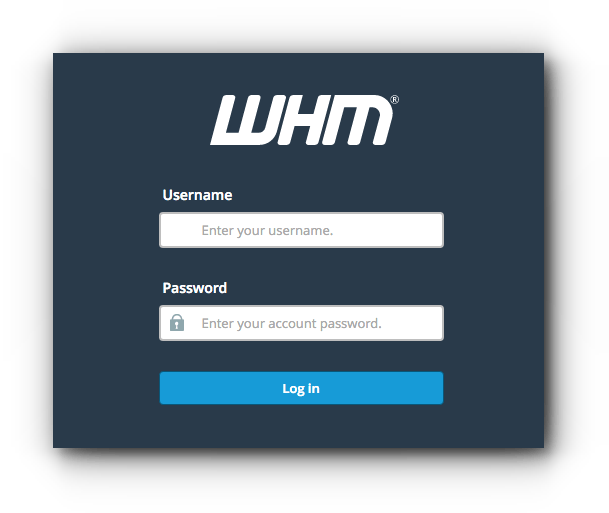
- Log in to WHM in your browser at
https://server-IP:2087orhttps://server-hostname:2087as root. - Open Account Functions, then Manage Account Suspension.
- Choose the account and click Modify.
- Enter the reason so you and your colleagues can see it later.
- Click Suspend to suspend the account, or Unsuspend to bring it back.


Using WHMCS? Suspend and unsuspend from WHMCS instead, so the service status matches in both systems.
Summary #
- Manage Account Suspension stops an account without deleting data.
- Always record the reason.
- Unsuspend brings it back as it was.
Need a server with cPanel and WHM? See VPS servers and the cPanel and WHM on VPS guide.
Frequently asked questions #
Does suspending an account delete its files?
No. All data stays, and the account returns as it was when unsuspended.
Does email stop as well as the site?
Yes, the site, email and cPanel login all stop while suspended.


