

cPanel is where you manage your hosting: your website, email, files and databases. This guide takes you on a tour of its main page so you know where everything is from your first login.
The Tools page #
After you log in to cPanel, the Tools page opens. Its tools are grouped into sections, and you can collapse or expand each section with the arrow next to its name.
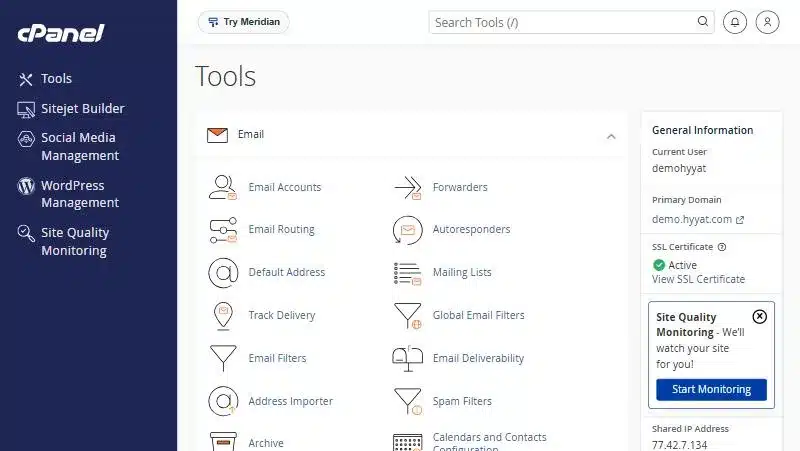
| Section | What you find there | Guide |
|---|---|---|
| Email accounts, forwarders, autoresponders and spam filters | create an email account | |
| Files | File Manager, Directory Privacy, Disk Usage and FTP accounts | Files and Databases |
| Databases | phpMyAdmin, Manage My Databases and Database Wizard | Files and Databases |
| Domains | Domains, Redirects, Zone Editor and WordPress Management | Domains and Software |
| Metrics | Visitors, Errors, Bandwidth and Resource Usage | Statistics and Metrics |
| Security | IP Blocker, SSL/TLS, Two-Factor Authentication and Hotlink Protection | the Security section |
| Software | MultiPHP Manager, Select PHP Version and Optimize Website | Domains and Software |
| Advanced | Cron Jobs, Indexes and Error Pages | Cron Jobs |
| Preferences | Password, language, contact information and User Manager | the Preferences section |
Search for any tool #
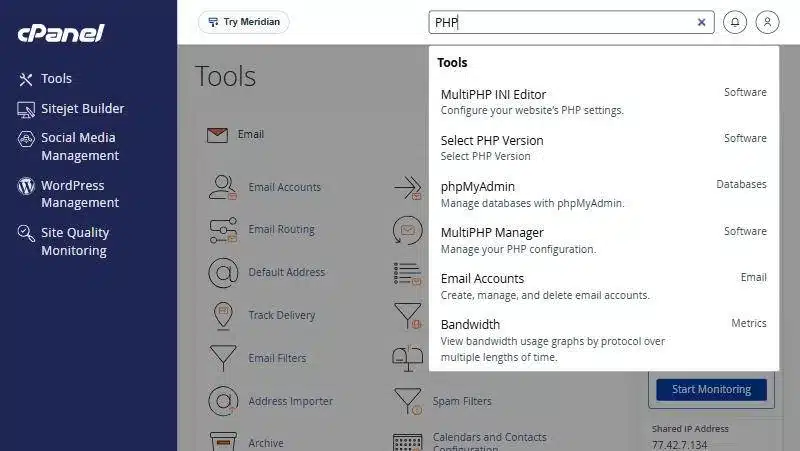
Instead of browsing the sections, type the tool name in the Search Tools box at the top. Results appear instantly with the section each tool belongs to. You can also press the / key to jump straight to the search box.
General Information and Statistics #
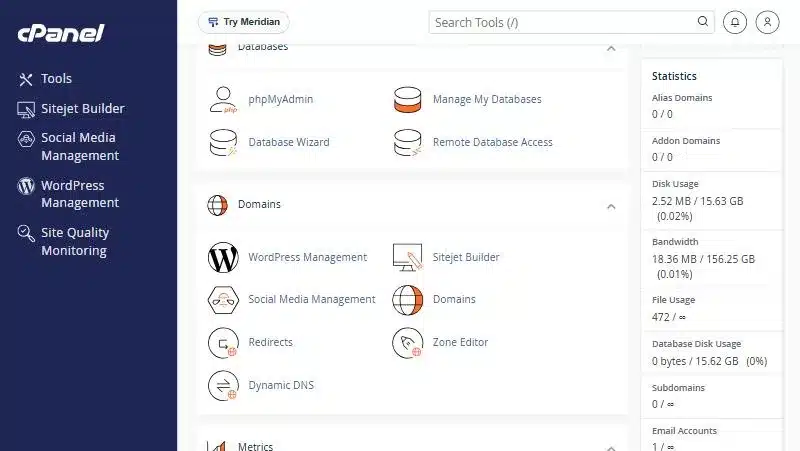
Next to the tools is a column showing General Information about your account: the username, primary domain, SSL status, shared IP address and home directory. Below it, the Statistics section shows disk usage, bandwidth, the number of email accounts and databases, and CPU and memory usage.
Change the interface language #
- Open the Preferences section at the bottom of the Tools page.
- Choose Change Language.
- Pick a language from the list and click Change.
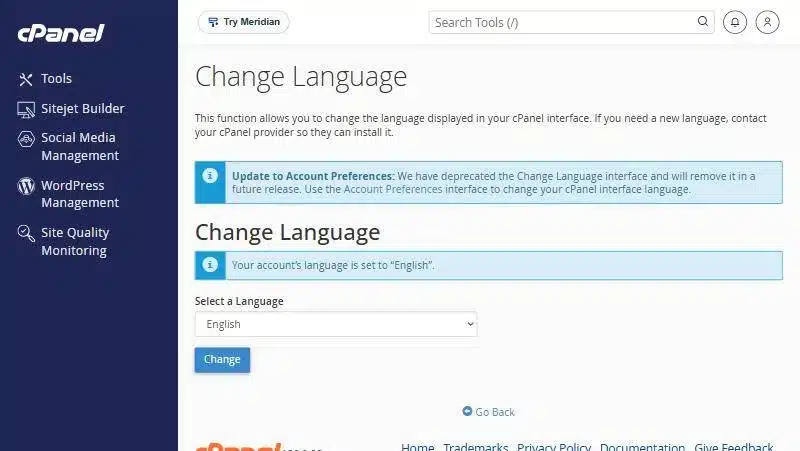
More about this section in the Preferences guide.
Your first five steps after getting your hosting #
- Change your password to a strong one of your own in Preferences. See changing your cPanel password.
- Turn on two-factor authentication in Security, so nobody can log in even if they learn your password. See two-factor authentication.
- Add an email for notices in Contact Information, ideally one outside your hosting.
- Create your domain email such as info@yourdomain in the Email section. See creating an email account.
- Upload your site or install WordPress upload files with File Manager or install WordPress from WordPress Management.
Where do I find the tool I need? #
| You want to… | Open |
|---|---|
| Upload your website files | Files → File Manager |
| Create an email on your domain | Email → Email Accounts |
| Add another domain or a subdomain | Domains → Domains |
| Change your PHP version | Software → MultiPHP Manager |
| Find the cause of a site error | Metrics → Errors |
| Create a database | Databases → Manage My Databases |
| Protect your login | Security → Two-Factor Authentication |
| Schedule a task to run automatically | Advanced → Cron Jobs |
Common beginner mistakes #
- Uploading outside public_html: your site files must be inside public_html or visitors will not see them. Learn about the folders in your account.
- A weak or reused password: your cPanel password opens everything in your account, so make it strong and unique.
- Ignoring Statistics: a full disk stops email and uploads. Glance at the Statistics column from time to time.
- Editing DNS without knowing: a small mistake in Zone Editor can take your site or email offline. Ask us before changing records.
Need the terms you see in the panel explained, such as bandwidth and document root? See important control panel terms.
Summary #
- The Tools page is the home page, with tools grouped into sections.
- The search box is the fastest way to reach any tool.
- The Statistics column shows your account usage.
- You can change the interface language from Preferences.
Every Hyyat Host plan comes with cPanel. See cPanel Hosting.
Frequently asked questions #
What is cPanel?
A control panel for managing your hosting: website, email, files, databases and security, all from one page.
How do I find a tool in cPanel?
Type its name in the Search Tools box at the top of the Tools page, or press / to jump to search.
Can I change the cPanel language?
Yes. In Preferences choose Change Language and pick the language you want.
What is the Try Meridian button?
A new preview interface from cPanel. You can keep using the classic interface shown in this guide.
What should I do first after logging in to cPanel?
Change your password to a strong one, turn on two-factor authentication, then add an email address for account notices.
Where do I upload my website files?
In File Manager, inside the public_html folder.
- The Meridian Dashboard and Performance Section: Track Your Account’s Usage, Visitors and Errors
- Managing Websites and Email in Meridian: Domains, SSL, PHP Version and Mailboxes
- File Manager and Databases in Meridian: Upload, Compress, Permissions and Creating a Database
- The Security Section in Meridian: Security Score, SSL, HTTPS Redirect and Two-Step Verification
- The Ask AI Assistant in cPanel: How to Ask About Your Account and Its Limits
- How to Log in to cPanel


