

Every server needs a restart sometimes: after an update, during unexplained slowness, or to apply a new setting. In the Hyyat Host VPS panel you do this straight from the browser through the Power tab, without logging into the machine or typing any command. This guide explains each button, the important difference between a clean stop and a force stop, and when to use each.
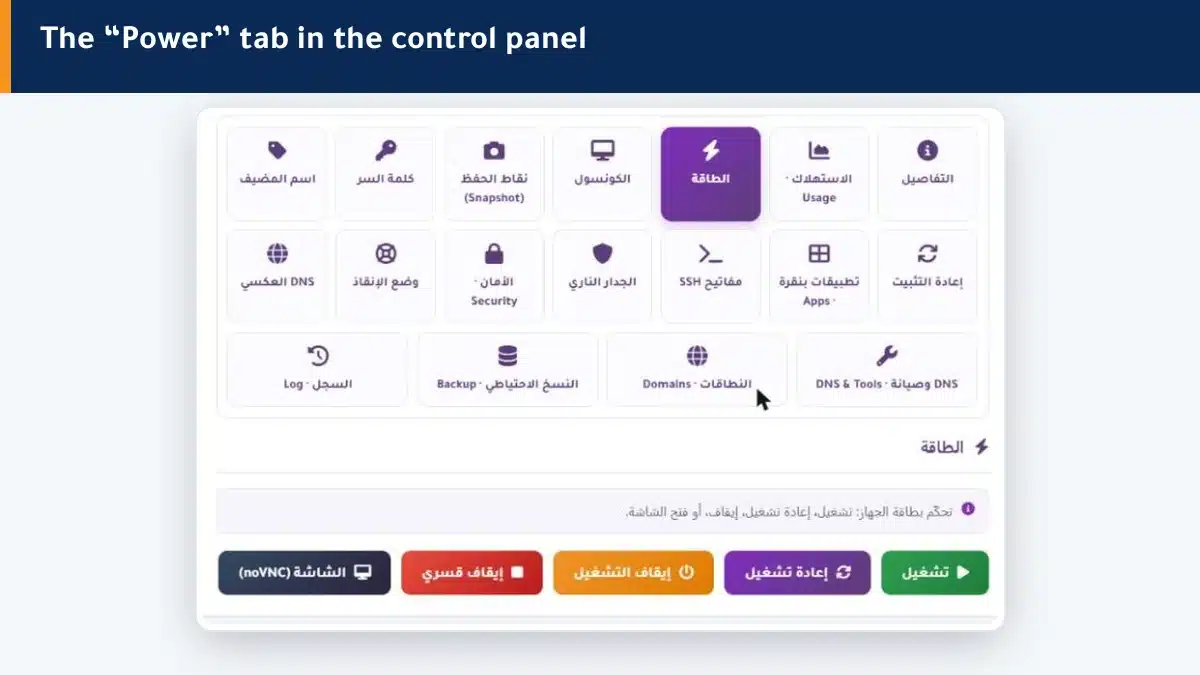
Where is the “Power” tab? #
Reaching it from your account takes less than a minute:
- Sign in to your account at my.hyyat.com.
- From the client area, open your VPS service.
- Scroll down until the panel buttons appear, then click the Power tab.
The video at the top of this page shows the full path, step by step.
The power buttons and what each one does #
The tab shows the following buttons, each with a different job:
| Button | What it does | When to use it |
|---|---|---|
| Start | Starts a stopped server | After a stop, or if the server is off |
| Reboot | Shuts the system down cleanly, then boots it again | After an update, or to clear slowness or a temporary issue |
| Shut down | Turns the server off cleanly and leaves it stopped | When you need the service off for a while |
| Force stop | Cuts power immediately with no clean shutdown | Only if the server is frozen and unresponsive |
| Console (noVNC) | Opens the machine screen in a new tab | To watch the boot or log in without the network |
Clean stop vs force stop #
“Reboot” and “Shut down” ask the operating system to close its programs, save what it needs, and then stop — this is the safe way. “Force stop” is more like pulling the power cable: the machine stops at once without closing anything.
When to use each action #
| Situation | Right action |
|---|---|
| You applied an update that asks for a restart | Reboot |
| The site is slow or down for no clear reason | Reboot first |
| You want the service off for a while to save resources | Shut down |
| The machine does not respond to anything at all | Force stop, then Start |
| You want to see what shows on the boot screen | Console (noVNC) |
What if the server does not respond after you click? #
Some actions need a few seconds to finish. If nothing seems to happen:
- Give the machine up to a minute; a clean shutdown can take time.
- Open the Console (noVNC) to see where the boot actually stopped.
- If it stays frozen, use Force stop, then Start.
- Check the Usage tab after boot to confirm everything is back to normal.
Summary #
- The “Power” tab starts, stops and reboots your machine from the browser, with no commands.
- Use “Reboot” for most cases; it is the clean and safe way.
- Keep “Force stop” for a frozen machine only.
Next, learn about the Console (noVNC) to reach your machine even without a network.
Frequently asked questions #
Does a reboot delete my data?
No. A reboot shuts the system down cleanly and boots it again; your files and settings stay as they are. What wipes the disk is “Reinstall”, which is a completely different action.
What is the difference between “Shut down” and “Force stop”?
“Shut down” turns the server off cleanly after closing its programs, while “Force stop” cuts power immediately with no shutdown and may lose unsaved data. Use force stop only when the machine is frozen.
How long does a server reboot take?
Usually from a few seconds to a minute, depending on the system and installed services. You can open the Console (noVNC) to watch the boot in real time.
My server does not respond after a force stop, what do I do?
Click “Start” and give it a minute, then open the Console (noVNC) to see the boot state. If the problem remains, open a support ticket and we will follow up.
Do I need commands or an external program to reboot?
No, everything is in the browser through the Power tab. You do not need SSH or any program; you can also reboot from inside the machine if you prefer.


