

In shortIn WHM, Account Functions, Upgrade/Downgrade an Account, choose the account, choose the new package and click Upgrade/Downgrade. The account’s limits (disk, bandwidth, email accounts and so on) change at once, and its files and email stay as they are.
This guide is for server owners if you have a VPS or dedicated server with WHM. If you would rather not manage the server yourself, our server management service can do it for you.
When a customer needs more resources, or wants a smaller plan, you do not need to move their site. Changing the package linked to the account changes its limits immediately.
Steps #
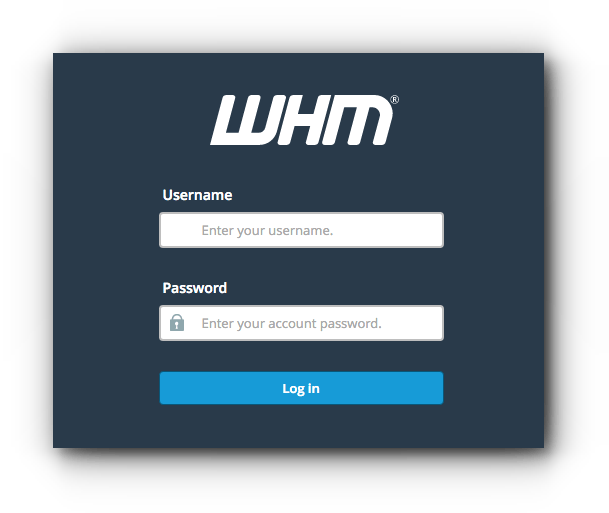
- Log in to WHM in your browser at
https://server-IP:2087orhttps://server-hostname:2087as root. - Open Account Functions, then Upgrade/Downgrade an Account.
- Choose the account and click Modify.
- Choose the new package from the list.
- Click Upgrade/Downgrade and check the success message.


When downgrading: make sure the account’s current usage is below the new package limits, or it will stop creating new files or mail.
Summary #
- Upgrade/Downgrade an Account changes the account’s package.
- Files and email stay as they are.
- Check usage before downgrading.
Need a server with cPanel and WHM? See VPS servers and the cPanel and WHM on VPS guide.
Frequently asked questions #
Do account details change after changing the package?
No. Only the limits change; files, email and passwords stay the same.
How do I create the new package first?
In Packages, Add a Package. See the guide on creating a hosting package in WHM.


