

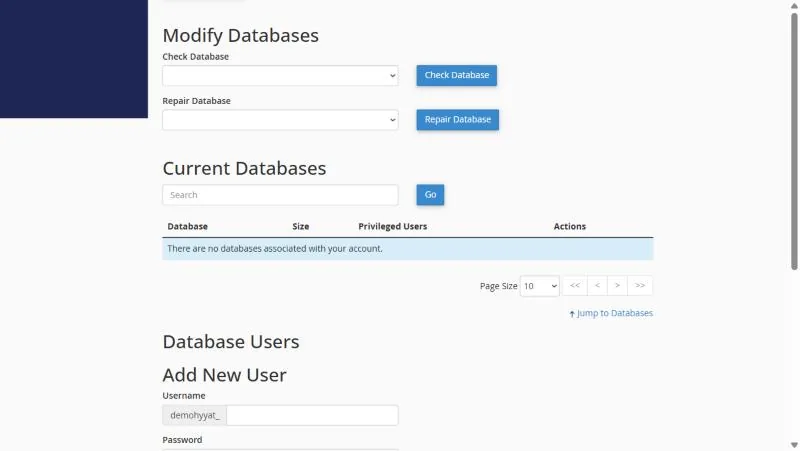
When you need itIf you see a message such as Table is marked as crashed, or certain pages suddenly fail, open Manage My Databases in cPanel. Under Modify Databases pick the database and click Check Database; if it reports an error, click Repair Database.
Tables can be damaged if the server stops while writing, the disk fills up, or a large operation is cut off half way. Damage usually affects one table, so one page or feature fails while the rest of the site works.
Signs of a damaged table #
- The message
Table '...' is marked as crashed and should be repaired. - The message
Incorrect key file for table. - One page or section shows a database error while other pages work.
- The WordPress dashboard asks you to repair the database.
Before repairing: export a copy of the database from phpMyAdmin. Repairs are usually safe, but a copy protects you if something is lost. See exporting a database.
Check, then repair #
- Open Manage My Databases in the Databases section of cPanel.
- Scroll to Modify Databases there are two lists: check and repair.
- Pick the database and click Check Database the result for each table appears.
- If a table shows an error go back, pick the same database in the repair list and click Repair Database.
- Open your site and make sure the broken page works again.
The repair did not work? #
| Situation | What to do |
|---|---|
| The message says the table type does not support repair | InnoDB tables usually recover on their own. Send the error to support |
| The disk is full | Free space first, see Disk Usage, then try again |
| The problem keeps coming back | A plugin or script may be writing heavily. Contact support with the table name |
| Data missing after the repair | Import the copy you took, or ask for a restore from backups |
Is it really the tables? #
The WordPress message Error Establishing a Database Connection is usually not corruption but a wrong database name, user or password. See fixing the database connection error before repairing.
Frequently asked questions #
Does repairing delete data?
Rarely, but always take a copy first.
How long does a repair take?
Seconds for a small database, longer for large tables.
Should I take the site offline while repairing?
Not for a small database. For a big store pick a quiet time.
Every table says OK. So where is the problem?
The database is fine; the cause is usually the connection settings or the site itself.
Related guides
- Export and Import a Database with phpMyAdmin in cPanel: Backups and Site Moves
- Create a MySQL Database and User in cPanel: With the Wizard or by Hand
- Fix Error Establishing a database connection in WordPress
- Disk Usage in cPanel: See What Fills Your Hosting Space and How to Free It
- The Files and Databases Sections in cPanel: File Manager, FTP and Creating a Database


