

In shortIn WHM, Server Configuration, Update Preferences, choose Automatic for cPanel and WHM updates and a suitable release tier (such as STABLE, RELEASE or LTS), set operating system updates to automatic, then save. Updates close security holes as they are found.
This guide is for server owners if you have a VPS or dedicated server with WHM. If you would rather not manage the server yourself, our server management service can do it for you.
Why updating matters #
- It closes security holes found in cPanel and its software.
- It fixes bugs and improves performance.
- It brings new features and keeps your licence on a supported version.
Steps #
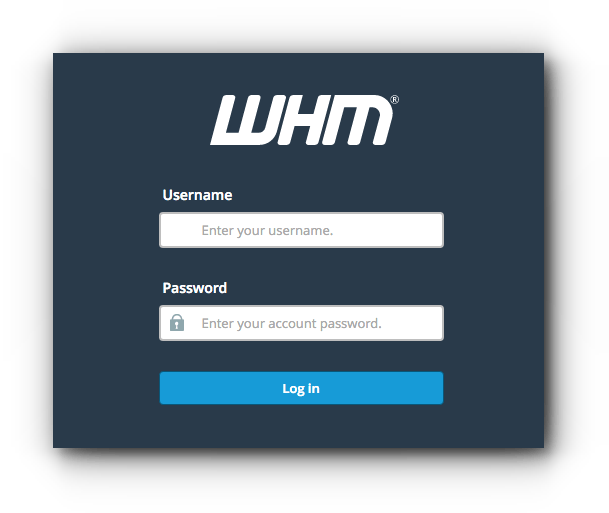
- Log in to WHM in your browser at
https://server-IP:2087orhttps://server-hostname:2087as root. - Open Server Configuration, then Update Preferences.
- Choose the release tier: STABLE or RELEASE for normal servers, or LTS for fewer, slower changes.
- Set cPanel updates to Automatic.
- Set operating system updates to automatic as well, then click Save.


Tip: with automatic updates on, keep regular server backups. See VPS backups.
Summary #
- Update Preferences is under Server Configuration.
- Choose Automatic and a stable release tier.
- Never leave the server without updates.
Need a server with cPanel and WHM? See VPS servers and the cPanel and WHM on VPS guide.
Frequently asked questions #
Which release tier should I choose?
STABLE or RELEASE for most servers, and LTS if you want fewer changes.
Do automatic updates take sites down?
Usually not; they run in the background overnight. Always keep backups anyway.


