

In shortIf
/home is full: add a new disk, format it, mount it at /home2 and add it to /etc/fstab. Then in WHM, Account Functions, Rearrange an Account, choose the account, choose /home2 and click Move Account. Take a backup first.
This guide is for server owners if you have a VPS or dedicated server with WHM. If you would rather not manage the server yourself, our server management service can do it for you.
As a server grows, the disk holding accounts (/home) can fill up. Instead of moving everything to a new server, you can add a second disk and spread accounts across both. WHM automatically detects folders starting with home, such as /home2.
Stage 1: add the new disk (SSH) #
Log in over SSH as root. List the disks to find the new one:
fdisk -l

After creating a partition on the new disk and formatting it, create the folder and mount it. For example, replacing the partition name with yours:
mkfs.xfs /dev/sdb1
mkdir /home2
mount /dev/sdb1 /home2
echo "/dev/sdb1 /home2 xfs defaults 0 0" >> /etc/fstab

Careful: formatting wipes the disk. Double-check it is the new empty disk, not the accounts disk. Using the disk UUID in fstab is better than its name.
Stage 2: move the account in WHM #
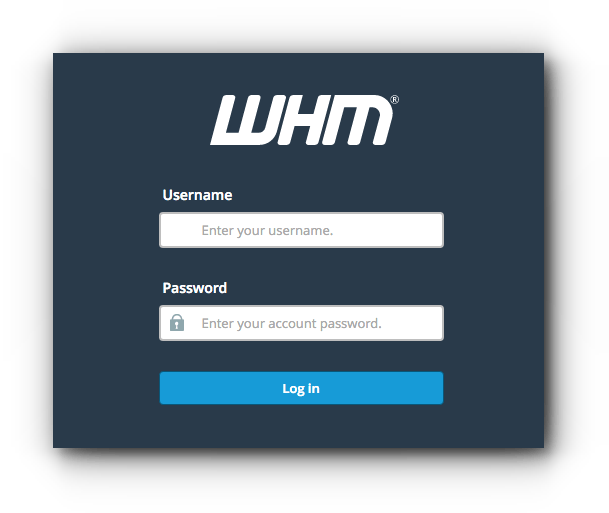
- Log in to WHM in your browser at
https://server-IP:2087orhttps://server-hostname:2087as root. - Open Account Functions, then Rearrange an Account.
- Choose the account and click Rearrange.
- Choose the new disk, such as
/home2, and click Move Account. - Wait for the success message, then check the site works.


Summary #
- Add the disk, mount it at /home2 and add it to fstab.
- Move accounts with Rearrange an Account.
- Take a backup before any move.
Need a server with cPanel and WHM? See VPS servers and the cPanel and WHM on VPS guide.
Frequently asked questions #
Does the site go down during the move?
It may for a few minutes, depending on account size. Move large accounts at quiet times.
Do login details change after the move?
No. Username, password and site stay the same; only the file location changes.


