

No. Auto-installers do all of it: they download the software, create the database and its user, write the config file and give you the admin link within a minute. In cPanel you may find one or two such tools depending on the server.
Which tool? #
| Tool | What it installs | Where |
|---|---|---|
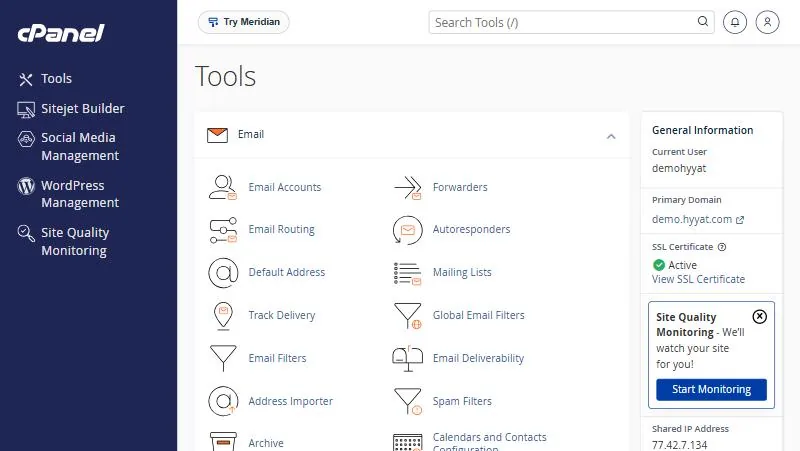
| WP Toolkit | WordPress only, plus updates, security and staging copies | Software section or the side bar |
| Softaculous Apps Installer | Hundreds of apps: WordPress, Joomla, stores and forums | Software section, if enabled on your server |
If Softaculous is not in your panel, it is not enabled on your server, and WP Toolkit covers WordPress. For any other software, open a support ticket and we will help you install it.
Installing (similar in both tools) #
- Open the tool and pick the software WordPress, for example, then Install.
- Choose the protocol https:// if SSL works on your domain, which is the normal case.
- Choose the domain from the list.
- Leave the folder field empty so the site is on
yourdomain.com. Entering wp puts it onyourdomain.com/wp. - Enter the site name and admin details a username other than admin, a strong password and an email you read.
- Choose the language for the WordPress dashboard.
- Click Install and wait for the success message and admin link.
Mistakes we often see #
| Mistake | Result | Fix |
|---|---|---|
| Typing wp in the folder field | The site is at yourdomain.com/wp | Reinstall with an empty folder, or move the site |
| The folder already has old files | The tool refuses or mixes files | Move the old files to another folder first |
| Choosing http instead of https | A “not secure” browser warning | Change the address in WordPress settings once SSL is on |
| Using admin as the username | An easy target for guessing | Create a new admin and delete admin |
After installing #
- Turn on automatic security updates in the tool itself.
- Delete themes and plugins you will not use.
- Turn on two-factor authentication in WordPress and in cPanel.
- Check the PHP version suits the site.
From our support desk #
- A customer installed WordPress in a folder named wp and wanted the site on the domain itself. We moved it to the root and fixed the links; an empty folder from the start would have been simpler.
- A customer installed over an old site without a backup, and the files got mixed up. The rule: move the old site to another folder, or back up, before any install.
- A customer installed three test copies and forgot them; unpatched, they became open holes. Remove installs you do not use.
Frequently asked questions #
Is Softaculous on every plan?
It appears in Software if enabled on your server, and WP Toolkit covers WordPress on shared, business and Saudi hosting.
Is a one-click install safe?
Yes, it downloads the official release. Security afterwards depends on updates and passwords.
Can I install more than one site?
Yes, on different domains or folders, within your plan limits.
How do I remove a site I installed?
From the installations list in the same tool, which removes files and database together. Take a backup first.
Can I update WordPress from the tool?
Yes, WP Toolkit and Softaculous show updates and offer automatic updating.
Can I copy a site to a staging copy?
Yes, WP Toolkit can create a staging copy to test changes before publishing them.
- Change Your PHP Version in cPanel and Turn On Extensions: MultiPHP and Select PHP Version
- How to Create a Full Website Backup in cPanel
- Turn On Two-Factor Authentication in cPanel: Protection Even If Your Password Is Stolen
- Move Your Website to Hyyat Host Without Downtime: Requirements and Steps
- cPanel Hosting


