

Everything about your domain lives in the Domains section, and everything about your PHP version lives in the Software section. This guide introduces the key tools in each.
The Domains section #
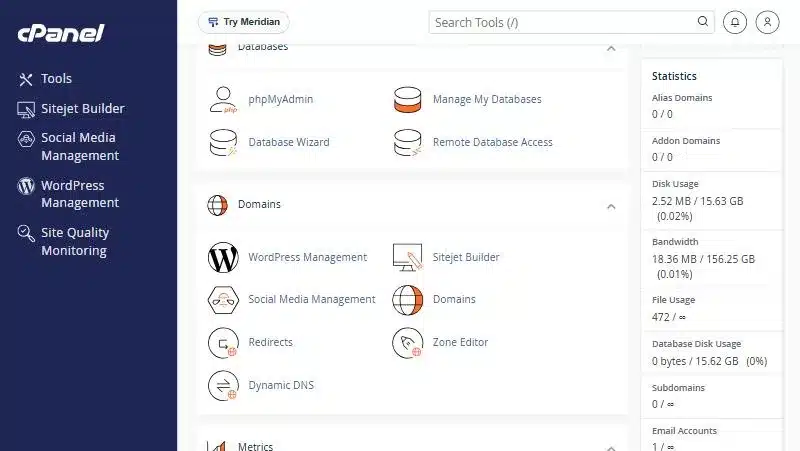
| Tool | What it does | Guide |
|---|---|---|
| Domains | Add a domain or subdomain and turn on HTTPS redirect | adding more domains |
| Redirects | Send a page or domain to another URL (301 or 302) | redirects |
| Zone Editor | Add and edit DNS records for the domain | |
| WordPress Management | Manage your WordPress sites in one place | |
| Dynamic DNS | Point a subdomain to a changing IP address |
The Domains page #
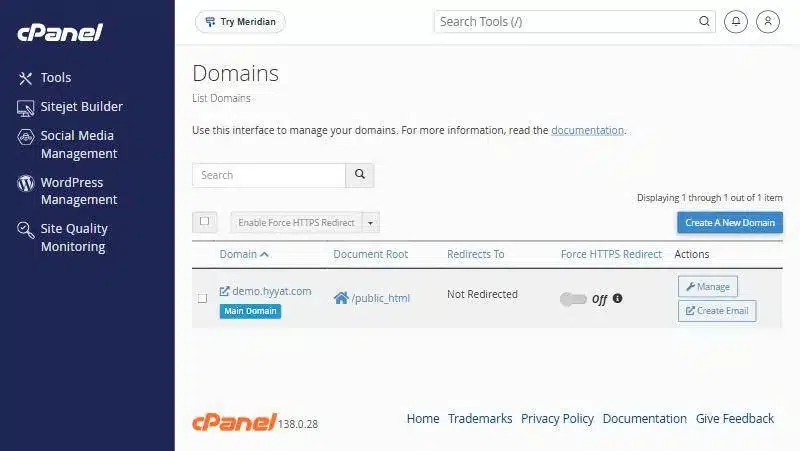
It lists all your domains, each domain’s folder (document root) and its Force HTTPS Redirect status. From here:
- Create A New Domain: add a new domain or a subdomain.
- Force HTTPS Redirect: turn it on so your site always opens over https, once SSL is active.
- Manage: change the domain’s folder or remove it.
- Create Email: create a mailbox on that domain directly.
Zone Editor #
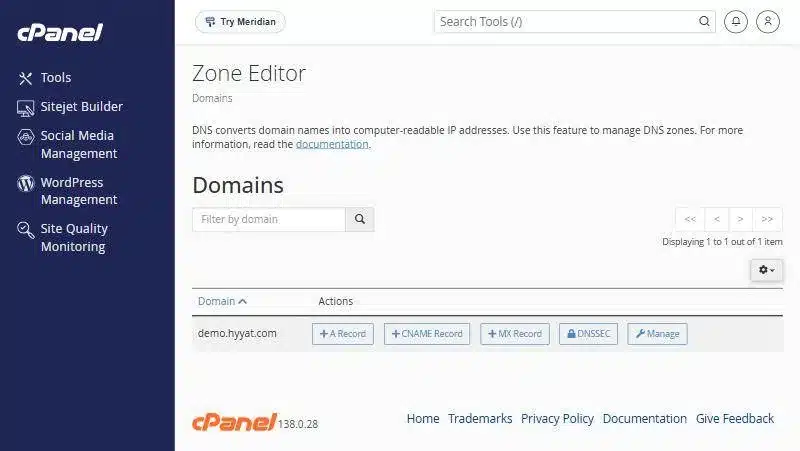
It lists your domains with quick buttons next to each: A Record, CNAME Record and MX Record. The Manage button shows every record so you can edit or delete it.
The Software section: PHP version #
In Software, open MultiPHP Manager. It shows the server default PHP version and a table of your domains. Select a domain, pick a version from the list and click Apply.
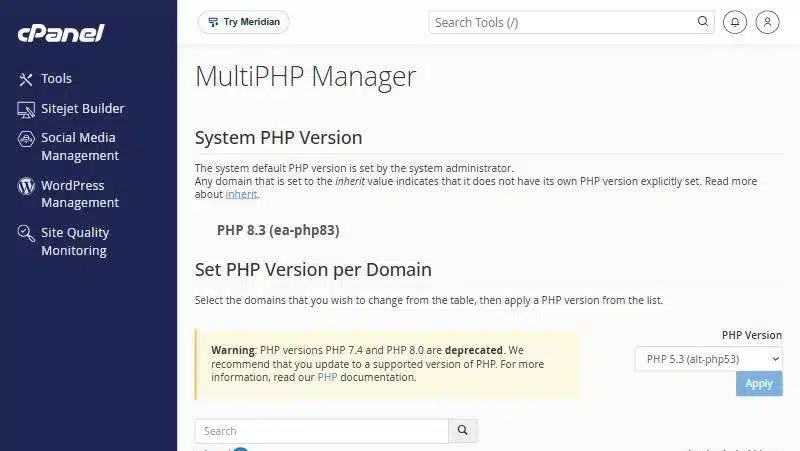
The same section has Select PHP Version for enabling PHP extensions and MultiPHP INI Editor for settings such as the upload size. Details in changing your PHP version.
Domain types in cPanel #
| Type | Example | When to use it |
|---|---|---|
| Primary domain | example.com | The domain your hosting was set up with |
| Addon domain | example.net | Another separate site on the same hosting, if your plan allows |
| Subdomain | blog.example.com | A separate part of your site, such as a blog or shop |
| Alias domain | example.org | A domain that shows the same site as your primary domain |
The most used DNS records #
| Record | What it does |
|---|---|
| A | Points the domain to the server IP address |
| CNAME | Makes a subdomain point to another name, such as www |
| MX | Sets the server that receives your domain email |
| TXT | Verifies domain ownership and holds SPF and DKIM records that keep your email out of spam |
Emails landing in spam? It is often SPF and DKIM. See enabling SPF and DKIM.
Common problems and fixes #
- I added a domain and it does not open: make sure its nameservers point to our hosting and allow time for DNS to propagate, which can take a few hours.
- The default cPanel page shows instead of my site: see fixing the defaultwebpage.cgi page.
- My site only works over http: check that SSL is active, then turn on Force HTTPS Redirect.
- My site broke after changing PHP: switch back in MultiPHP Manager, update your plugins, then try again.
The three PHP tools compared #
- MultiPHP Manager: choose the PHP version for each domain.
- Select PHP Version: turn on PHP extensions such as ioncube or imagick.
- MultiPHP INI Editor: edit settings such as upload_max_filesize and memory_limit.
Summary #
- The Domains page adds domains and forces HTTPS.
- Zone Editor manages DNS records, with care.
- MultiPHP Manager sets the PHP version per domain.
Running several sites? See Business Hosting.
Frequently asked questions #
How do I add a domain in cPanel?
In the Domains section open Domains and click Create A New Domain.
How do I force my site to HTTPS?
On the Domains page turn on Force HTTPS Redirect next to the domain, once SSL is active.
Where do I change the PHP version?
In Software open MultiPHP Manager, select the domain, pick the version and click Apply.
How long does a new domain take to work?
If its nameservers point to our hosting, it usually works within a few hours once DNS propagates.
Should I edit DNS in cPanel or Cloudflare?
If your domain runs through Cloudflare, edit it in Cloudflare; otherwise use Zone Editor in cPanel.


