

All your personal account settings sit in one section at the bottom of the Tools page: Preferences.
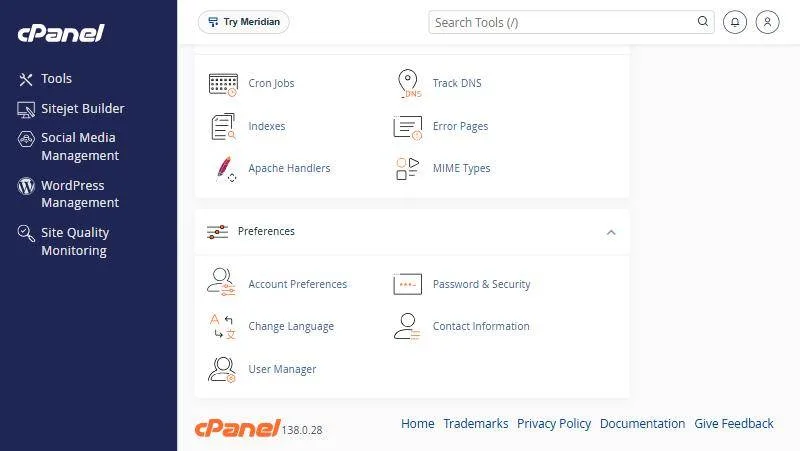
| Tool | What it does | Guide |
|---|---|---|
| Password & Security | Change your cPanel password | change your password |
| Change Language | Change the interface language | |
| Contact Information | The email address that receives account notices | update contact information |
| User Manager | Subaccounts for email and FTP with one password | |
| Account Preferences | Language, notification position and privacy on one page |
Change your password #
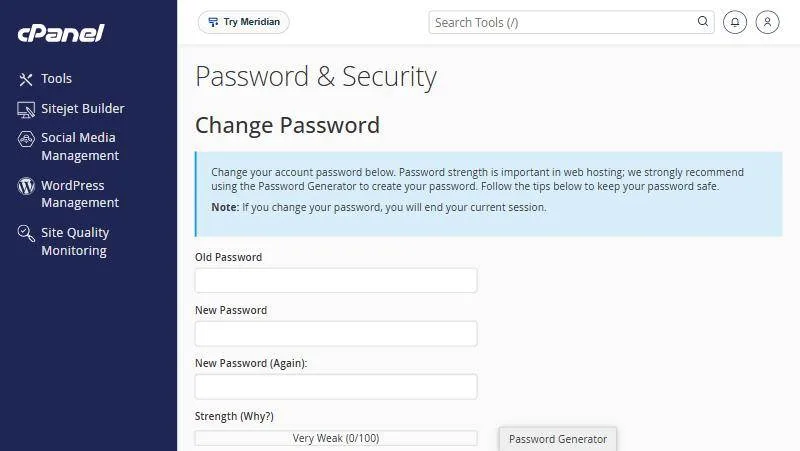
Type your old password, then the new one twice. The Strength meter shows how strong it is, and the Password Generator button suggests a strong one.
Change Language #
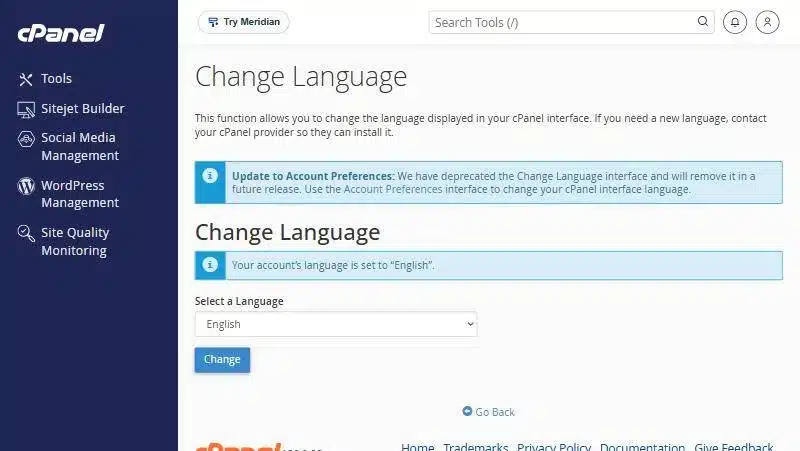
Pick a language from the list and click Change. The page notes that cPanel will move this option to Account Preferences in a future release, which already has a Change Language box.
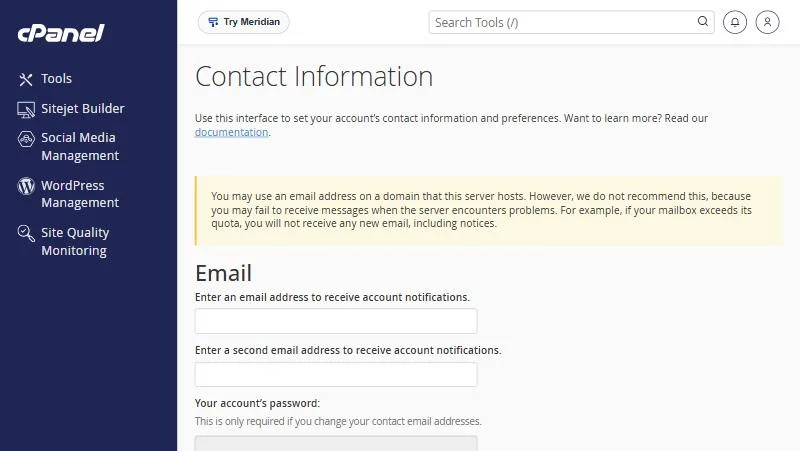
Contact Information #
Add an email address to receive account notices, such as a nearly full disk. You can add two addresses.
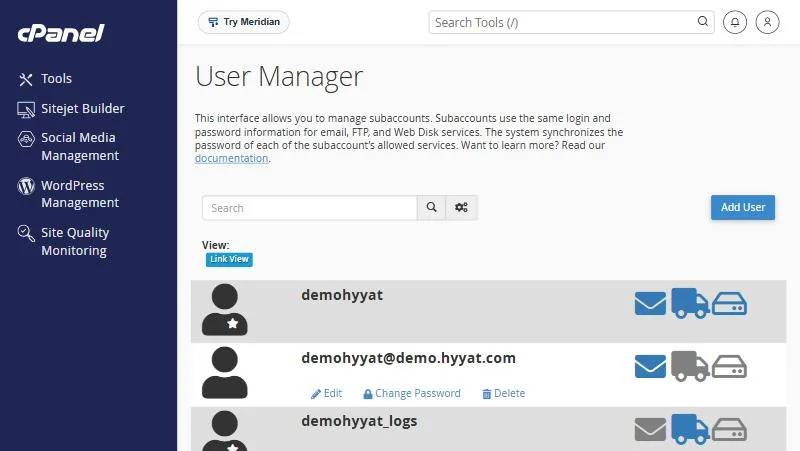
User Manager #
It lists the main account and your email accounts. The icons next to each user show which services it has: email, FTP and Web Disk. Add User creates a new user with one password for those services.
How to choose a strong password #
- Make it long, with upper and lower case letters, numbers and symbols.
- Do not use your name, your domain or your birthday.
- Do not reuse a password from another site.
- Use the Password Generator button and keep it in a password manager.
When to use User Manager #
If a staff member needs an email account and FTP access, instead of creating each with a different password, create one user and turn on only the services they need. When they leave, you disable them in one place.
Account Preferences #
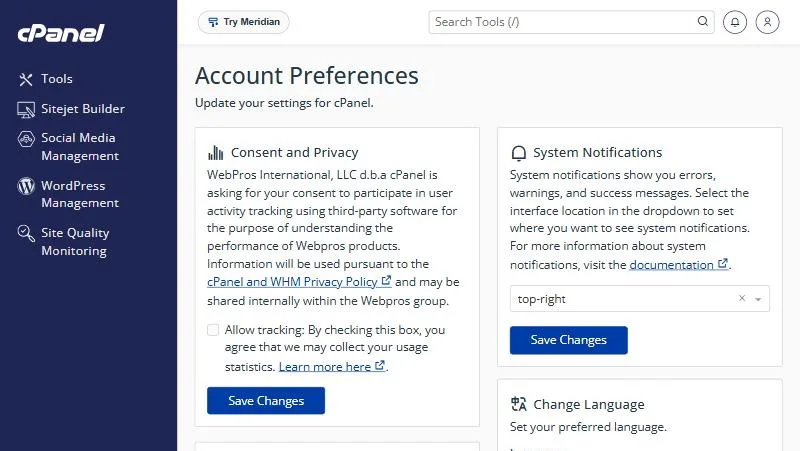
This page gathers your general account settings: consent to usage tracking, where notifications appear on screen, language and contact information.
Common problems and fixes #
- I forgot my cPanel password: open a support ticket from the client area and our team will help you reset it.
- Some pages did not change language: some newer cPanel tools are not fully translated yet and stay in English.
- I do not receive account notices: check the address in Contact Information and look in your spam folder.
Cannot log in even with the right details? See fixing cPanel login problems.
Summary #
- Change your password in Password & Security.
- Change the language in Change Language or Account Preferences.
- Add an outside email address in Contact Information.
Every Hyyat Host plan comes with cPanel. See cPanel Hosting.
Frequently asked questions #
How do I change my cPanel password?
In Preferences open Password & Security, enter the old password and the new one twice, then save.
How do I change the cPanel language?
In Preferences open Change Language and pick a language.
Why add an email in Contact Information?
So you receive account notices, such as your disk getting full.
I forgot my cPanel password. What do I do?
Open a support ticket from the client area and our team will help you reset it.
Can a subaccount log in to cPanel?
No. It can only use the services you turn on for it, such as email and FTP.


