

Your files and databases are the heart of your website. This guide introduces the tools in both sections and when to use each one.
The Files section #
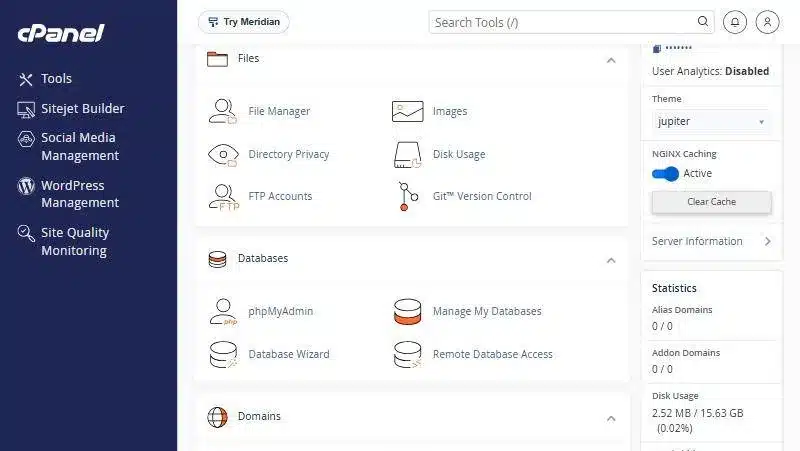
| Tool | What it does | Guide |
|---|---|---|
| File Manager | Upload, download, edit, compress, extract and change permissions | using File Manager |
| Images | Resize images and convert their format | |
| Directory Privacy | Password protect a folder | password protect a folder |
| Disk Usage | See which folders take up space | |
| FTP Accounts | An account for uploading with a program such as FileZilla | create an FTP account |
| Git™ Version Control | Connect a Git repository to your site |
File Manager #
It opens on its own page: the folder tree on the left, files in the middle with size, last modified date and permissions, and buttons along the top: File, Folder, Copy, Move, Upload, Download, Delete, Rename, Edit, Permissions, Extract and Compress.
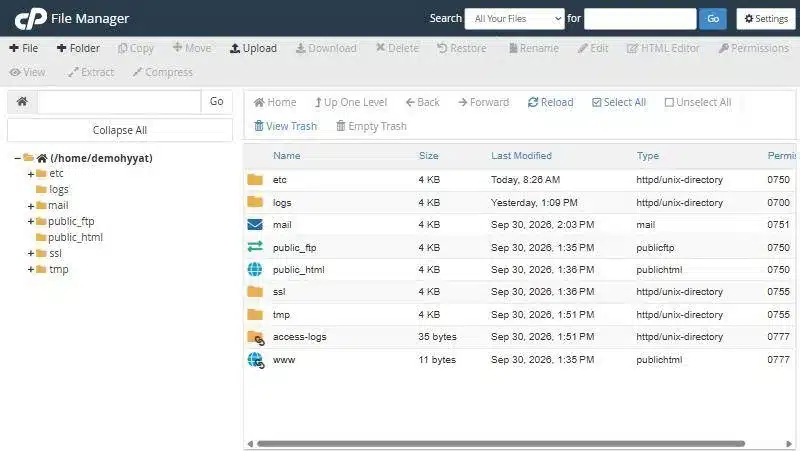
Your website files live in the public_html folder. Learn about the other folders in the folders in your account.
The Databases section #
| Tool | What it does | Guide |
|---|---|---|
| Manage My Databases | Create a database and user, link them, check and repair | creating a database |
| Database Wizard | The same steps one at a time, for beginners | |
| phpMyAdmin | Import, export and edit tables | import and export |
| Remote Database Access | Let an outside computer connect to the database |
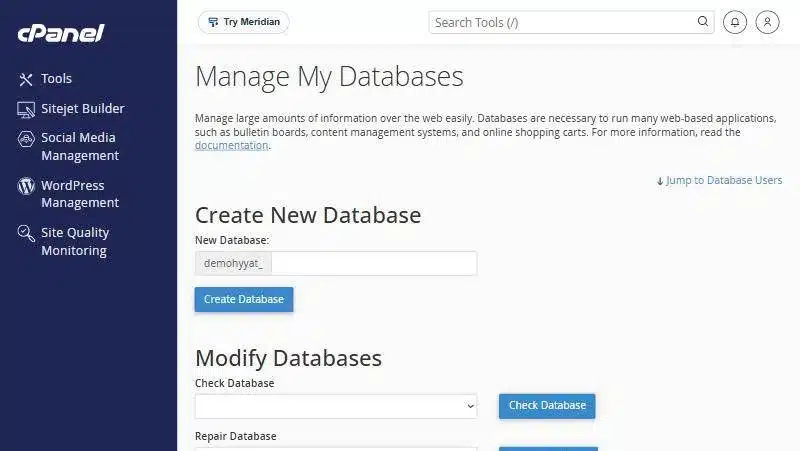
- Open Manage My Databases in the Databases section.
- Type the database name under New Database. It starts with your account name automatically.
- Click Create Database.
- Create a user and add it to the database further down the page, with all privileges.
The main jobs in File Manager #
| You want to… | Button |
|---|---|
| Upload a file from your computer | Upload |
| Download a file to your computer | Download |
| Upload a whole site quickly | Zip it on your computer, upload it, then Extract |
| Edit a file such as wp-config.php | Edit |
| Change file or folder permissions | Permissions |
| See hidden files such as .htaccess | Settings → Show Hidden Files |
The right permissions #
Permissions control who can read or change a file. The usual values for most sites:
- Folders: 755
- Files: 644
- wp-config.php: can be 600 or 640 for extra protection
Common problems and fixes #
- I uploaded my site and it does not show: make sure the files are directly inside public_html, not in a subfolder.
- The file is too big to upload: zip it, or upload it with an FTP account.
- Error establishing a database connection: check that the database name, user and password in your config file match, and that the user is added to the database with all privileges.
- The database name is not what I typed: cPanel adds your account name and an underscore in front automatically, so use the full name.
Back up before you edit #
Before editing an important file or database, keep a copy. In File Manager copy the file under another name, and in phpMyAdmin export the database. For a full site backup see creating a full backup.
Summary #
- File Manager handles everything about your site files.
- Disk Usage shows what fills your space.
- Manage My Databases and phpMyAdmin handle databases.
Need more space? Compare Shared Hosting and Business Hosting.
Frequently asked questions #
Where do I upload my website files in cPanel?
In File Manager, inside the public_html folder.
Can I restore a file I deleted?
Yes, until you empty the Trash. Click View Trash in File Manager.
How do I create a database?
In Manage My Databases type a name and click Create Database, then create a user and add it.
What permissions should my website files have?
Usually 755 for folders and 644 for files. Never use 777.
How do I upload a site with many files?
Zip it on your computer, upload the zip in File Manager, then click Extract.


