

Protecting your account starts in cPanel itself. This guide introduces the Security tools, starting with the most important.
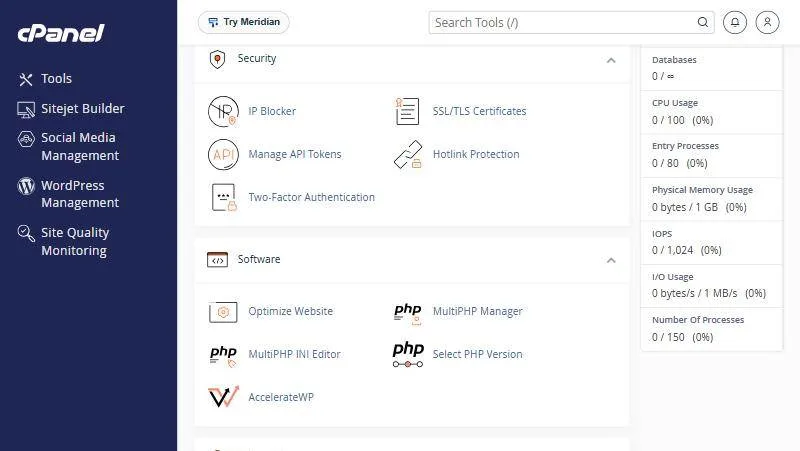
| Tool | What it does | Guide |
|---|---|---|
| Two-Factor Authentication | Asks for a code from your phone as well as your password | turn on two-factor authentication |
| IP Blocker | Stops an address or range from opening your site | block an IP |
| SSL/TLS Certificates | Shows certificates and manages their keys | free vs paid SSL |
| Hotlink Protection | Stops other sites showing your images from your hosting | |
| Manage API Tokens | Keys for apps that connect to your account. Never share them |
Start with two-factor authentication #
Even if someone learns your password, they cannot log in without the code shown in an app on your phone, such as Google Authenticator.
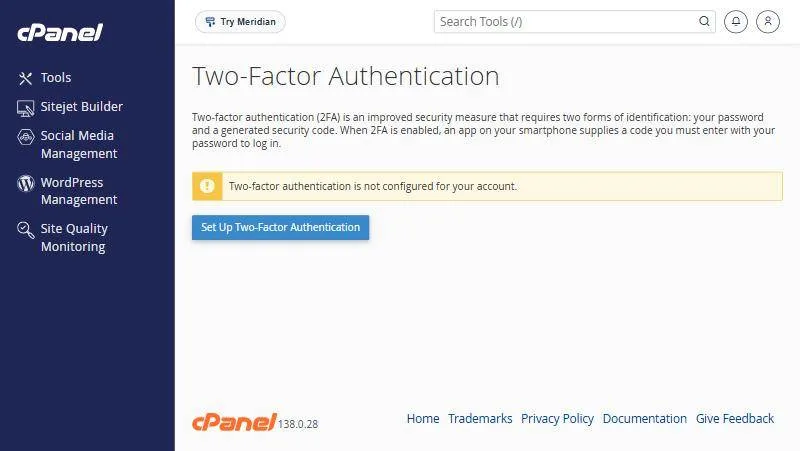
- Open Two-Factor Authentication in the Security section.
- Click Set Up Two-Factor Authentication.
- Scan the QR code with the authenticator app on your phone.
- Enter the code from the app and click Save.
IP Blocker #
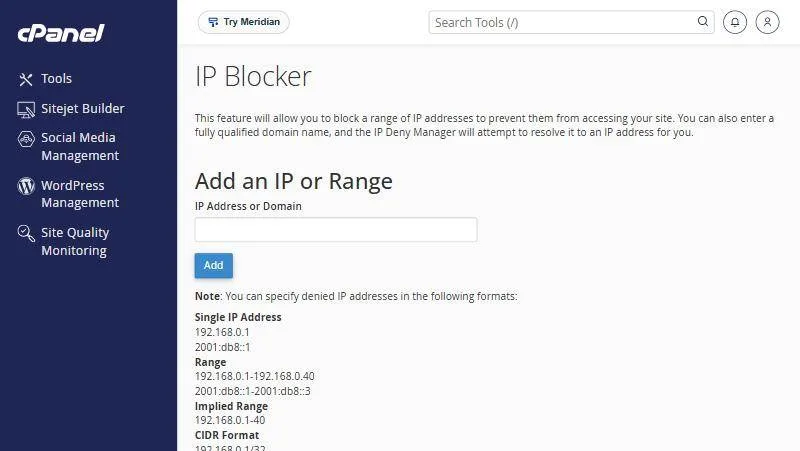
Type a single address or a range and click Add. The page lists the accepted formats: a single IP, a range, or CIDR.
SSL/TLS Certificates #
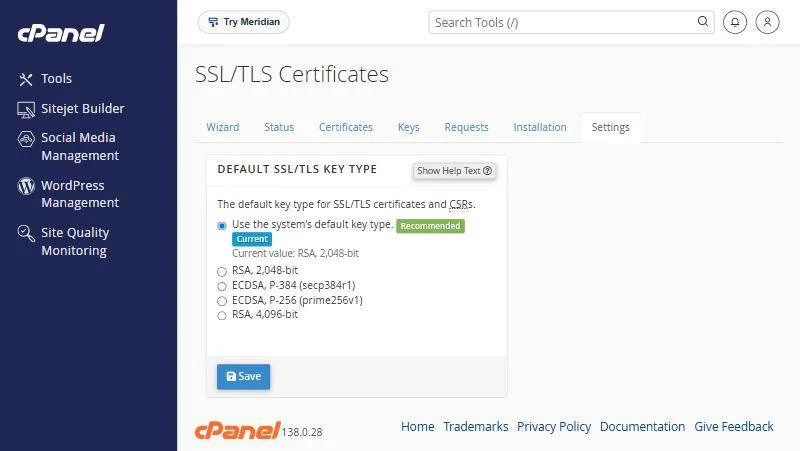
This page has tabs: Wizard, Status, Certificates, Keys, Requests, Installation and Settings. On our hosting the free certificate is issued and renewed automatically, so you only need this page to install a paid certificate.
Once SSL is active, turn on HTTPS redirect from the Domains page.
A quick security checklist #
- A strong cPanel password you do not use anywhere else.
- Two-factor authentication turned on.
- An active SSL certificate with HTTPS redirect on.
- WordPress, plugins and themes always up to date.
- A recent backup kept outside your hosting.
- An outside email address in Contact Information for notices.
Hotlink Protection #
If other sites show your images by linking straight to your hosting, they use your bandwidth. Turn on Hotlink Protection and add your own domains to the allowed list, and other sites will be blocked from showing the images.
Manage API Tokens #
Tokens let an app or script control your account without your password. Create one only when needed, give it a clear name and an expiry date, and delete it when you no longer need it. Never send it to anyone, not even us.
Other security tools in your account #
- ModSecurity: a web application firewall that blocks common attacks. See managing ModSecurity.
- Directory Privacy: password protect a folder. See protecting a folder.
- Malware scanning: our servers scan files with ImunifyAV. If your site is hacked, see cleaning a hacked WordPress site.
Common problems and fixes #
- I lost the phone with my 2FA code: open a support ticket from the client area and our team will help you get back in.
- I blocked my own IP by mistake: connect from another network and remove the address from the blocked list at the bottom of the IP Blocker page.
- The browser says my site is not secure: check the certificate on the Status tab, and make sure image and file links on your site use https.
Summary #
- Turn on two-factor authentication first.
- Block unwanted addresses with IP Blocker.
- The free SSL certificate renews automatically.
Want stronger protection for a WordPress site? See Business Hosting.
Frequently asked questions #
How do I protect my cPanel account?
Turn on Two-Factor Authentication in the Security section and use a strong password.
How do I block an IP address from my site?
In Security open IP Blocker, type the address and click Add.
Do I need to renew the free SSL certificate?
No, it renews automatically on Hyyat Host hosting.
What if I lose my two-factor authentication phone?
Open a support ticket from the client area and our team will help you get back in.
What is Hotlink Protection?
It stops other sites showing your images by linking straight to your hosting, which saves bandwidth.


