

wp-content/plugins via FTP or the cPanel File Manager. Then activate it on the Plugins page.
WordPress lets you install plugins with one click from Plugins, then Add New. Sometimes the install fails, because of file permissions, file size, a connection timeout, or because the plugin is a paid one not in the WordPress repository. In that case you upload it manually.

Method 1: the Upload Plugin button #
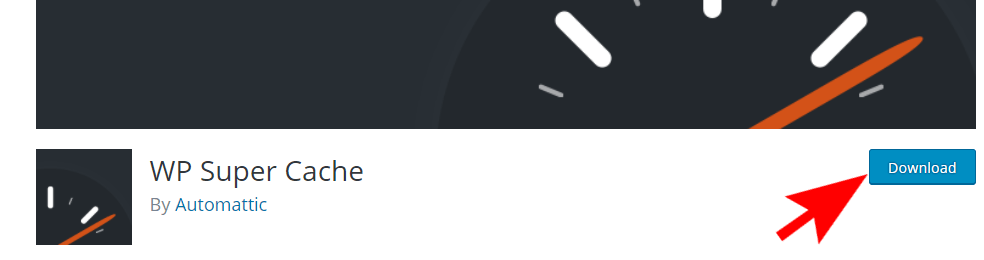
- Download the plugin zip file from WordPress.org or your account on the developer’s site.
- Open Plugins, then Add New, and click Upload Plugin at the top.
- Choose the zip file and click Install Now, then Activate Plugin.
If you get an error such as the file exceeding the upload size, or the upload fails, use method 2 or 3.
Method 2: via FTP #
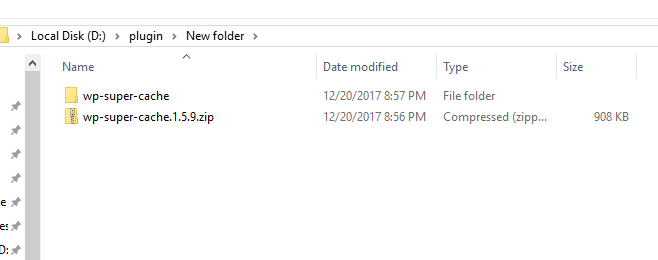
- Unzip the plugin on your computer, which gives you a folder named after the plugin.
- Connect to your site with an FTP client such as FileZilla, using the FTP details in your hosting activation email or the client area.
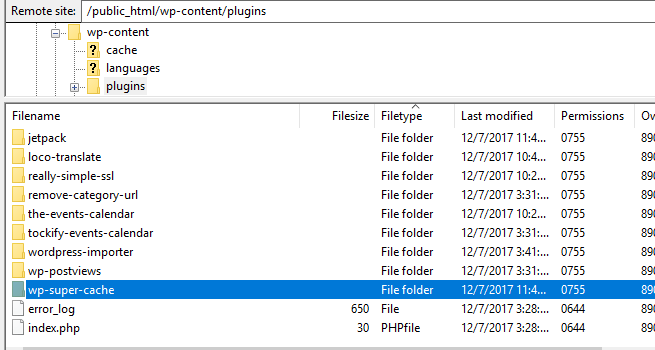
- Open the folder
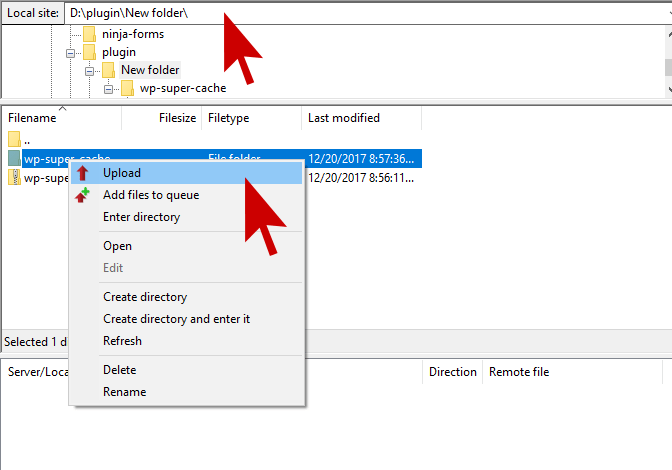
public_html/wp-content/plugins, which has a folder for each installed plugin. - Upload the plugin folder. On the Local side, right-click the folder and choose Upload.
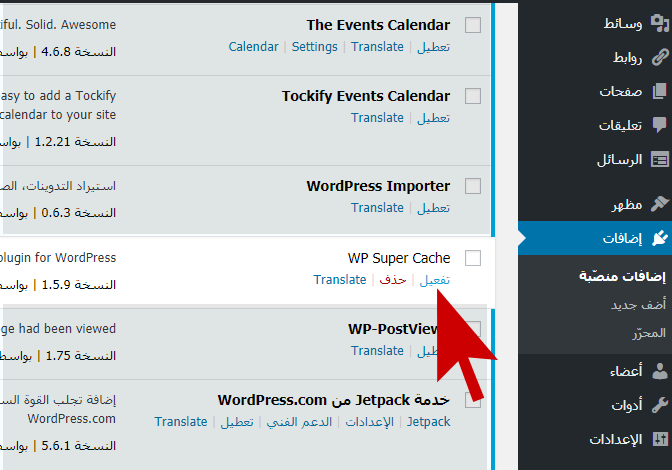
- Activate the plugin from the WordPress dashboard, under Plugins.

Method 3: the cPanel File Manager #
Without an FTP client: open cPanel, then File Manager, go to public_html/wp-content/plugins, click Upload and upload the zip file, then right-click it and choose Extract. Delete the zip file afterwards and activate the plugin in WordPress.
Common errors #
| Problem | Fix |
|---|---|
| You uploaded the folder but the plugin does not appear | Make sure the files sit directly inside one folder, not a folder inside a folder of the same name. |
| “The package could not be installed” | The uploaded file is not a plugin; you may have uploaded a theme or a zip with other files. |
| The site breaks after activation | Rename the plugin folder via FTP to disable it and bring the site back. |
Summary #
- Try Upload Plugin first.
- If it fails, upload the folder to wp-content/plugins via FTP or File Manager.
- Only download plugins from their official sources.
Want hosting tuned for WordPress? See WordPress Hosting.
Frequently asked questions #
Where do plugin files go when uploading manually?
In wp-content/plugins inside your site folder, each plugin in its own folder.
Do I upload the zip file or the folder?
Via FTP, upload the unzipped folder. With Upload Plugin or File Manager, upload the zip file.
Why does automatic install fail?
Usually file permissions, file size, a connection timeout, or a paid plugin that is not in the repository.


