

Imagine redesigning your site directly on the address your customers visit: half-finished pages, a changing menu, an error showing for a few minutes. That is what a staging site prevents: a separate workspace where the designer and you see everything, while visitors see your usual site.
This guide explains when you need a staging site, how to create one, and most importantly how to move changes across safely, because that is where mistakes usually happen.
When do you need a staging site? #
Editing text on a page or adding a post does not need staging. For regular plugin updates, follow how to update WordPress and plugins safely.
How to create a staging site #
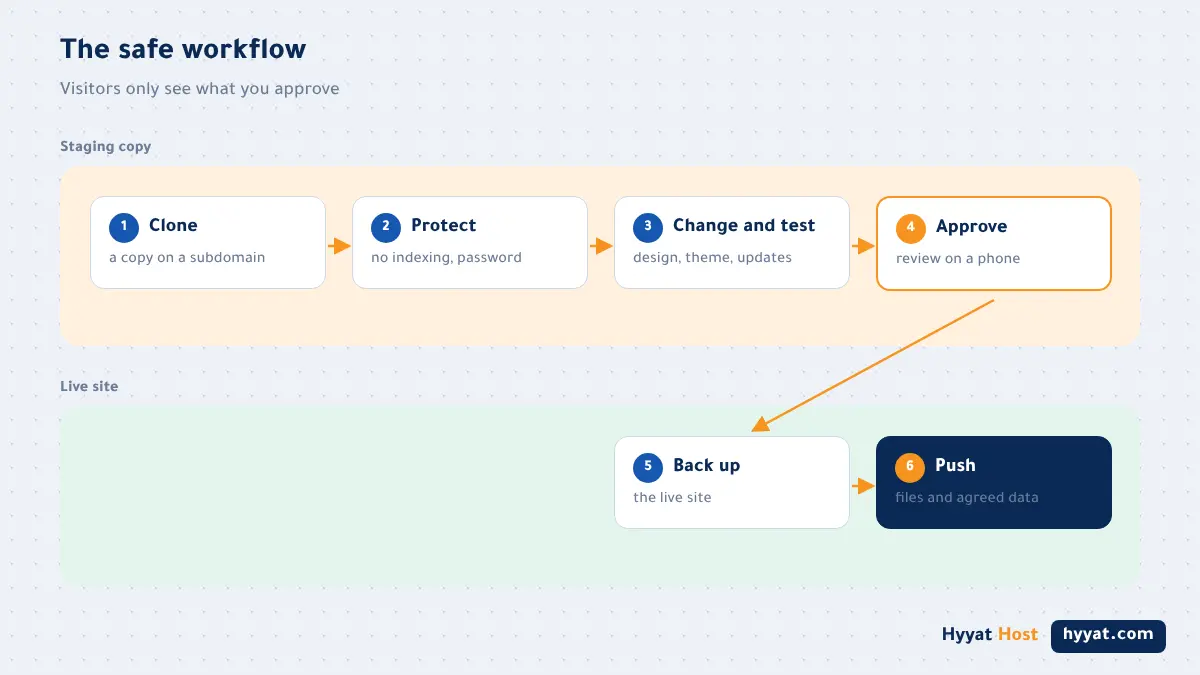
There are several ways; the easiest is from the control panel:
- With WP Toolkit in cPanel Use the Clone feature to create a copy of your site on a subdomain such as
staging.yourcompany.com. The tool is explained in what WordPress Toolkit is. - Or with a copy-and-push plugin Some WordPress plugins create and push staging copies, but watch the limits of free versions.
- Or manually by copying the files and database to a subdomain and updating the URLs in them. This is for experienced users.
Three things to do as soon as the copy exists #
- Block indexing: under Settings, Reading, discourage search engines from indexing the site, so a duplicate of your site does not appear in Google.
- Protect access: put a password on the staging copy as in password-protecting a directory, so only your team can see it.
- Stop real messages: on stores, make sure the copy does not email real customers or use the payment gateway in live mode.
Pushing changes to the live site #
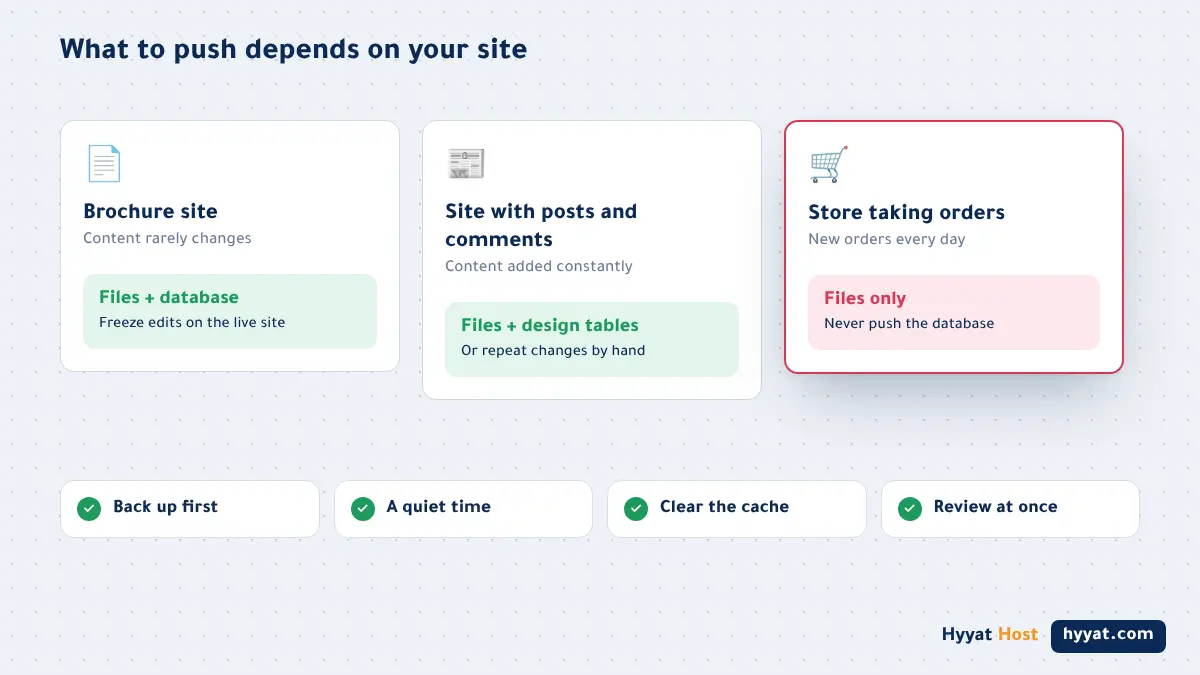
This is where care is needed. The live site did not stop while you worked: new orders, comments or sign-ups may have arrived, or someone may have added a post. If you copy the whole staging database over it, all of that is erased.
| Type of site | Safe way to push |
|---|---|
| Brochure site with rarely changing content | Push files and database together, freezing edits on the live site during the work. |
| Site with ongoing posts or comments | Push files (theme and plugins), and only the design-related tables, or repeat the changes by hand. |
| Store taking orders | Never push the database over the store. Push files, apply settings by hand, at a quiet time. |
Safe push steps #
- Take a full backup of the live site before any push, as in a full backup from cPanel.
- Choose a quiet time with the fewest visits and orders.
- Push only what you agreed files, or files plus specific tables, depending on your site.
- Clear the cache in WordPress, and in Cloudflare if you use it.
- Review the live site straight away the home page, forms, the cart if any, and mobile.
Staging in design projects #
In redesigns or when converting a site to WordPress, the staging copy is where you review and approve the design before launch. Ask the designer for its link and password, review it on your phone, and send your feedback in one batch. After approval, set the launch date together.
URLs inside the staging copy #
WordPress stores the site URL in the database and in image and page links. When the copy is created on a subdomain, these URLs must be replaced with the staging URL, or some pages and images will load from the live site. Cloning tools do this automatically, and reverse it when pushing back to the main domain. In a manual copy, you need a search-and-replace tool that handles WordPress’s serialised data, not a plain text replace in the database file.
Once the project is over, do not leave the staging copy neglected with outdated plugins, because it is an open door on your hosting. Keep it updated alongside the live site, or disable it until you need it again.
Who works on the staging copy? #
Decide from the start who edits on staging, who approves and who pushes. If someone on your team adds content to the live site during the work, agree to log what was added so nothing is lost when pushing. This simple organisation prevents the most common launch problems.
Summary #
- A separate copy for testing on a subdomain, hidden from visitors.
- Block indexing, password-protect it, and stop real emails and payments on it.
- Back up before pushing, and never push a database over a working store.
We work on a staging copy in every redesign as part of WordPress website design, and the copy tools run on our WordPress hosting.
Frequently asked questions #
What is a staging site?
A copy of your site on a separate address where you change and test things without visitors seeing them, then move approved changes to the live site.
Do I need staging for every change?
No. You need it for redesigns, theme changes, major updates and new features, not for editing text or adding a post.
How do I create a staging copy?
The easiest way is the Clone feature in WP Toolkit in cPanel, on a subdomain.
Will the staging site appear in Google?
It may, if indexing is not blocked. Discourage search engines and protect it with a password.
Should I push the staging database to the live site?
Not on stores and active sites, because it erases new orders and comments. Push files and settings only.
- How to Choose a WordPress Theme for Your Company Site: Design, Speed and Language Support
- Converting Your Website to WordPress Without Losing Your Google Rankings
- What Is WordPress Toolkit in cPanel? Installs, Updates, Backups and Security Hardening in One Place
- How to Update WordPress and Plugins Safely Without Breaking Your Site
- A Full Backup of Your Website from cPanel: Files, Databases and Email


