

Many companies want to move to WordPress: an old custom-built site nobody can edit, a site on a closed website builder that has become limiting or expensive, or a site in a technology nobody maintains any more. The goal is the same: a site you can edit yourself and own on your own hosting.
But the move carries one big risk: the new site losing what the old one built up in Google. This guide orders the conversion steps so you keep what you have. If your site already runs on WordPress and you want to move it to another host, that is a different topic covered in moving your site to Hyyat Host.
Before you start #
- Access to the old site, or at least the ability to browse all of it.
- Access to Google Search Console for the site, or create it now before you start.
- Confirmation that the domain is in your name and you can change its settings.
1) Inventory the old site #
Collect a list of every page on the old site: URL, title, description, and whether it gets traffic from Google. Sources for the list:
- The old sitemap (sitemap.xml) if there is one.
- The Pages report in Search Console, and the Performance report to see which pages bring visits.
- A crawler tool that goes through the site and extracts every URL.
- Uploaded images and files such as PDFs that other sites may link to.
Put the list in a spreadsheet. It is the basis of every step that follows.
2) Decide the fate of each page #
| Decision | When |
|---|---|
| Move as is | An important page with sound content. |
| Move and improve | An important page with outdated or thin content. |
| Merge | Two pages about the same topic. |
| Drop and redirect | A page with no value; its URL is redirected to the closest page. |
This is a chance to tidy up the site. But never drop a page that brings traffic without redirecting its URL.
3) Build WordPress on a staging copy #
Do not build the new site in place of the old one. Build it on a subdomain or staging copy while the old site keeps running until launch. Details in WordPress staging sites. Block indexing of the staging copy so it does not appear in Google before its time.
4) Move the content with its titles #
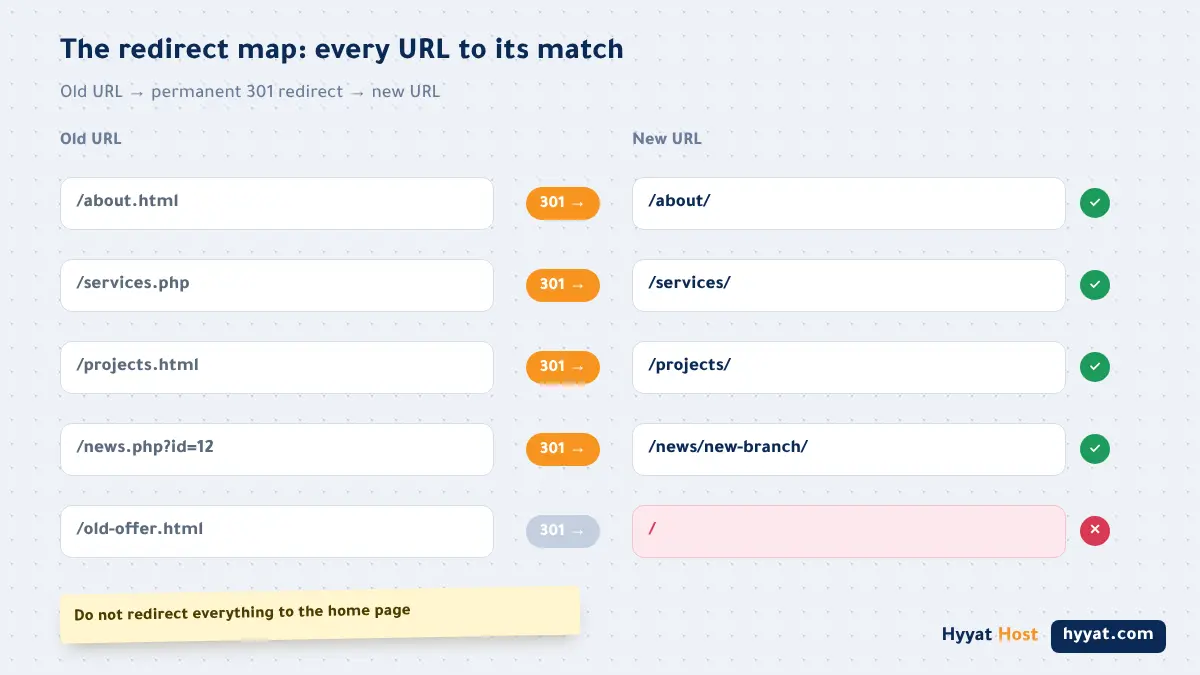
Move the text and images, and with each page its Google title, description and subheadings. Keep the same URL where possible. If the old URL was like /about.html, in WordPress it may become /about/, which needs a redirect.
5) Redirect every old URL to its new equivalent #
This is the most important step. For every old URL that changed, create a permanent (301) redirect to the new URL. The redirect tells Google the page has moved, so it passes on what the old page had, and a visitor arriving from an old link reaches the right page instead of a 404 error.
In WordPress you can create redirects with a redirection plugin or your SEO plugin, or from the control panel as in redirecting a page in cPanel. It is best to prepare the full redirect list before launch and switch it on at launch.
6) Launch #
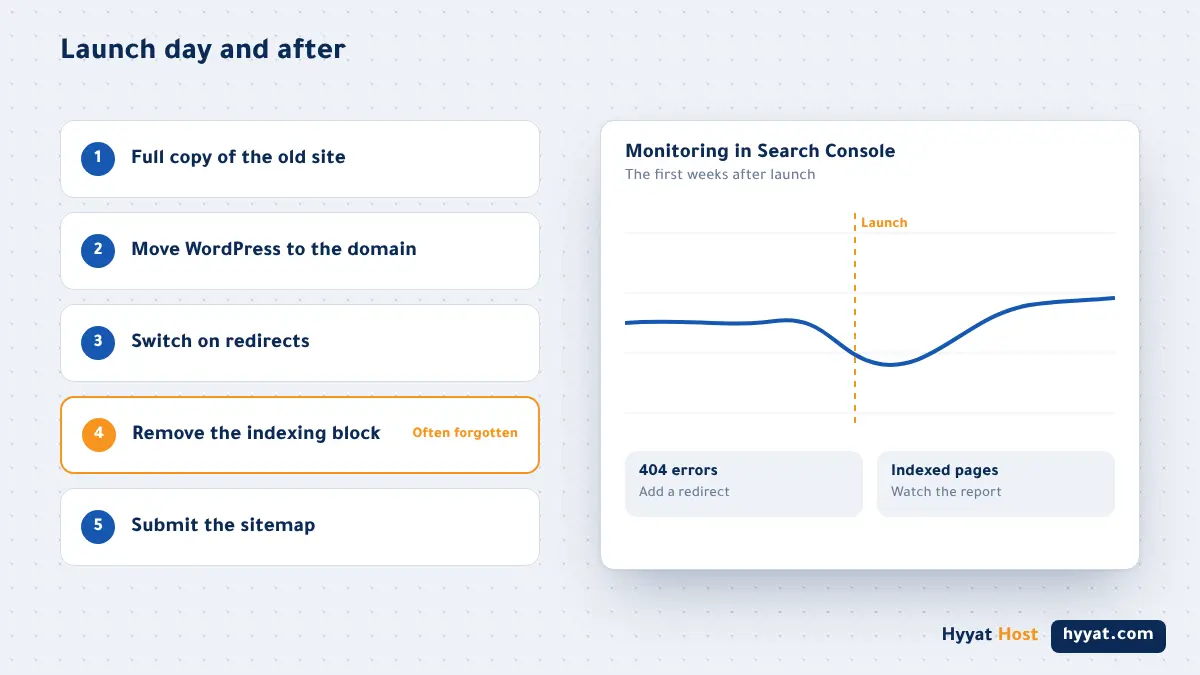
- Take a full copy of the old site so you can go back to it.
- Move WordPress to the main domain or point the domain to the new hosting if it changed.
- Switch on the redirects and test a sample of old URLs yourself.
- Remove the indexing block you set on the staging copy. This step is often forgotten.
- Submit the new sitemap in Search Console and request indexing of the key pages.
If the move involves changing hosting or nameservers, follow moving DNS without downtime so the site stays up during the switch.
7) Follow-up after launch #
In the first weeks, watch the Pages report and 404 errors in Search Console, and add a redirect for any old URL you missed. Traffic often moves a little while Google re-indexes the site, but correct redirects are what bring it back to its level.
.php, and its “Projects” page brought most of its traffic. We moved the content to WordPress and created a redirect for every page to its equivalent, including the projects page, so old links scattered across files and emails kept working.What about email, forms and analytics? #
- Email: if your email is on the same domain, changing the site does not touch it as long as the MX records stay the same. If hosting changes, move the email or keep its records as they are before changing nameservers.
- Forms: the old site’s forms do not move automatically. Recreate them in WordPress and test that their messages arrive before launch.
- Analytics: add the Google Analytics code and any tracking codes to the new site before launch, so the data does not break.
- External links: if you have links in social profiles, ads or business cards, check them after launch.
Summary #
- Inventory every old URL and decide the fate of each page.
- Build on staging, and move content with its titles and descriptions.
- Redirect every old URL with a 301, then monitor Search Console after launch.
We move company sites to WordPress while keeping their URLs as part of WordPress website design. If the move needs custom code to transfer lots of data, see web development.
Frequently asked questions #
Will I lose my Google rankings when converting to WordPress?
Not if you move the content, create a permanent 301 redirect from every old URL to its new equivalent, and monitor errors after launch.
What is a 301 redirect?
A permanent redirect telling browsers and Google that a page has moved to a new URL, so visitors reach it and it inherits what the old URL had.
Should I redirect all old URLs to the home page?
No. Redirect each URL to the page closest to it in topic. Redirecting everything to the home page wastes the value of those pages.
Where should I build the new site during the conversion?
On a staging copy or subdomain with indexing blocked, while the old site runs until launch.
What is the difference between converting to WordPress and moving hosts?
Converting changes the system the site is built on; moving hosts moves the same site to another server without changing its system.
- WordPress Staging Sites: Change Your Site’s Design Without Visitors Seeing It
- How to Choose a WordPress Theme for Your Company Site: Design, Speed and Language Support
- Move Your Website to Hyyat Host Without Downtime: Requirements and Steps
- Redirect a Page or Domain in cPanel: 301 vs 302 and the www Options
- How to Migrate DNS and Change Nameservers Without Downtime


