

wp-content/plugins via FTP, then activate it on the Plugins screen.A plugin is a small program that adds a feature: a contact form, a shop, SEO, backups. Every plugin is new code running on your site, so choose a few trustworthy ones.
The Plugins screen #
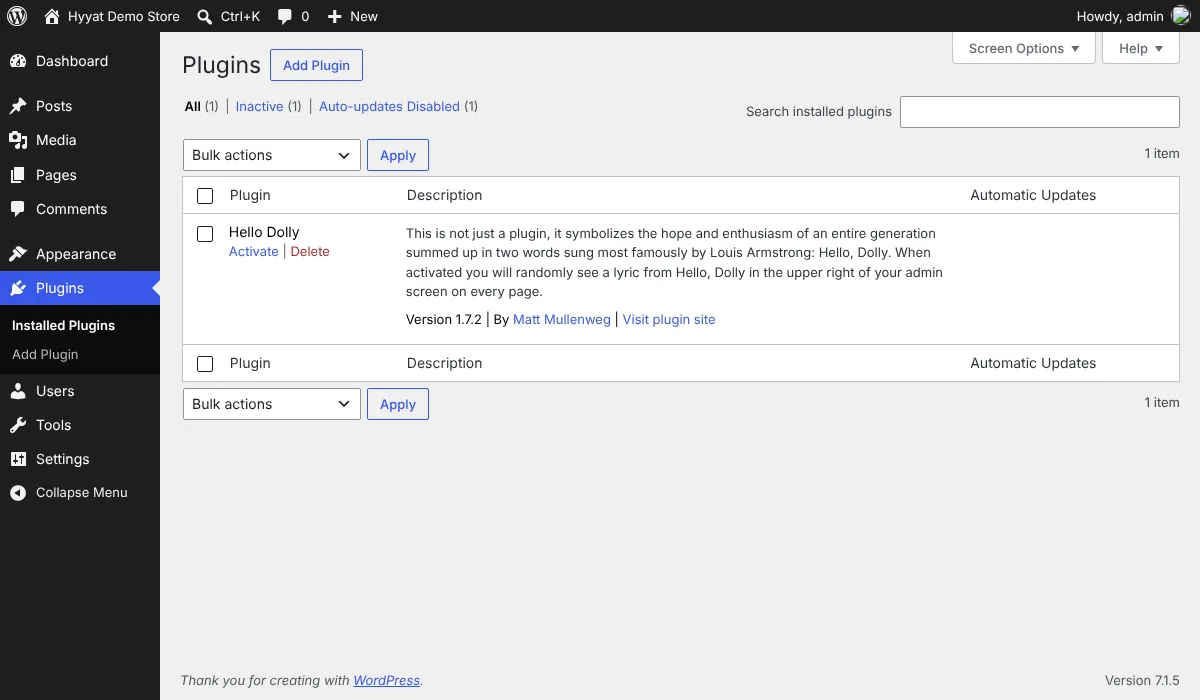
Plugins lists everything installed, active and inactive, with buttons to activate, deactivate and delete, plus an automatic updates option for each plugin.
Method 1: Searching the directory #
- Plugins › Add Plugin shows popular and recommended plugins.
- Search by name or by job, such as contact form.
- Install Now then Activate.
Method 2: Uploading a .zip #
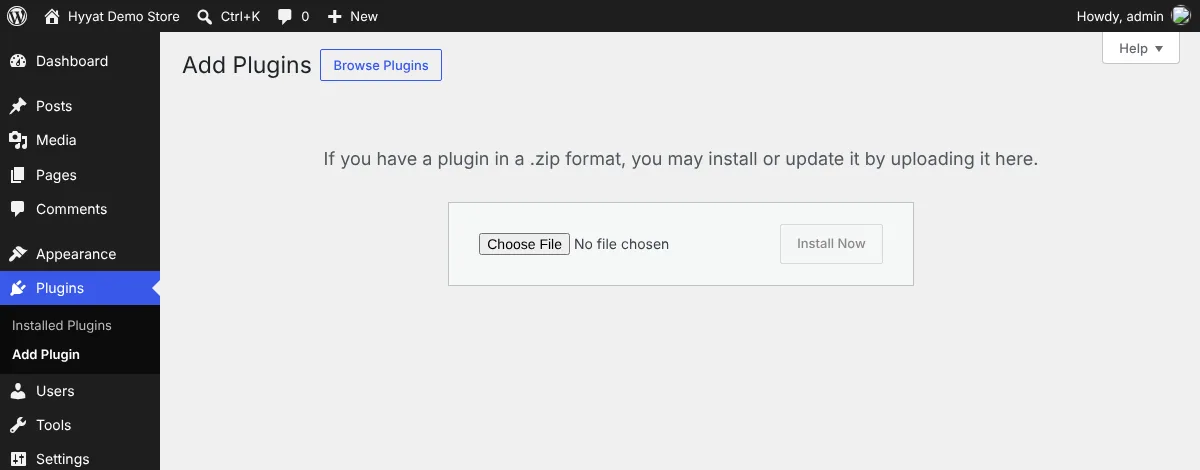
- Add Plugin, then Upload Plugin at the top.
- Choose File and select the .zip as downloaded from the seller.
- Install Now then Activate Plugin.
The same screen updates a premium plugin: upload the newer version and WordPress compares the two versions and offers Replace current with uploaded.
Method 3: FTP or File Manager #
When the upload fails because of size or permissions. The full steps are in installing a plugin manually.
How to choose a trustworthy plugin #
| Look at | Good sign | Red flag |
|---|---|---|
| Last updated | Within recent months | Not updated for years |
| Compatibility | Tested with the current WordPress | A warning that it has not been tested |
| Source | The WordPress directory or the developer’s site | A “free premium” copy from an unknown site |
| Support | The developer answers questions | Many questions with no answers |
After activating #
- Open the plugin’s settings from the side menu or the Settings link under it.
- Turn on automatic updates for plugins you trust in the Automatic Updates column.
- If the site breaks after activating, deactivate it. If you are locked out: disabling plugins from cPanel.
Automatic updates: which plugins? #
Turn them on for large, well-known plugins that ship fast security fixes, and for security plugins. Hold off for shop and page-builder plugins, whose major updates can change how the site looks; update those yourself after a backup. If you use WP Toolkit, its updates feature handles this from one place.
Core plugins for most sites #
| Need | Type of plugin |
|---|---|
| SEO | One SEO plugin for page titles, descriptions and the sitemap |
| Security | One security plugin, plus WP Toolkit settings; see security plugins |
| Backups | WP Toolkit or a backup plugin |
| Forms | A contact form plugin |
| Speed | One caching plugin, such as AccelerateWP on our servers; see speeding up WordPress |
Our customers asked #
How many plugins can a site handle?
There is no fixed number. One bad plugin weighs more than ten good ones. Install what you really need and delete the rest.
I cannot see Add Plugin
Either your account is not an Administrator, or plugin installs are disabled in wp-config.php with DISALLOW_FILE_MODS.
Is a deactivated plugin a risk?
A small one, since its files are still on the server. Delete what you do not use.
How do I update a plugin whose update failed?
Follow the manual FTP update.


