

The site icon is the small image next to your site name in browser tabs, bookmarks and on a phone home screen. It also appears beside your site in some mobile search results, so it deserves a few minutes.
Prepare the image #
| Requirement | Value | Why |
|---|---|---|
| Shape | Square | WordPress crops it to a square |
| Size | At least 512 × 512 px | WordPress creates the small sizes automatically |
| Format | PNG, transparent or coloured background | Clear on light and dark backgrounds |
| Design | A symbol or one letter | A full text logo is unreadable at 16 px |
You do not need an .ico file or special software. Any design tool that exports PNG will do.
Method 1: General Settings #
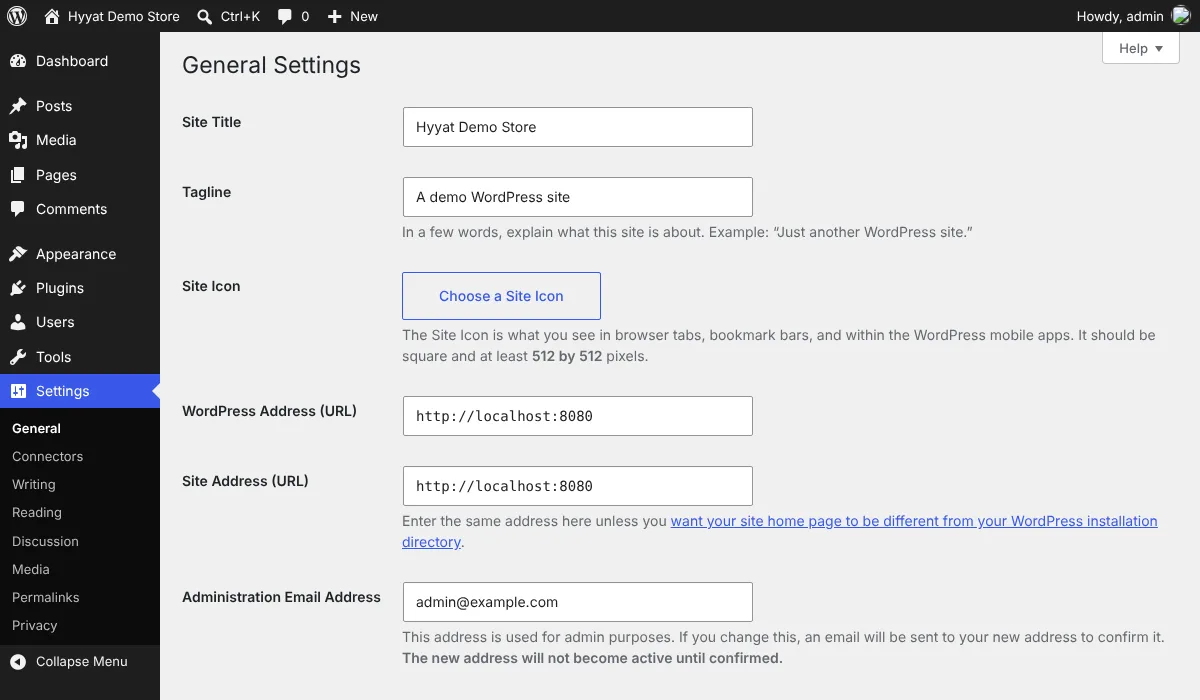
- Settings › General Site Icon sits below the tagline.
- Choose a Site Icon upload the image or pick it from the library.
- Crop if it is not square, select a square area and click Crop.
- Save Save Changes at the bottom.
Method 2: The Customizer in classic themes #
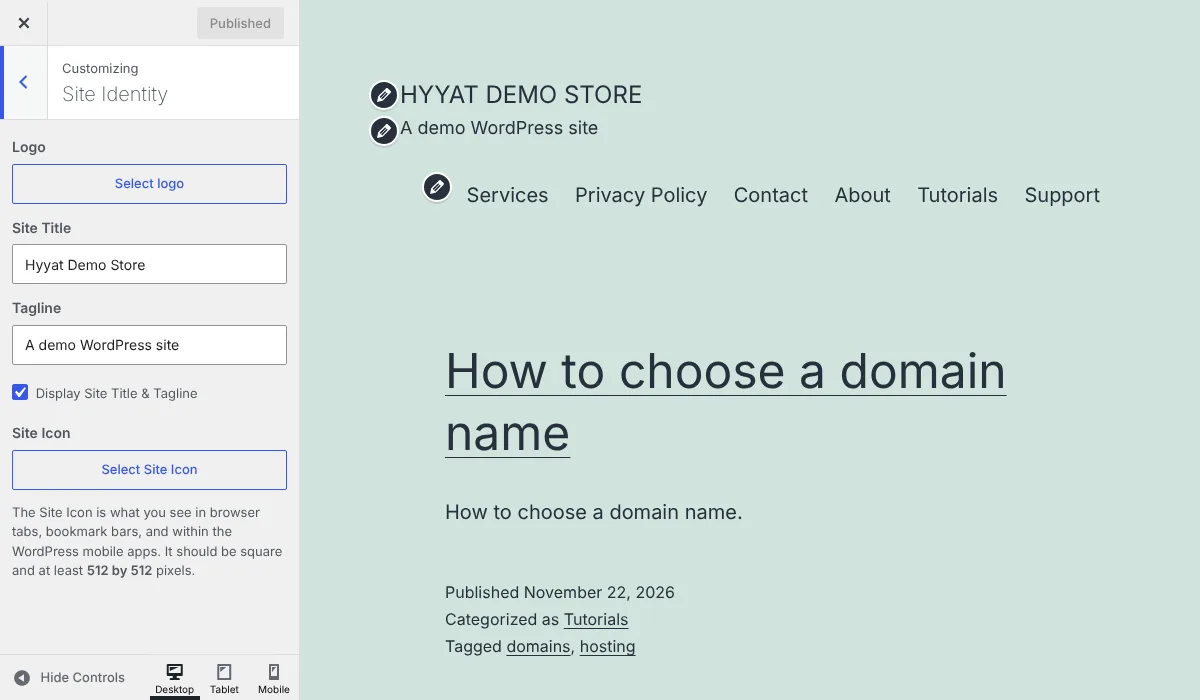
Appearance › Customize › Site Identity, then Select Site Icon, then Publish. The advantage: you see a preview before publishing.
Changed the icon but it did not update? #
- Browser cache browsers keep icons for a long time. Open the site in a private window.
- Site cache clear your caching plugin and Cloudflare cache if you use it.
- Theme or SEO plugin some set their own icon. Look for Favicon in their settings.
- Google results the icon there updates after Google revisits the site, which can take days.
Our customers asked #
What favicon size does WordPress need?
At least 512 × 512 px; WordPress creates 32, 180, 192 and 270 px versions automatically.
Can I use an SVG?
WordPress does not allow SVG uploads by default for security reasons. Use PNG.
I cannot find Site Icon in General Settings
Older versions have it in Customize › Site Identity. Update WordPress.
Does the favicon affect SEO?
Not rankings directly, but it shows next to your site in mobile results and makes it easier to recognise.


