

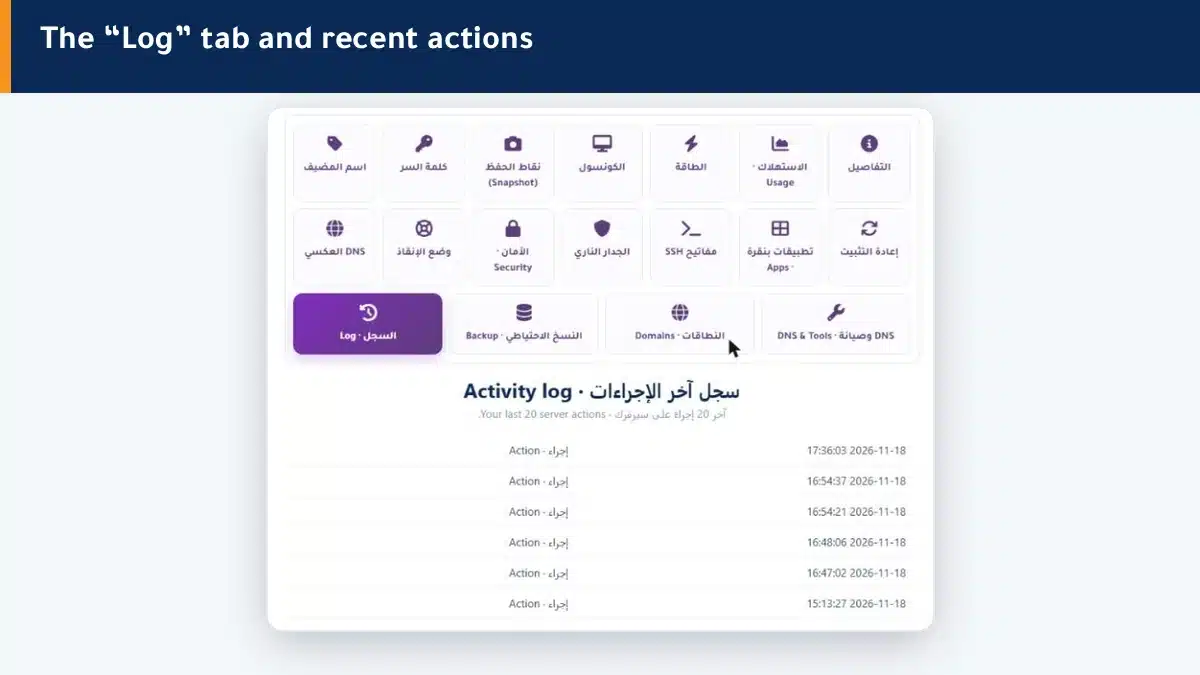
Want to know what happened on your server and when? The Log tab shows the recent actions on your machine ordered by time, so you review easily and spot anything unexpected.
What does the log show? #
- The recent actions on your machine (such as start, reboot and scan).
- The time and date of each action.
- Chronological order from newest to oldest.
How does the log help you? #
- Review: you recall what you did and when.
- Troubleshooting: you link the start of a fault to a specific action.
- Peace of mind: you see that no unexpected action happened on your machine.
Summary #
- The log shows your machine recent actions with their times.
- It helps with review, troubleshooting and peace of mind.
- An unfamiliar action? Check security and change the password.
To track your machine health in numbers, see Usage.
Frequently asked questions #
What does the Log tab show?
The recent actions taken on your machine, such as start, reboot and scan, with the time and date of each, ordered from newest.
How many actions does the log show?
It shows the recent set of actions on your server, enough to follow what happened lately.
How does the log help me solve a problem?
By linking the start of a fault to a specific action and its time, so you know what changed before the problem appeared.
I saw an action I do not recognize, what do I do?
Check the Security tab, change the root password as a precaution, and if concern remains, open a support ticket.
Can I delete the log?
The log is for review only and updates automatically with the latest actions. To clean system logs on disk, use the DNS & Tools tab.


