

The Hyyat Host VPS control panel brings everything you need to manage your server into one place inside your account, reachable from any browser with no commands. This is a quick overview, and from here you move to the guide for each feature.
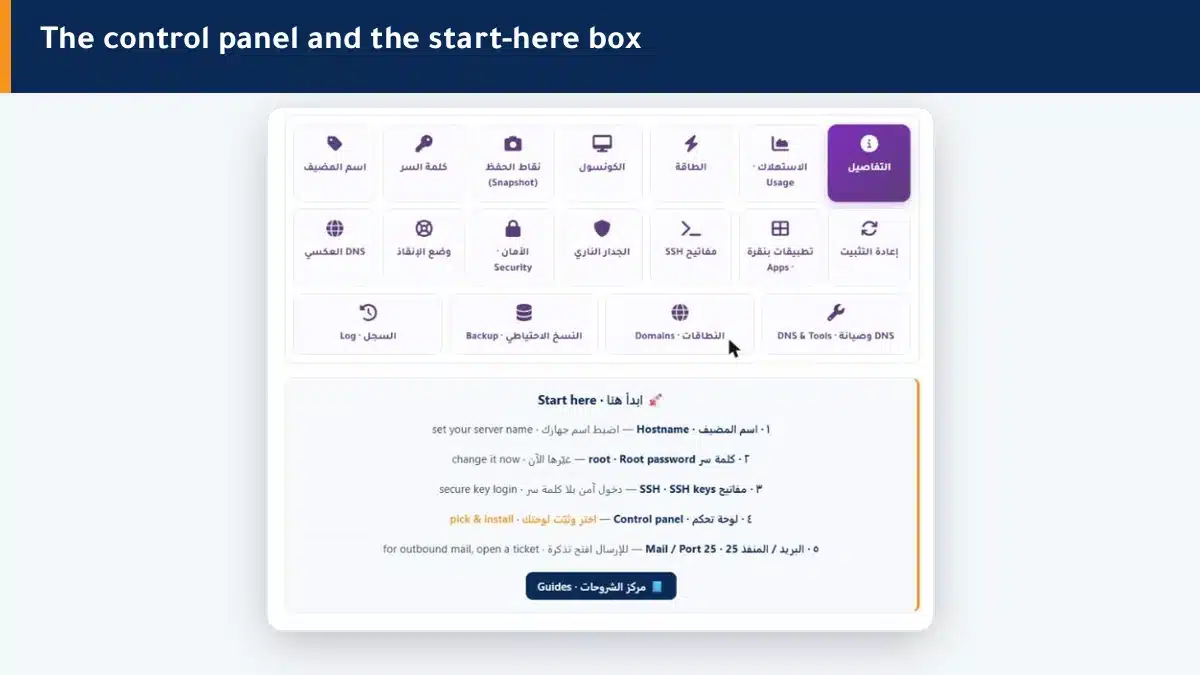
Start here: the first 5 steps #
- Set your machine hostname.
- Change the root password now to a strong one.
- Add SSH keys for secure passwordless login.
- Choose and install a control panel or a one-click app.
- Review the firewall and security.
Panel features #
| Feature | What it does |
|---|---|
| Power | Start, stop and reboot the machine |
| Console | Open the machine screen from the browser |
| Usage | Track CPU, memory, network and disk |
| Snapshots | An instant rollback point before any change |
| Reinstall | Change the OS or start clean |
| SSH keys | Secure passwordless login |
| Firewall | Control the open ports |
| Reverse DNS | Improve mail delivery |
| Backups | Full off-site backups of your machine |
| Rescue mode | Fix a machine that will not boot |
Summary #
- The panel manages your whole server from the browser with no commands.
- Start with hostname, password and SSH keys.
- Every feature has a detailed guide in this section.
Frequently asked questions #
What is the Hyyat Host VPS control panel?
A panel inside your account that manages your whole server from the browser: power, console, password, security, firewall, backups and more, with no commands needed.
Do I need technical skills to use it?
No for most tasks; everything is clear buttons. Advanced tasks have a detailed guide in this section.
Where do I start after buying a VPS?
Set the hostname, change the root password, add SSH keys, install a panel or app, and review the firewall and security.
Do I need SSH or commands?
No for most things; the panel replaces them. But you can use SSH or the console when needed.
Where do I find each feature guide?
Every feature in the “Panel features” table above links to its detailed guide. Click the feature name to open it.


