

In short: In cPanel open Email → Email Accounts. Click Check Email next to an account to open it in webmail (Roundcube), or Manage to change its password, quota, or turn sending and receiving on or off. You can also open webmail directly at https://yourdomain.com:2096.
Log in to cPanel from the client area #
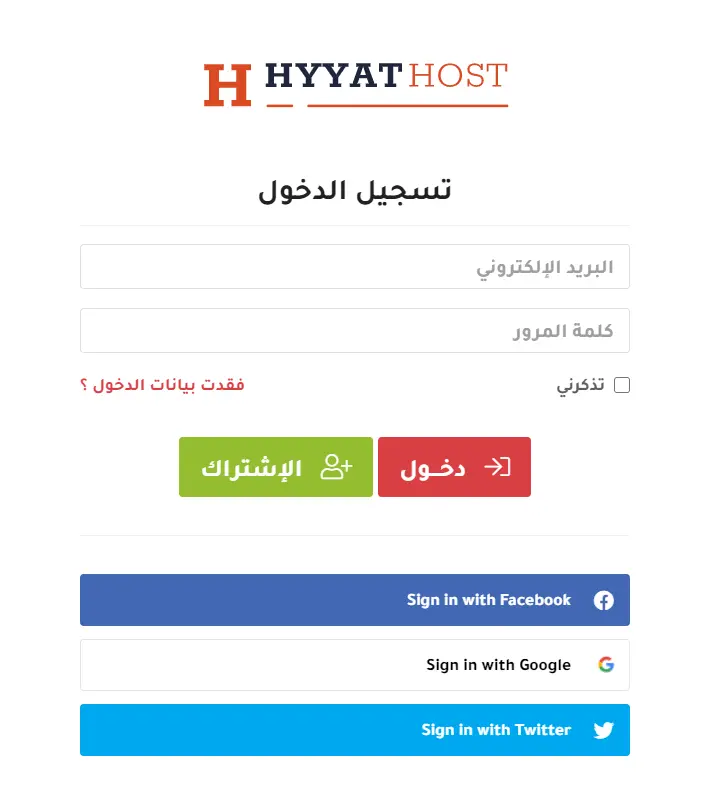
- Go to the client area and log in with your registered email and password.
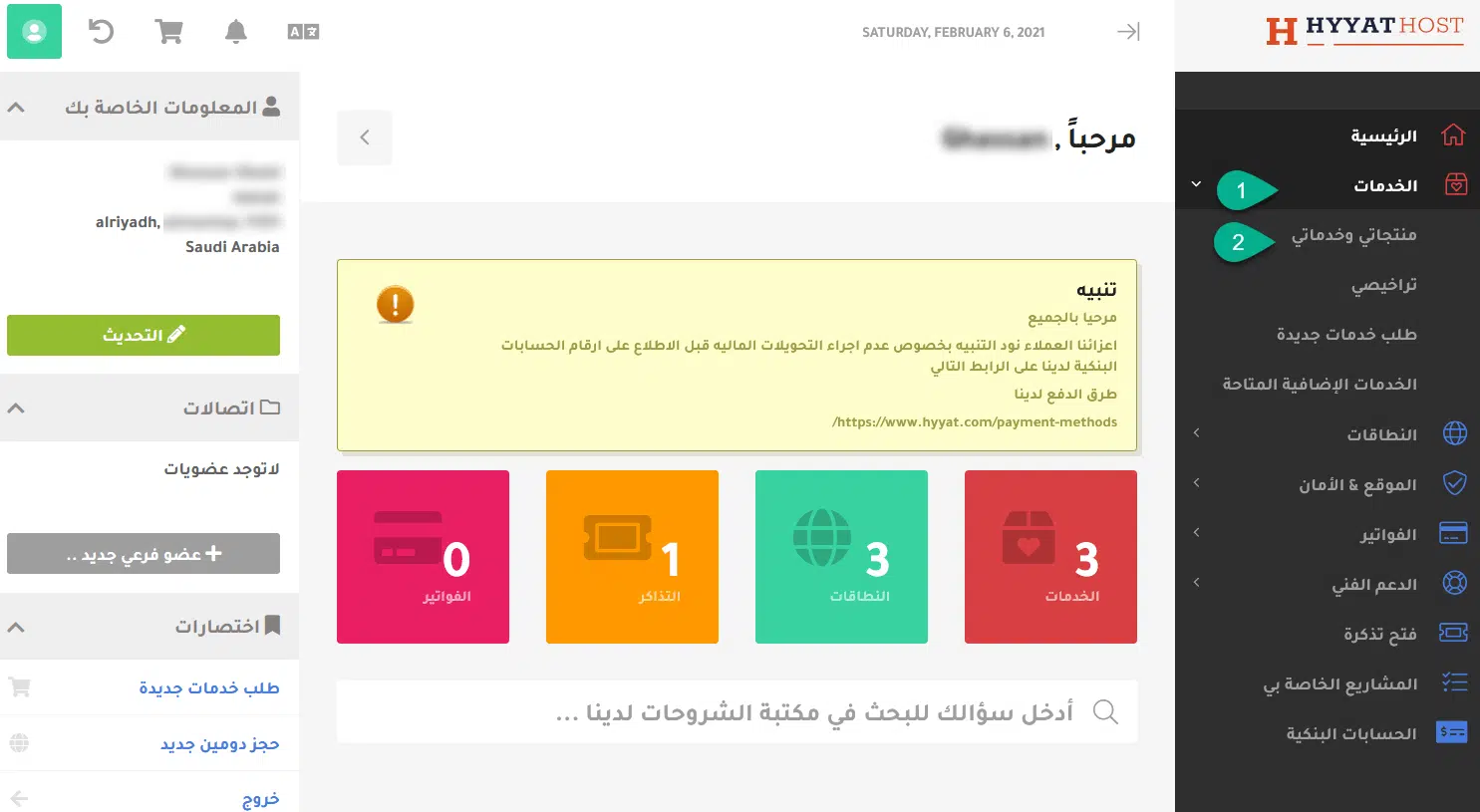
- Click Services → My Products & Services.
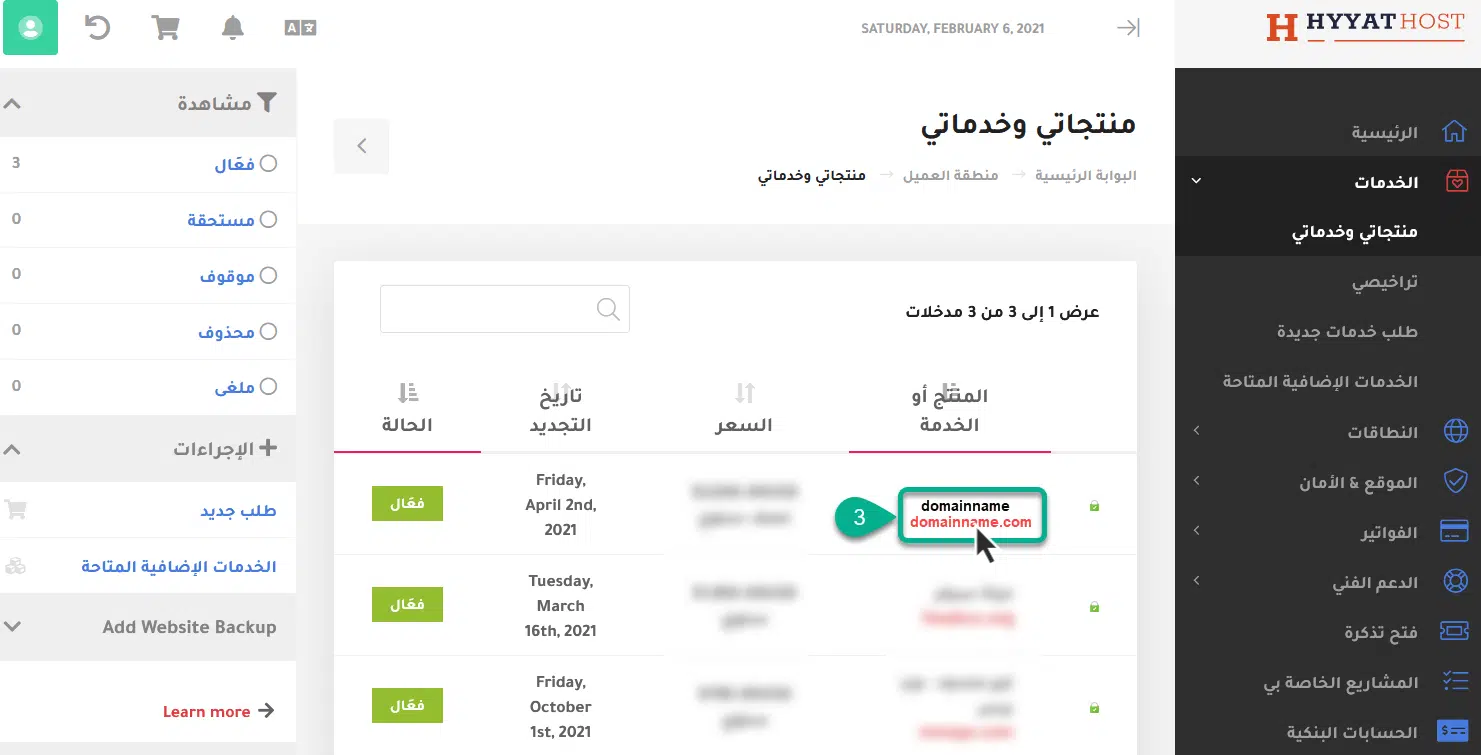
- Click your hosting plan.

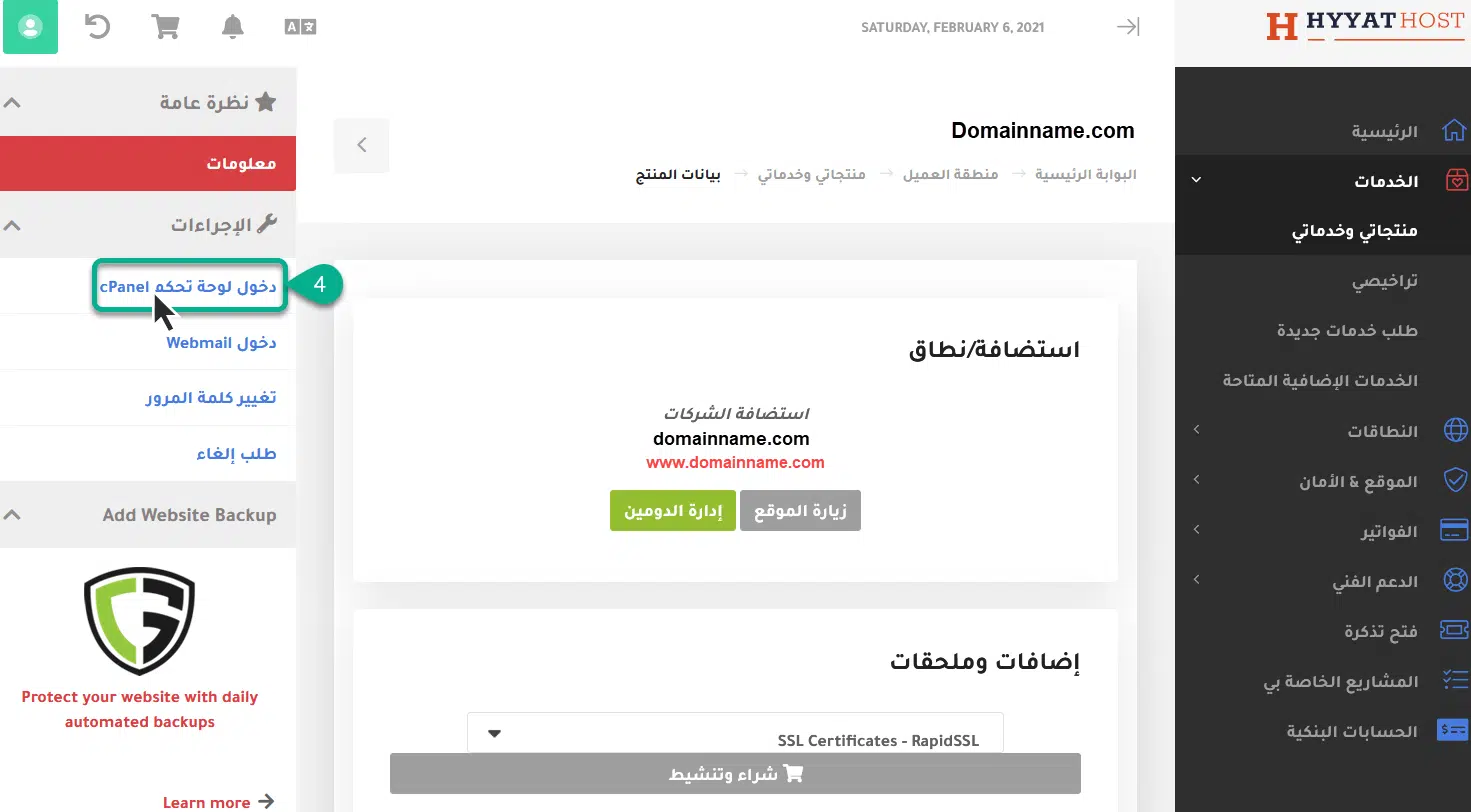
- In the Actions box, click Log in to cPanel.

Open webmail from cPanel #
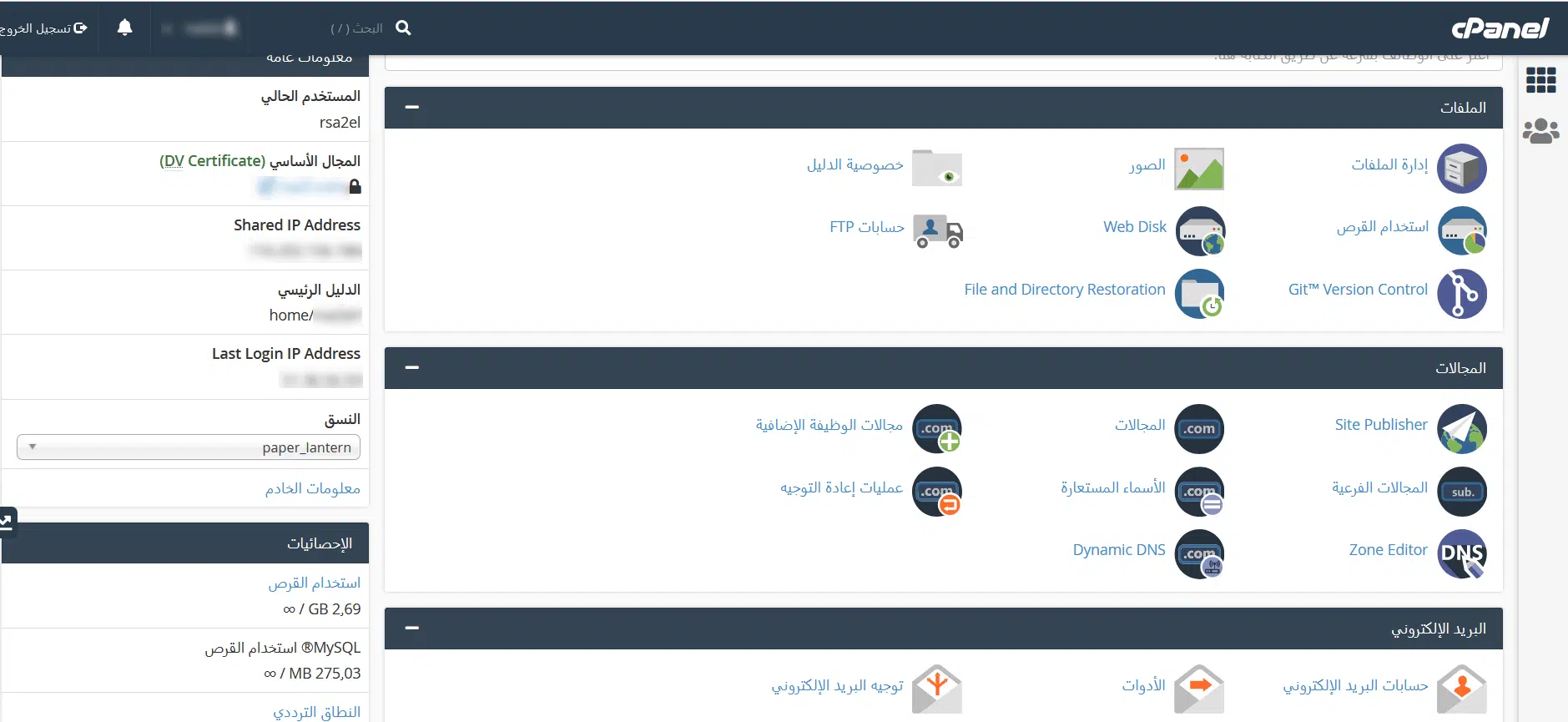
- cPanel opens.

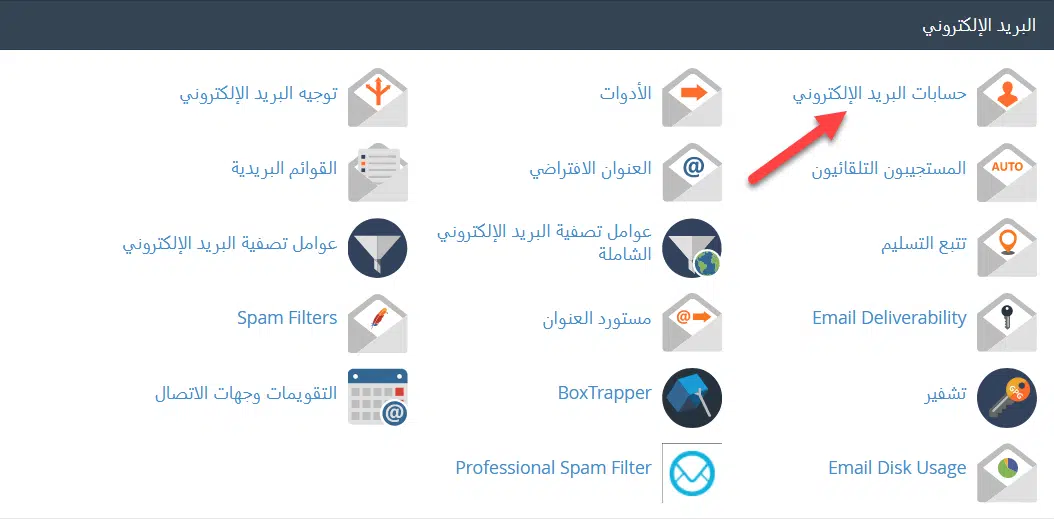
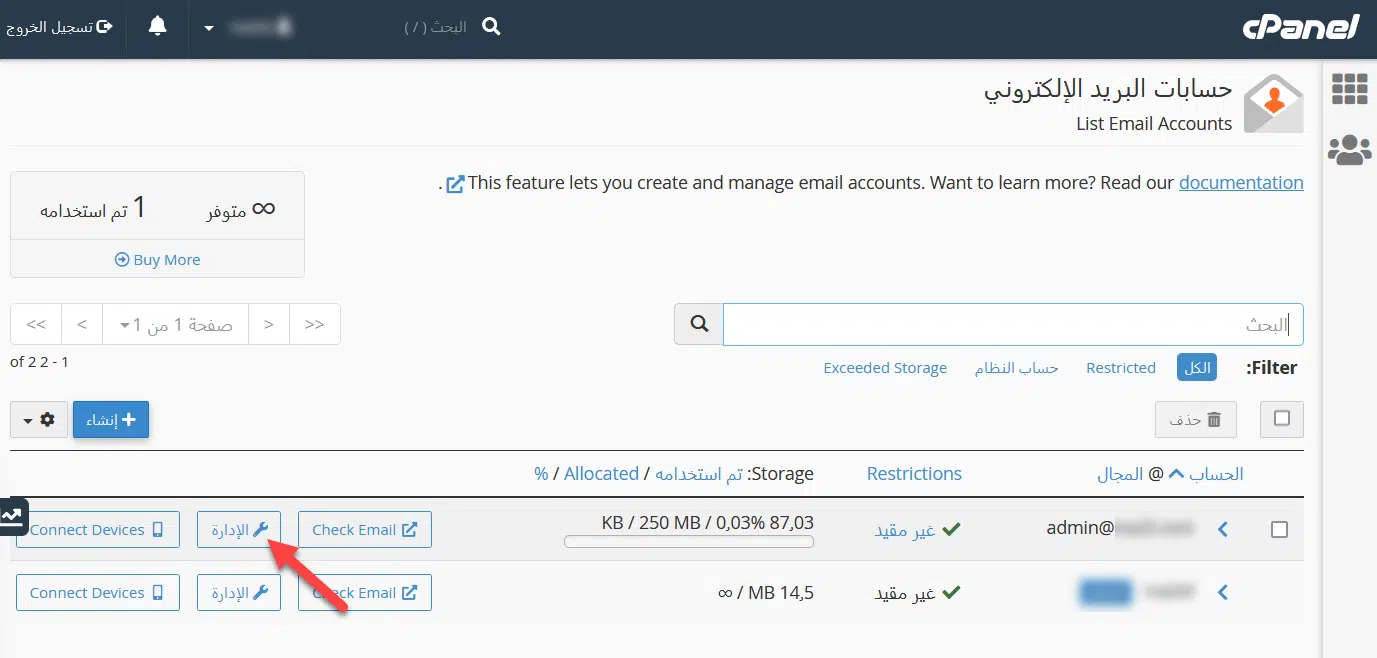
- In the Email section, click Email Accounts.

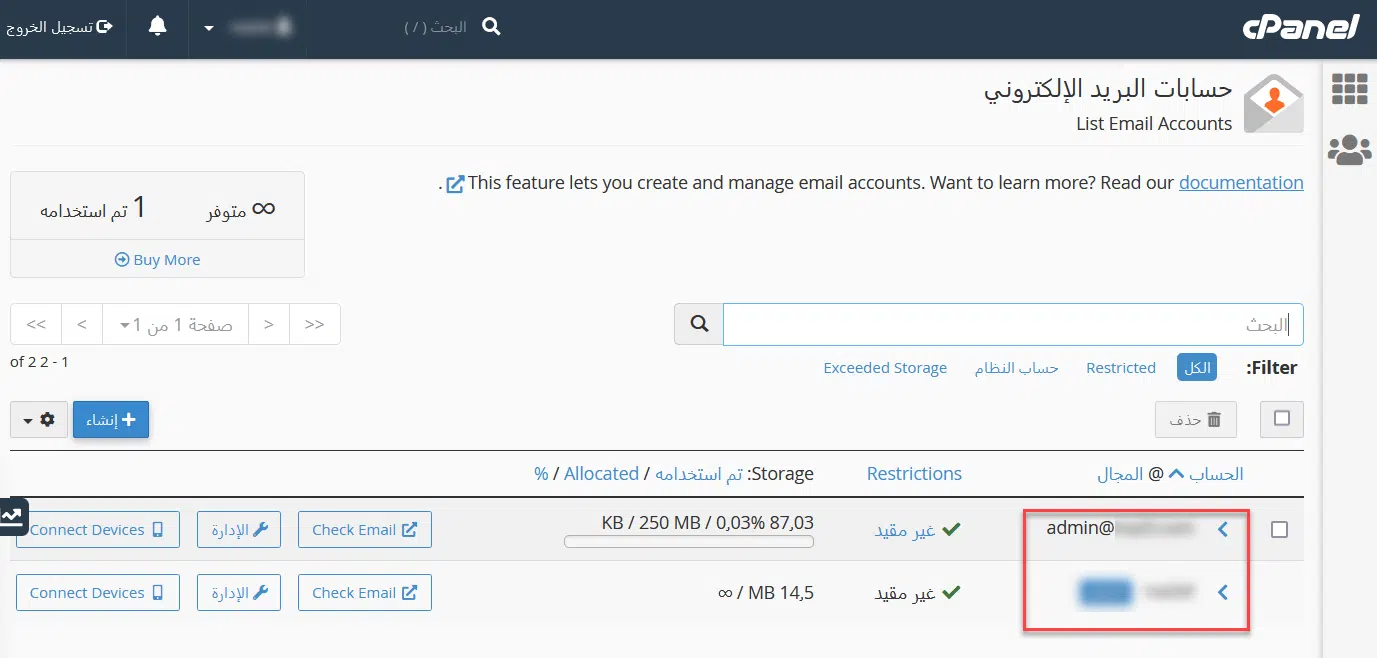
- Your email accounts are listed.

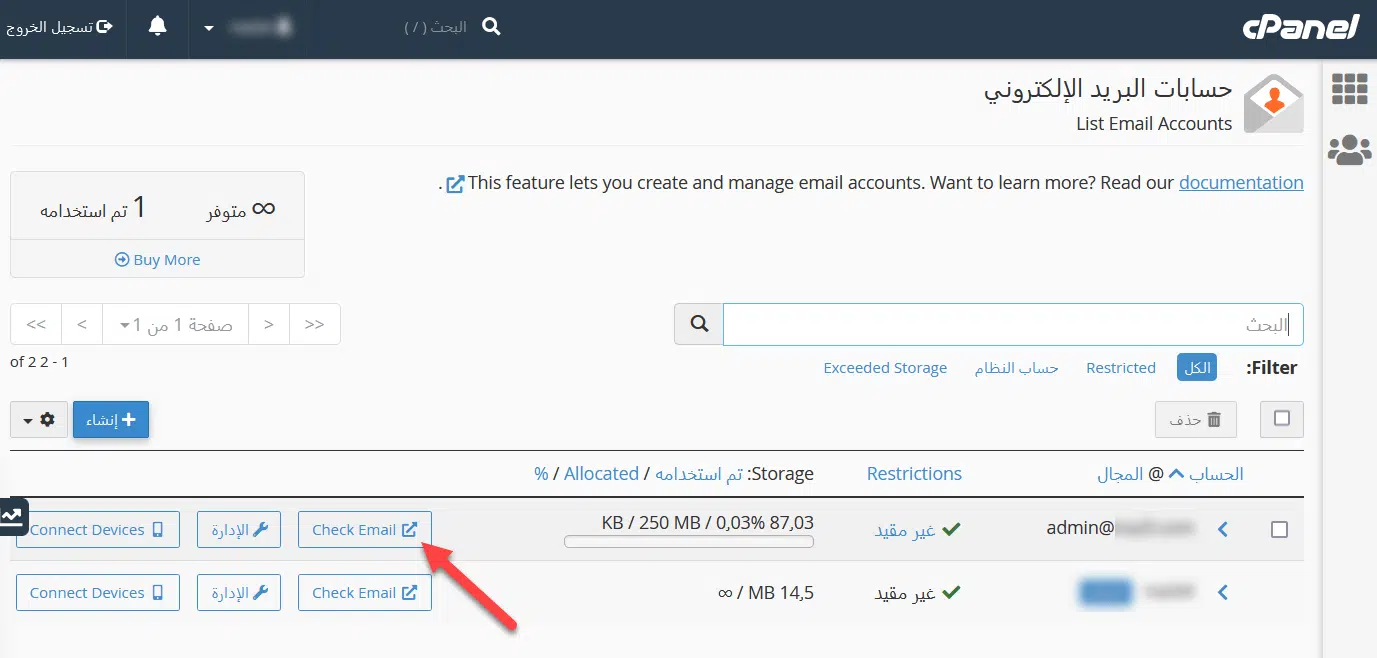
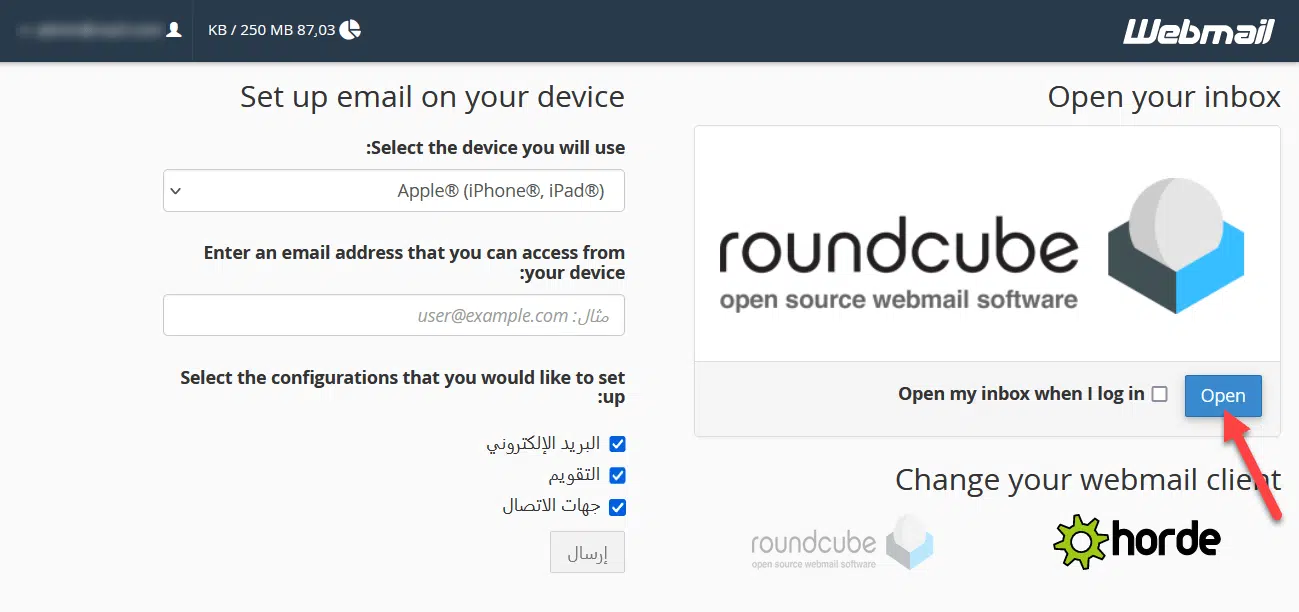
- Click Check Email next to the account.

- Choose Roundcube to read your messages.

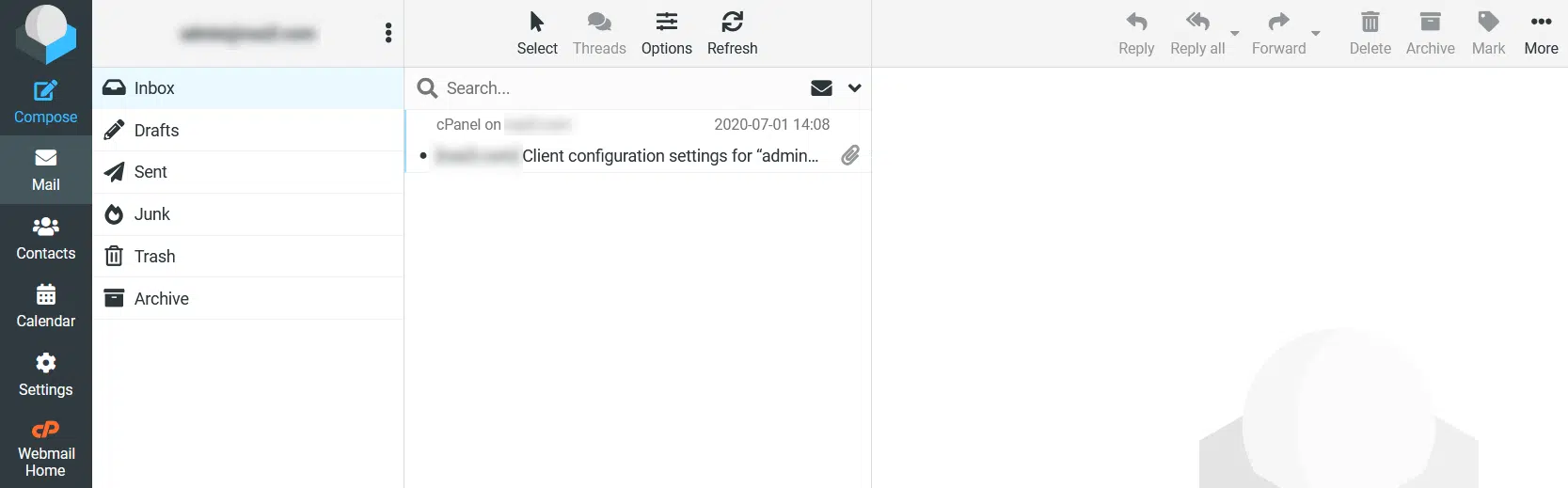
- Your inbox opens.

Change an email password #
- In Email Accounts, click Manage next to the account.
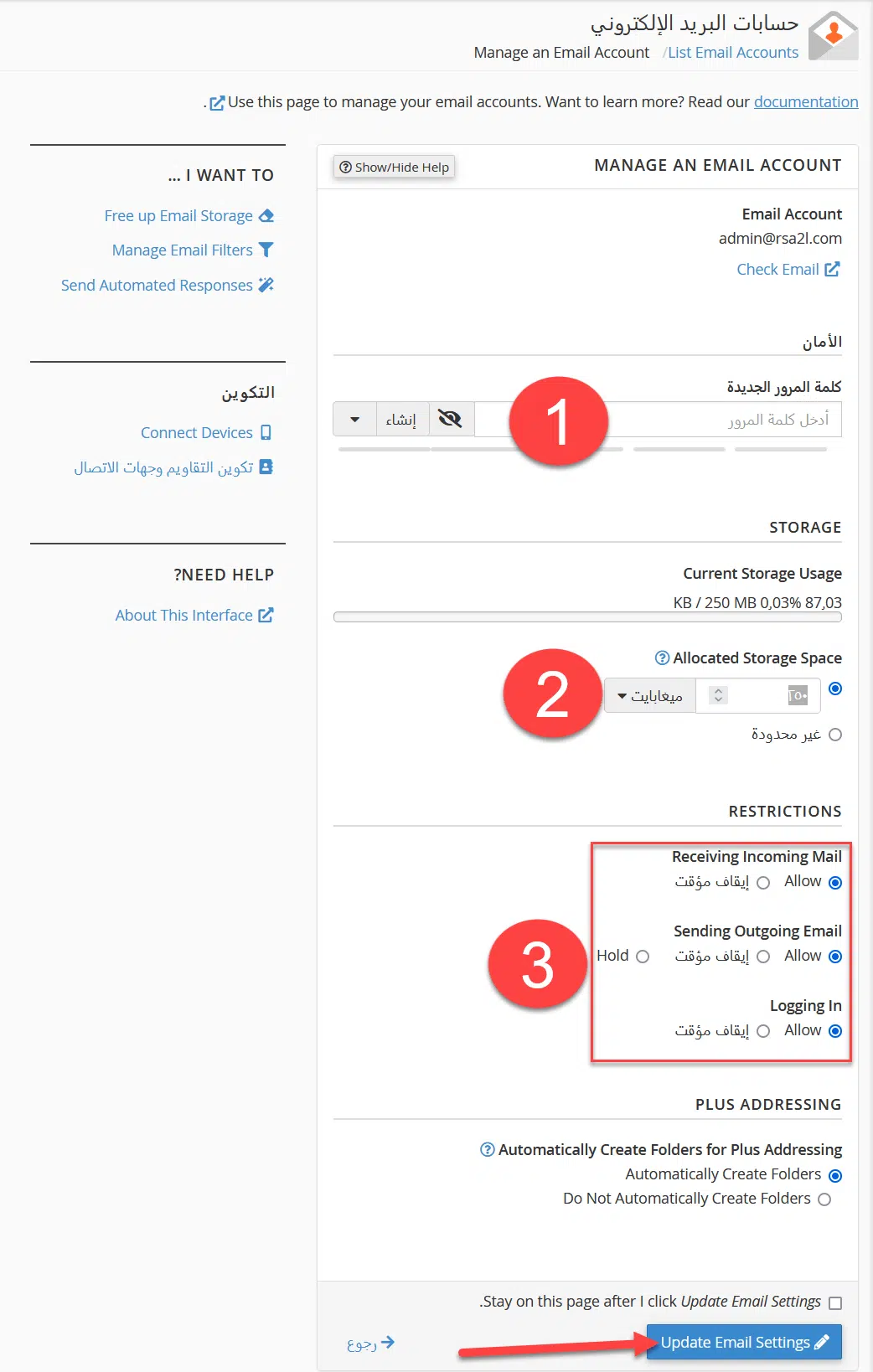
- From here you can:
- Set a new password.
- Change the mailbox quota (in MB).
- Suspend or allow sending, receiving, or both.

- Click Update Email Settings.
After that, open webmail as above, or directly at https://yourdomain.com:2096, and log in with the full email address and the new password. See also how to log in to webmail.
Related service: email hosting from Hyyat Host, with 24/7 support.


