

This guide connects an email address you created in cPanel (for example [email protected]) to your Gmail account, so you can send and receive it from Gmail at no extra cost.
What you need: a Gmail account, and a business email account on your domain (see how to create one).
Part 1: Send email from Gmail as your business address #
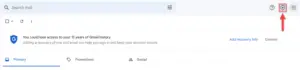
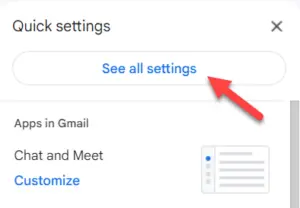
- In Gmail, click the gear icon, then See all settings.

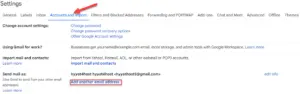
- Open Accounts and Import and, under Send mail as, click Add another email address.

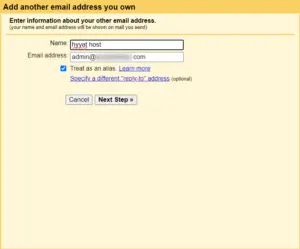
- Enter your name and business email address and click Next Step.

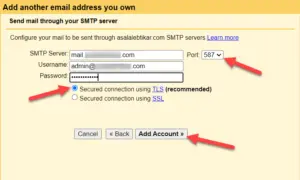
- Enter the SMTP details: SMTP Server mail.yourdomain.com, Port 465, Username your full business email, Password its password, and choose Secured connection using SSL. Click Add Account.

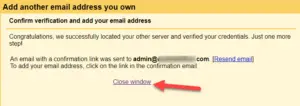
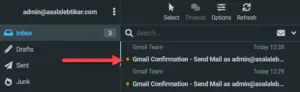
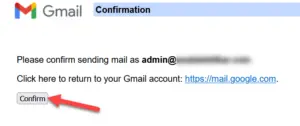
- Gmail sends a confirmation email to your business address.

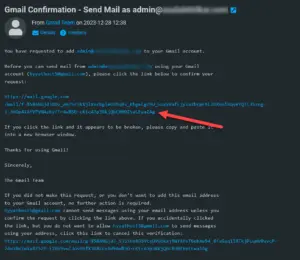
- Open your business mailbox in webmail (https://yourdomain.com/webmail), find the message from Gmail and click the confirmation link.


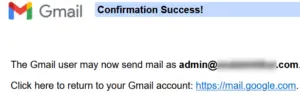
- Done: Gmail can now send email as your business address.

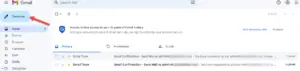
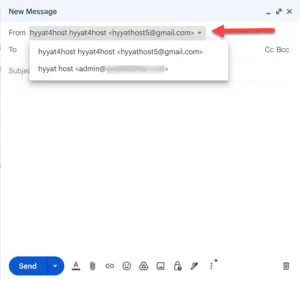
Important: when writing a new message in Gmail, choose your business address in the From field.
Part 2: Receive your business email in Gmail (forwarding) #
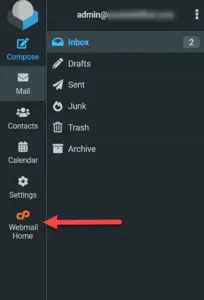
- Log in to your business mailbox in webmail: https://yourdomain.com/webmail (replace yourdomain.com with your domain).
- Go to Webmail Home.

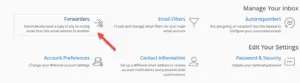
- Click Forwarders.

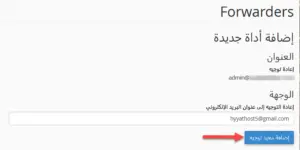
- Click Add Forwarder.

- Enter your Gmail address and save. New messages will be copied to Gmail and a copy stays on our server.


Note: Gmail no longer supports fetching mail from other accounts over POP3 (“Check mail from other accounts”), so forwarding is the way to receive your business email in Gmail. Alternatively, add your business account directly to the Gmail app on your phone using IMAP (server mail.yourdomain.com, port 993, SSL).
Disclaimer: when you send or receive through Gmail, Google’s servers handle the messages, so we can’t guarantee delivery or backups for mail handled by Gmail.
Related service: email hosting from Hyyat Host, with 24/7 support.


