

You uploaded your site as a large archive and tried to extract it in File Manager, and the page stopped halfway. Or you have a large database that never finishes importing in phpMyAdmin. In cases like these, one command in Terminal does what the interface struggles with, because it runs on the server itself and does not wait on your browser.
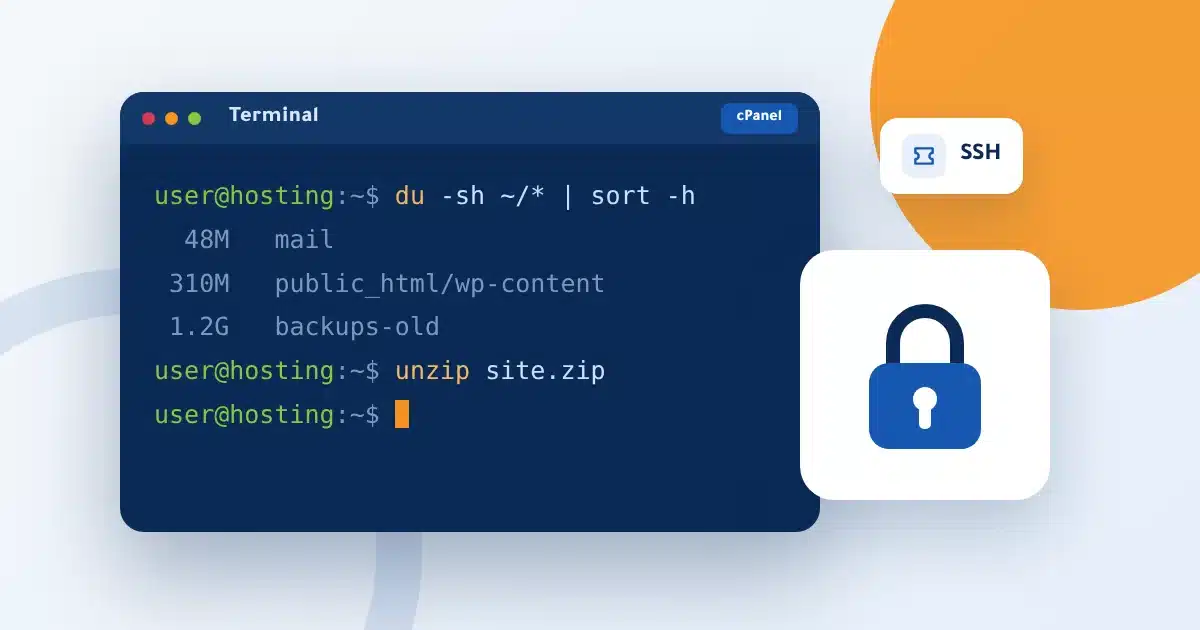
What is Terminal in cPanel? #
Terminal, also called the command line or shell, is a window inside cPanel where you type text commands that run on your account on the server right away. It is the same thing a developer gets when connecting over SSH from a program on their computer, but in the browser and without installing anything.
| Terminal in cPanel | SSH from your computer | |
|---|---|---|
| Where does it run? | In the browser, inside cPanel. | From a program on your computer, such as the terminal on Windows or Mac. |
| What do you need? | Only your cPanel login. | The server address, port, username and a login key. |
| Best for | A quick command now and then. | Daily work, and moving files with tools like SFTP. |
When do you actually need it? #
- Extracting a large archive that never finishes in File Manager.
- Importing or exporting a large database. See importing a database over SSH.
- Finding which folders use up your disk space with a single command.
- Running developer tools that work from the command line, depending on what is available on the server.
These are commands of that kind. The first lists folder sizes, the second extracts an archive into the site folder, and the third imports a database:
du -sh ~/* | sort -h
unzip ~/public_html/site.zip -d ~/public_html/
mysql -u USER -p DBNAME < ~/backup.sql
Why is it off by default? #
Because a command in Terminal runs at once, with no trash and no “are you sure?” prompt. A delete command with the wrong path can wipe a whole site in a second. And if someone steals your control panel login, Terminal lets them do a lot of damage quickly. So we keep it off for those who do not need it, and turn it on for those who ask and know what they are doing.
How to request it at Hyyat Host #
- Check your plan: Terminal is available on the Hyyat Server plan and higher plans, at no extra cost. If your plan is lower, you can upgrade from the client area. See the business hosting plans.
- Open a ticket: From the client area, go to technical support and say you want Terminal enabled for your account, with your domain name.
- Accept the acknowledgement: We send you the risk acknowledgement in the ticket, and you reply with “I agree”.
- Get it enabled: We enable Terminal for your account and send you the SSH login details in the ticket reply if you need them.
All terms of the service are in section 11 of the Hosting Agreement.
How to open Terminal once it is enabled #
- Log in to cPanel: From the client area or your usual control panel link.
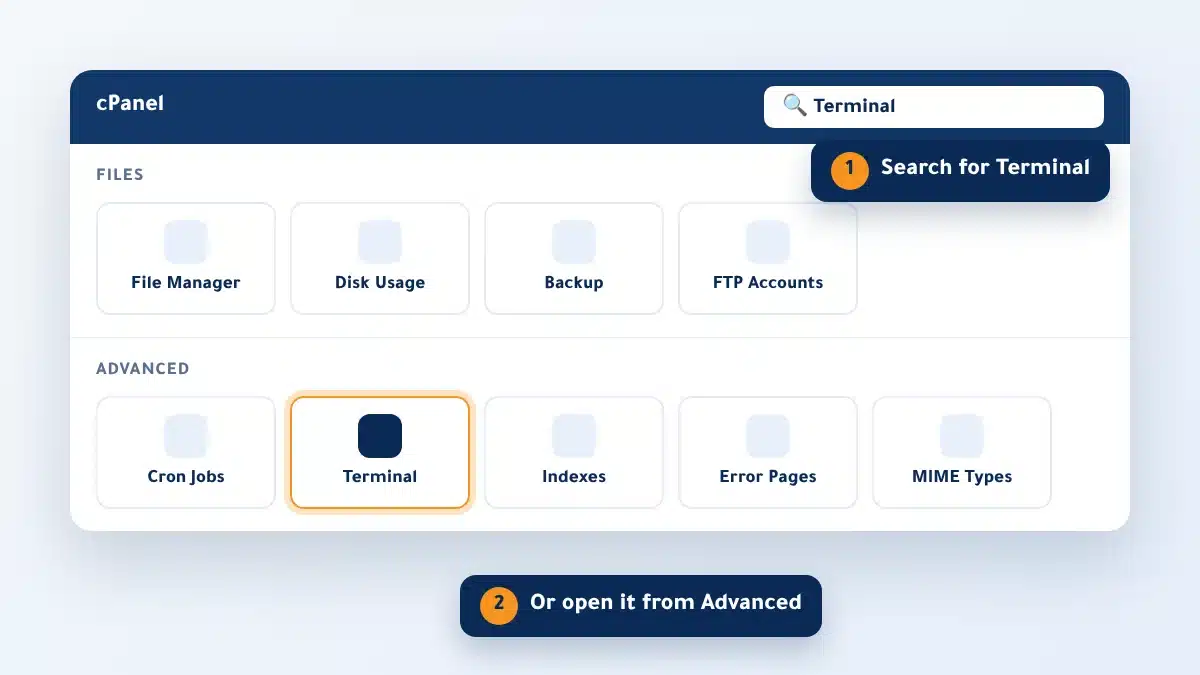
- Find Terminal: Type “Terminal” in the search box at the top, or open it from the Advanced section.
- Read the warning: A warning may appear the first time. Read it, then press the button to continue.
- Type your command: Type the command and press Enter. To leave, type exit or close the page.
Connecting from your computer with a key #
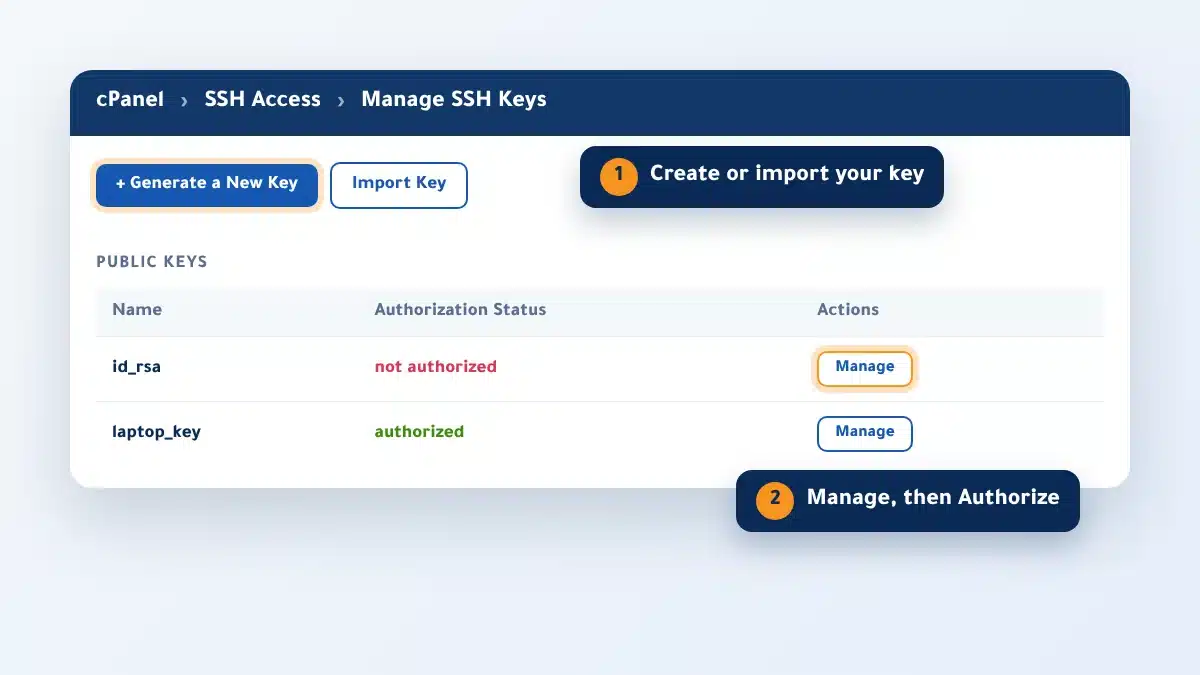
If you want to work from a program on your computer, a key is safer than a password. Create or import your key on the SSH Access page in cPanel, then enable it with the Authorize button. The connection steps for Windows, Mac and Linux are in how to connect to a server via SSH.
Rules that protect you and your site #
- Do not paste a command from the internet before you understand what it does.
- Do not share your login or key with anyone, and never send it over WhatsApp or email.
- Do not run programs that keep running in the background. Use cron jobs in cPanel for repeated tasks.
- Turn on two-factor authentication in cPanel, because anyone who gets into your panel also gets Terminal.
- When you no longer need Terminal, ask us by ticket to turn it off.
What to know about Terminal at Hyyat Host #
- Terminal is limited to your own account and cannot reach other accounts or the system.
- Technical support does not cover explaining commands or fixing what they cause; repairs can be quoted separately.
- We may turn it off at once if the server is at risk, and we will tell you why.
- It is turned off if you downgrade to a plan that does not include it.
Frequently asked questions #
Is Terminal the same as SSH?
Both open a command line on your account. Terminal runs in the browser inside cPanel, and SSH runs from a program on your computer.
Why does Terminal not work on my account?
Most likely it is not enabled for your account, since it is off by default. Open a ticket to request it if your plan includes it.
Can I reach system files or other accounts?
No. Terminal is limited to your own account.
Is there a fee to enable Terminal?
No, it is free on the Hyyat Server plan and higher plans.


