

There are many WordPress tutorials and code snippets online. Unfortunately, one small mistake can break your whole site, which is scary for new users. If you see “syntax error, unexpected…”, don’t panic; it is easy to fix.
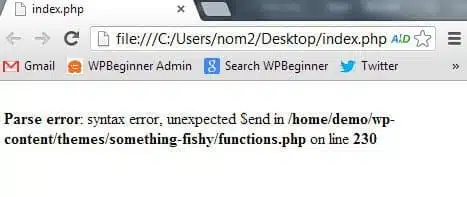
What causes a syntax error? #
A syntax error is caused by a small but critical mistake in the code: a missing semicolon, an extra curly bracket, or an unclosed quote can break the whole script. If you recently pasted a snippet or updated a plugin or theme, that is where to look.
How to fix it #
Because the error usually locks you out of the dashboard, you need to edit the file directly on the server:
- Read the error: it names the file and the line number, for example
/wp-content/themes/your-theme/functions.php on line 25. - Connect to your site with an FTP program, or open File Manager in cPanel.
- Open the file named in the error and go to that line.
- Remove the code you added recently, or correct its syntax.
- Save the file (or upload it back if you edited it on your computer).
- Reload your site; it should work again.
Tip: before editing theme or plugin files, keep a backup copy so you can restore it quickly. Consider adding custom snippets with a plugin such as Code Snippets instead of editing functions.php directly.
Related service: fast WordPress hosting from Hyyat Host, with 24/7 support.


