

In short: To restore a full backup (cpmove) in WHM: upload the backup file to the /home directory, then open Restore a Full Backup/cpmove File. Choose Restore with Username (a file already on the server) or Restore with File (from your computer), set the options (A record update, overwrite existing user) and click Restore.
Sometimes a site has a problem and you want to restore a backup from a specific day. Here is how to restore a full account backup in WHM.
Steps #
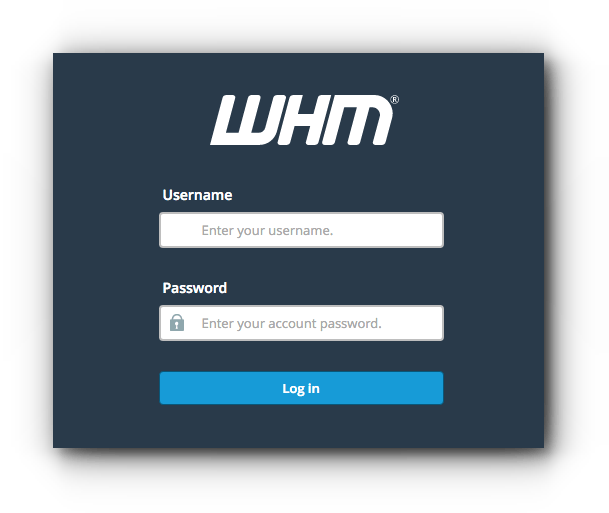
1. Log in to WHM at https://your-server-ip:2087 with your username and password.
Note: upload the backup file to your server’s /home directory first; otherwise the restore tool will not find it.
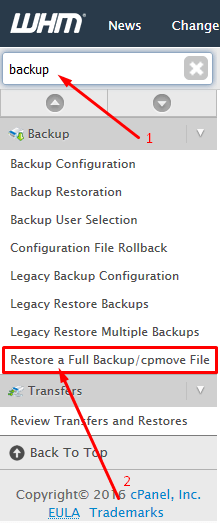
2. Type backup in the search box and click Restore a Full Backup/cpmove File.
Restore options #
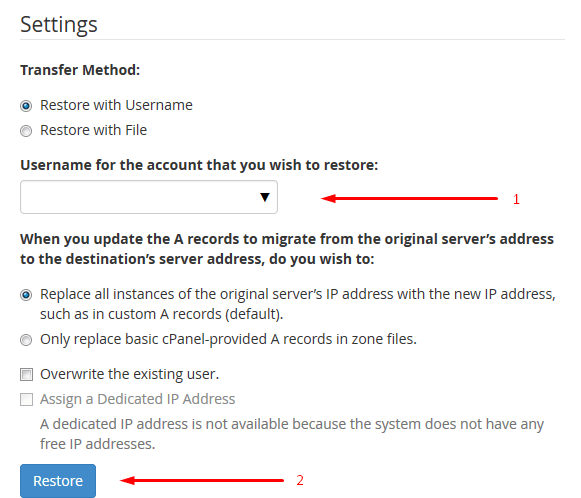
- Restore with Username: the default; restores a backup already uploaded to the server.
- Restore with File: restores a backup file from your computer.
- Username for the account you wish to restore: choose from the available backups, or type the username.
- A record update: update all DNS A records, or only the basic A records created by cPanel. The first option is usually enough when moving from an old server you no longer use.
- Overwrite the existing user: useful when restoring a backup of an account that already exists on the server.
- Assign a Dedicated IP Address: give the account its own IP, if you have spare IPs.
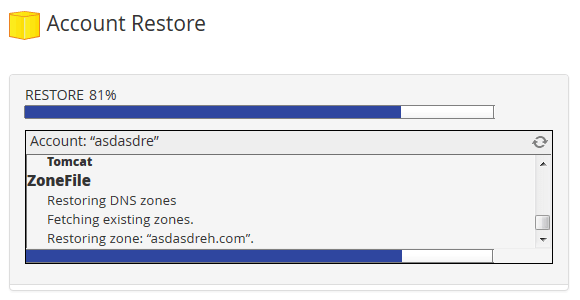
3. Select the backup you want and click Restore. When it finishes, you will see a success screen.
To create a backup first, see how to create a full backup in cPanel.
Related service: Hyyat Host server management handles backups and restores on your server, with 24/7 support.


