

Steps #
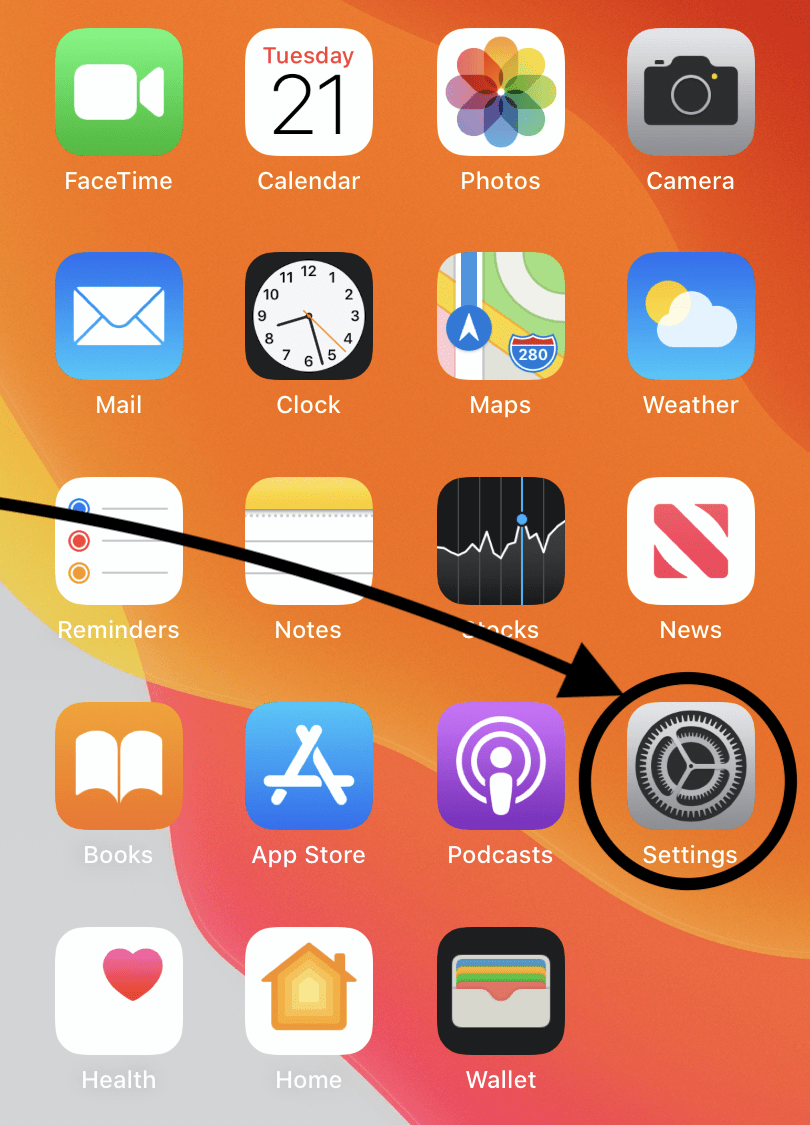
1. Tap Settings on the home screen.
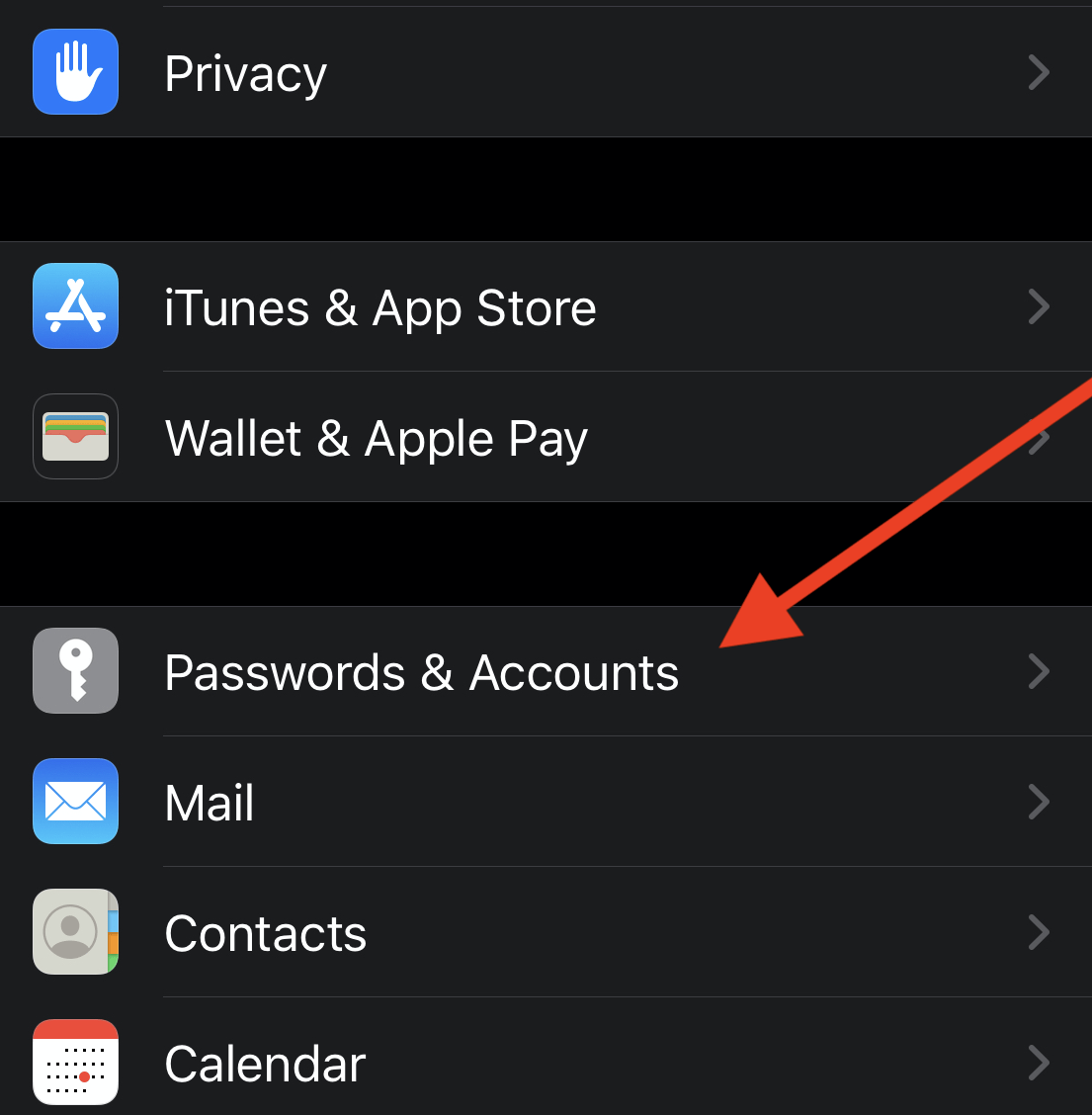
2. Open Mail, then Accounts. On older iOS versions choose Passwords & Accounts, or Mail, Contacts, Calendars.
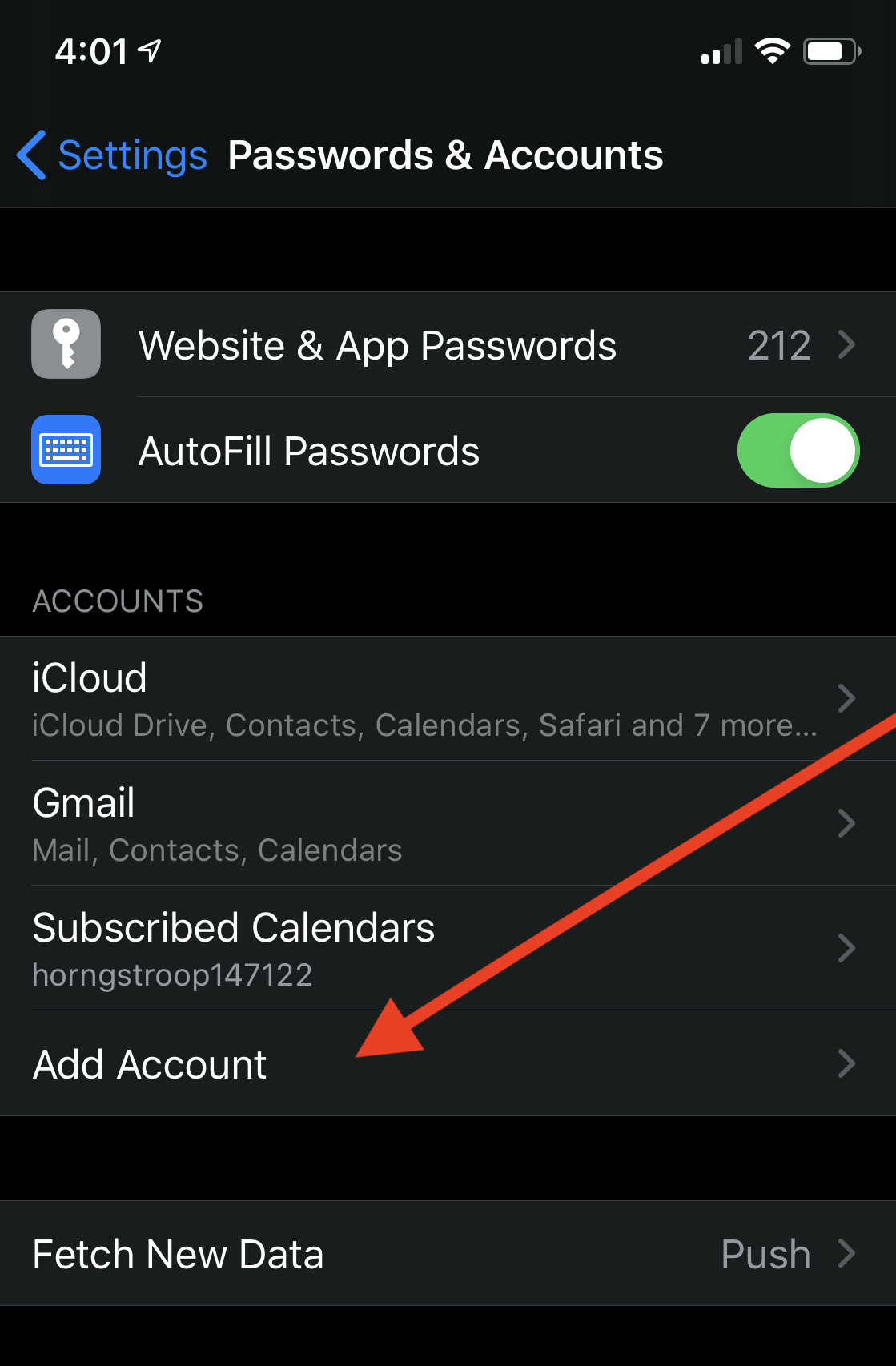
3. Tap Add Account.
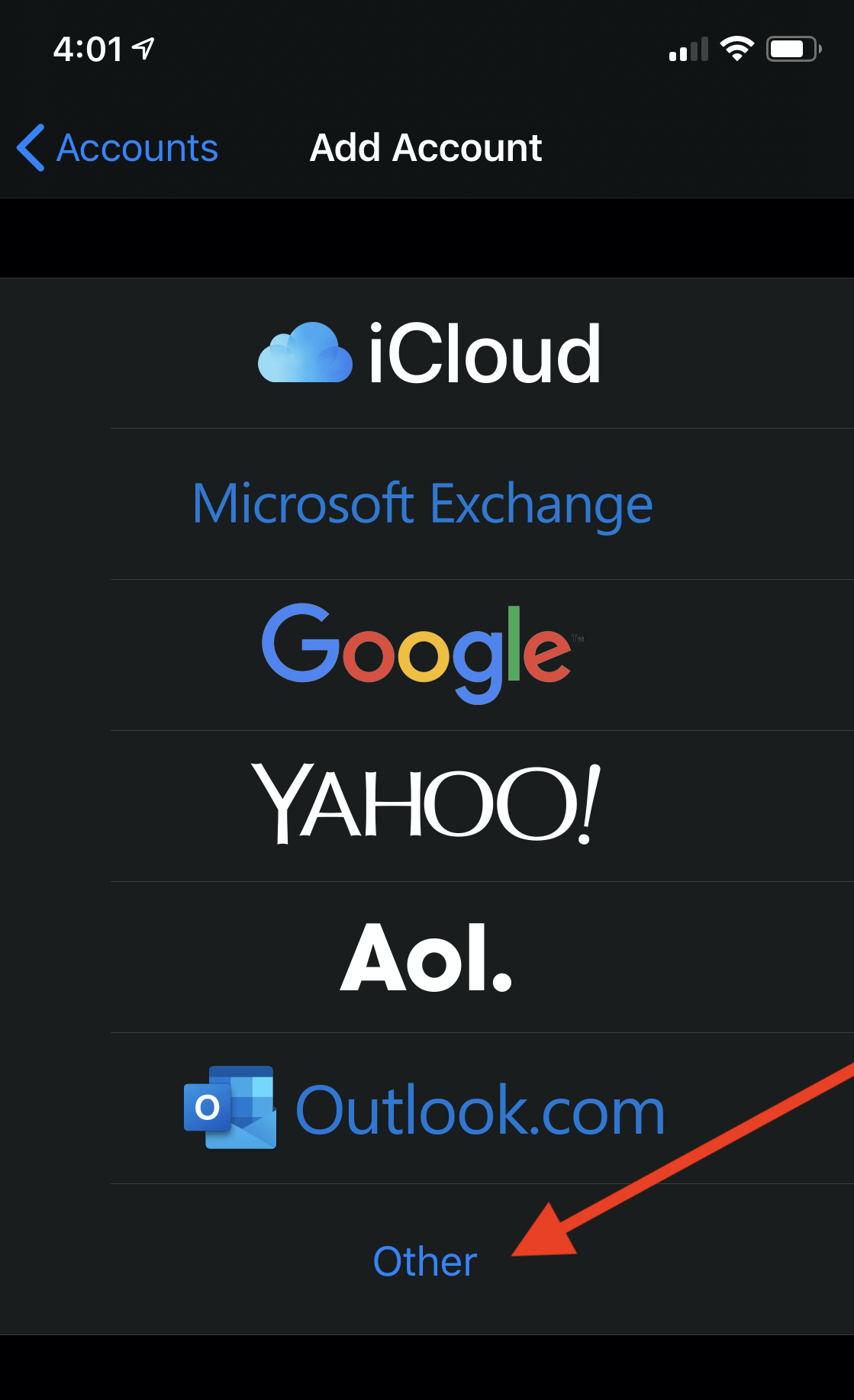
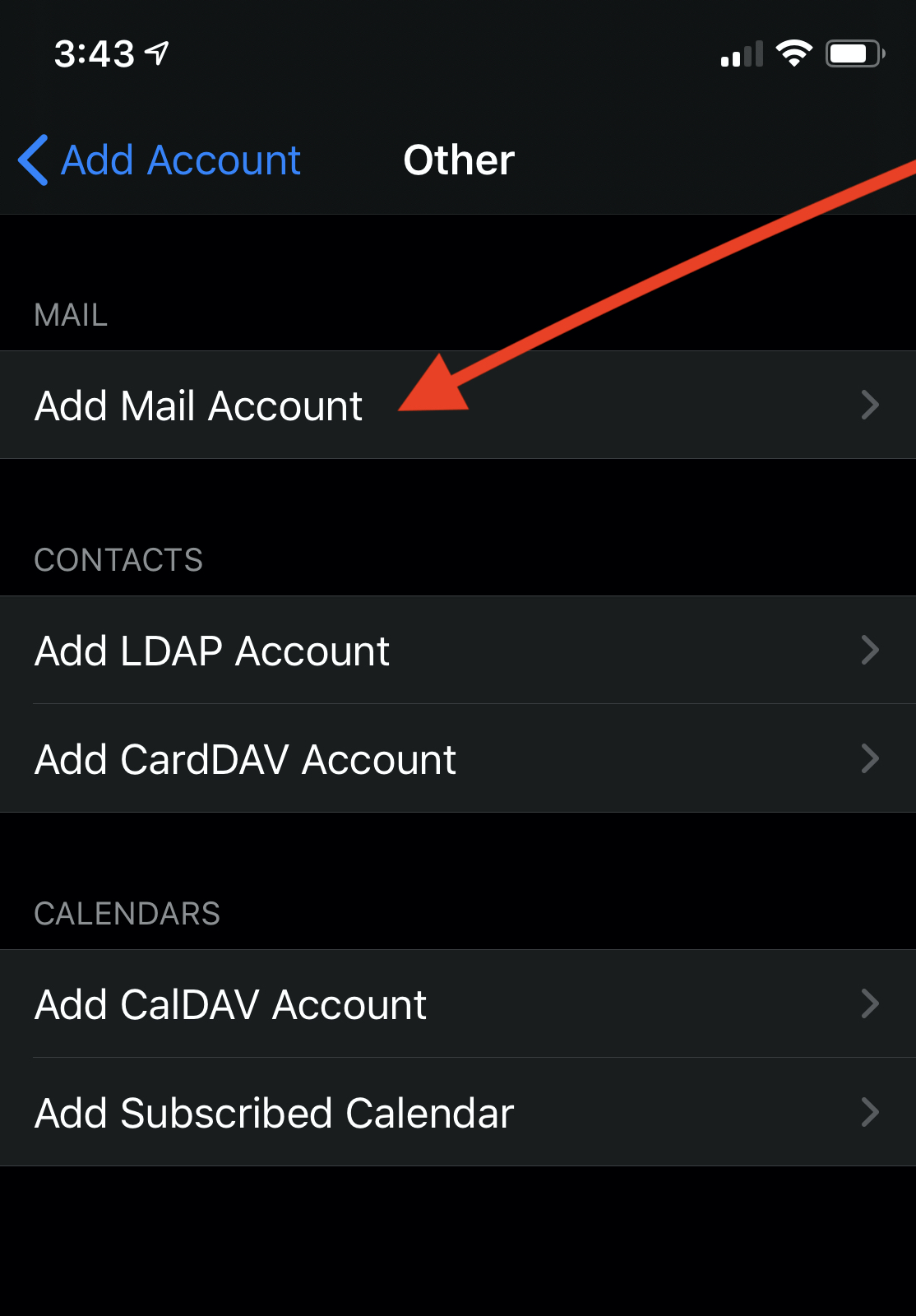
4. Choose Other at the bottom of the list.
5. Tap Add Mail Account.
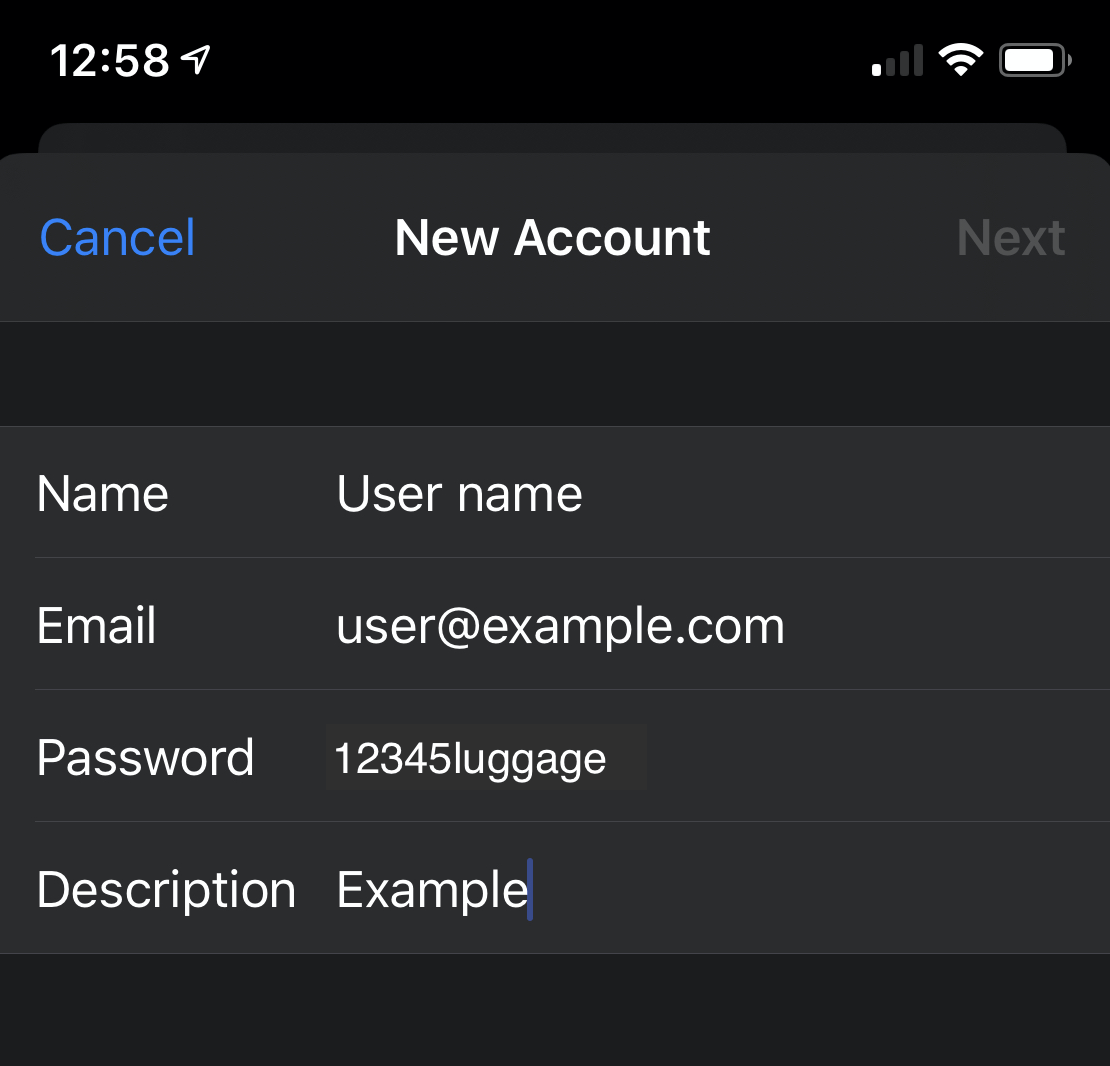
6. On the New Account screen enter:
- Name: the name recipients will see.
- Email: your full email address.
- Password: your email password.
- Description: any label you like.
Then tap Next.
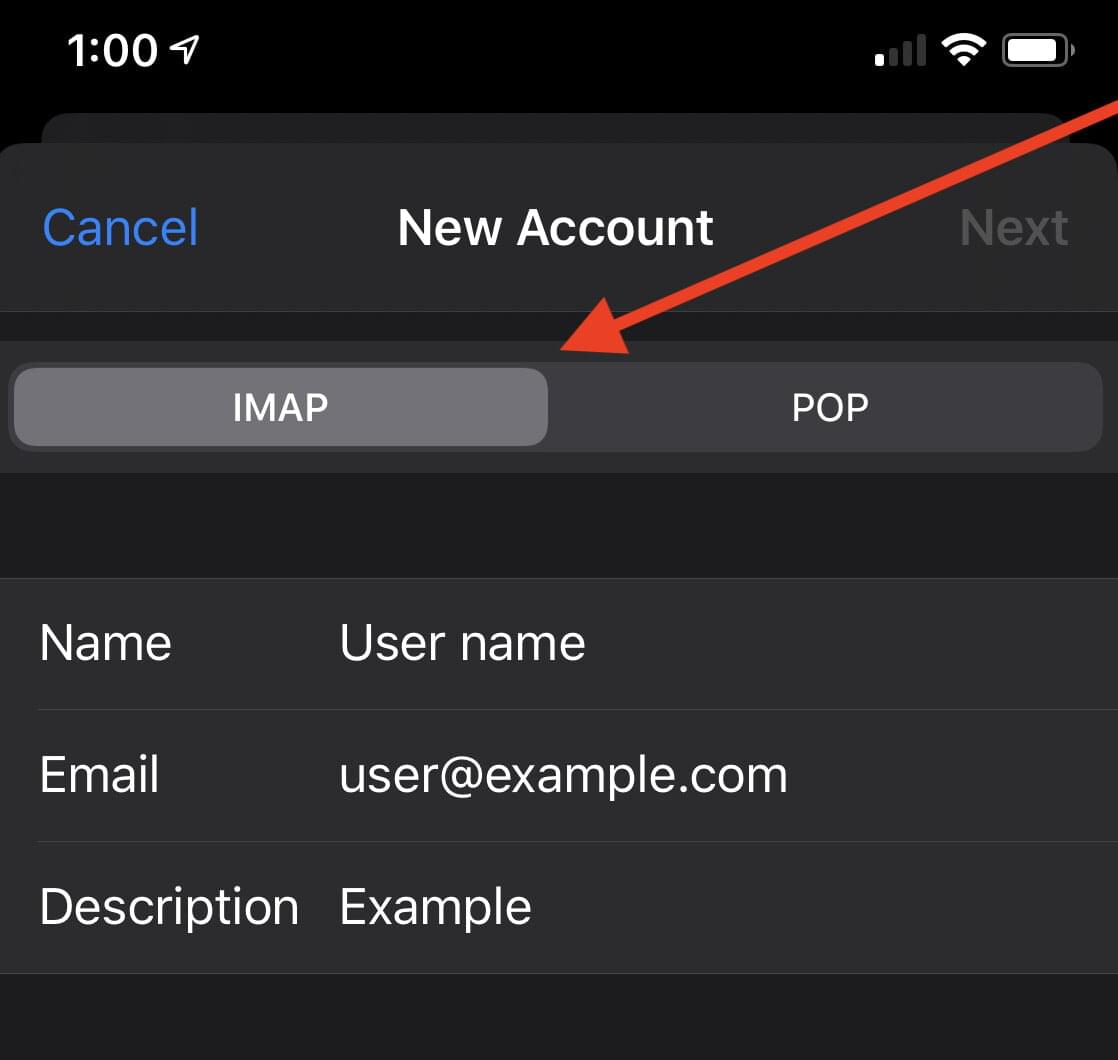
7. Choose IMAP (recommended) or POP.
Note: with POP, your phone downloads all messages and then removes them from the server, so you will not see them in webmail or on your other devices. With IMAP, messages stay on the server and sync across all your devices.
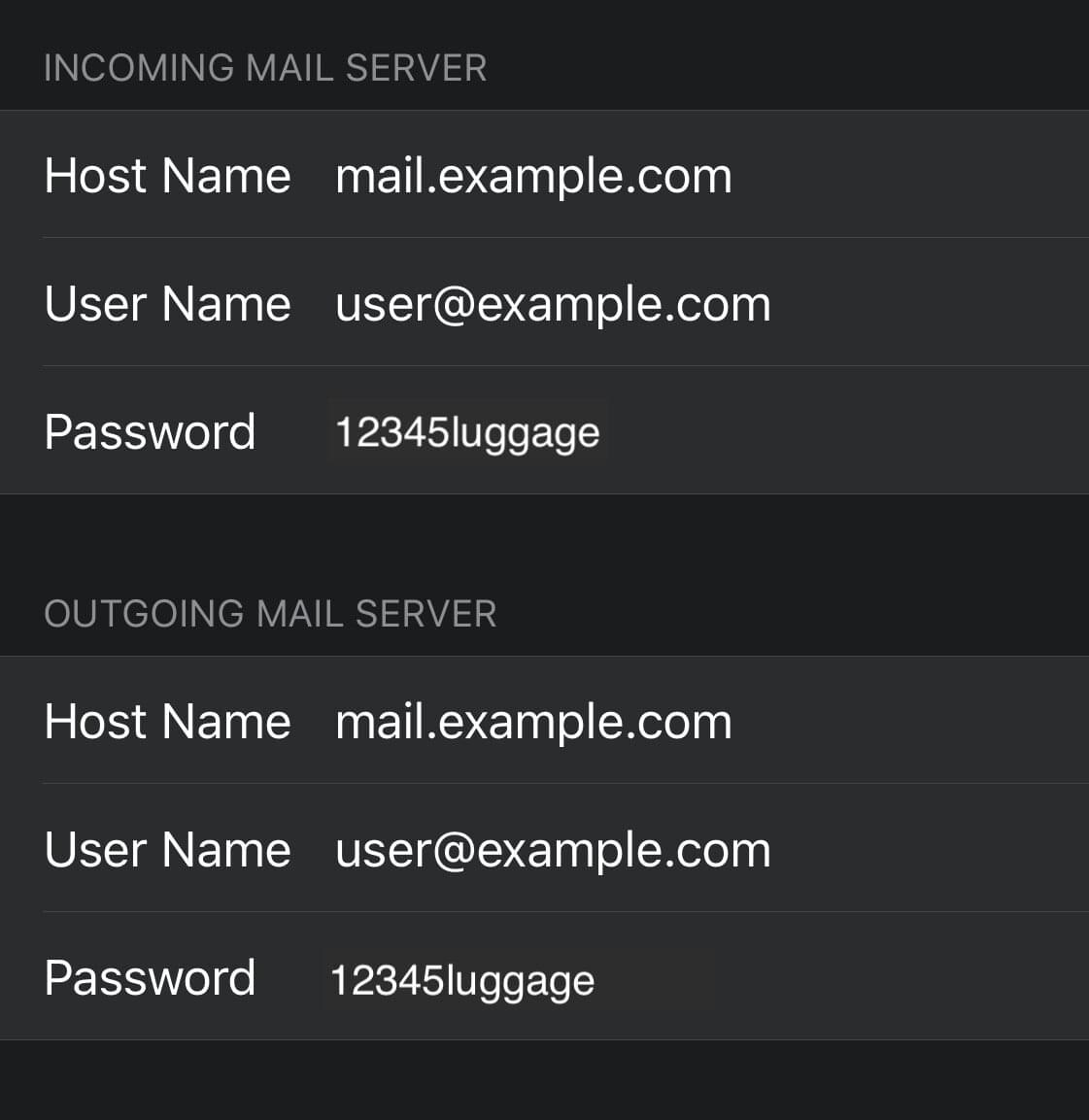
8. Under Incoming Mail Server enter:
- Host Name: mail.yourdomain.com (replace yourdomain.com with your domain)
- User Name: your full email address
- Password: your email password
9. Under Outgoing Mail Server enter the same details:
- Host Name: mail.yourdomain.com
- User Name: your full email address
- Password: your email password
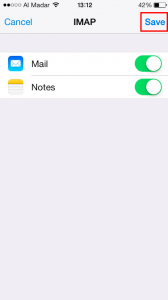
10. Tap Next, then Save.
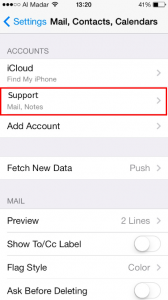
11. Your account now appears in the Accounts list.
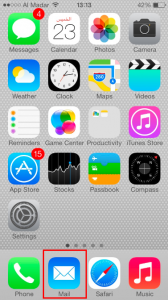
12. Go back to the home screen and open the Mail app to use your account.
If iOS does not detect the settings automatically, use SSL with port 993 for IMAP (or 995 for POP) and port 465 for SMTP.
Related service: Hyyat Host business hosting gives you your website plus unlimited email accounts on your domain from $77/year.


