

Resources here mean the processor (CPU), memory (RAM), and the number of processes your site uses. Leading hosting companies limit resources per site so that one busy site cannot slow down everyone else.
On our servers this works with CloudLinux: each site has a CPU, memory and process limit based on its plan. When a site reaches its limit it slows down temporarily, and some visitors may see error 508 (Resource Limit Is Reached) until usage drops, instead of the whole server slowing down. See server resource usage: causes and fixes.
Check your usage #
1. Log in to cPanel (see how to log in to cPanel).
2. In the Metrics section, click CPU and Concurrent Connection Usage (Resource Usage).
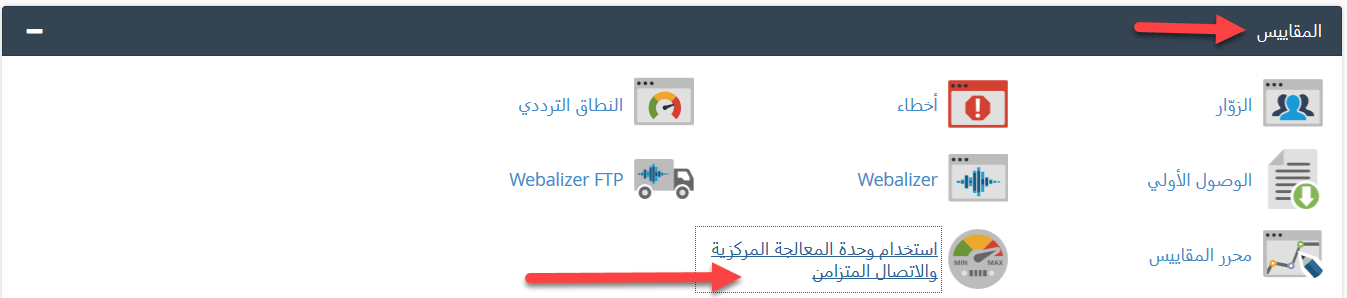
3. Click Details.
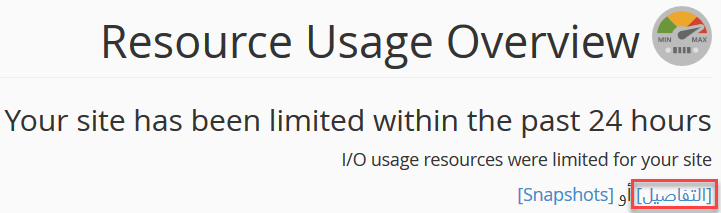
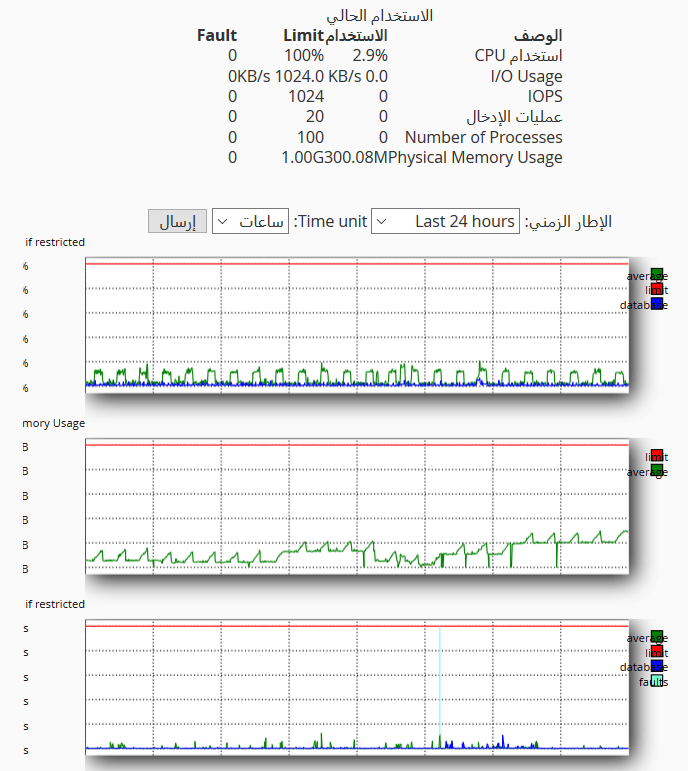
4. You will see charts of CPU and memory usage for the last 24 hours.
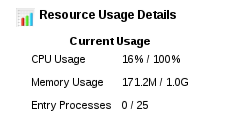
- CPU Usage: processor usage.
- Memory Usage: memory usage.
- Entry Processes: number of processes.
- Timeframe: the period to show (last 24 hours, last 7 days and so on).
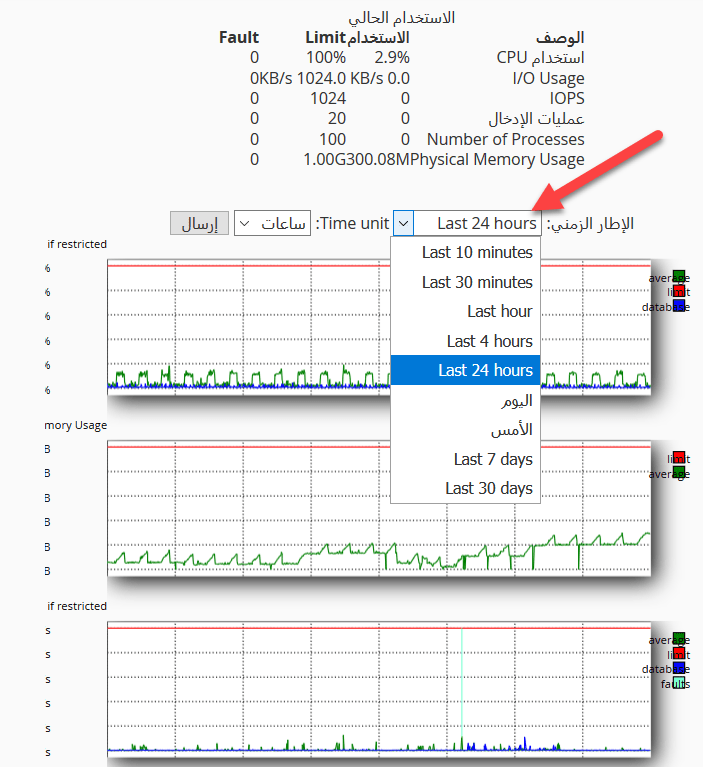
Below the timeframe, charts show CPU, memory, processes and faults.
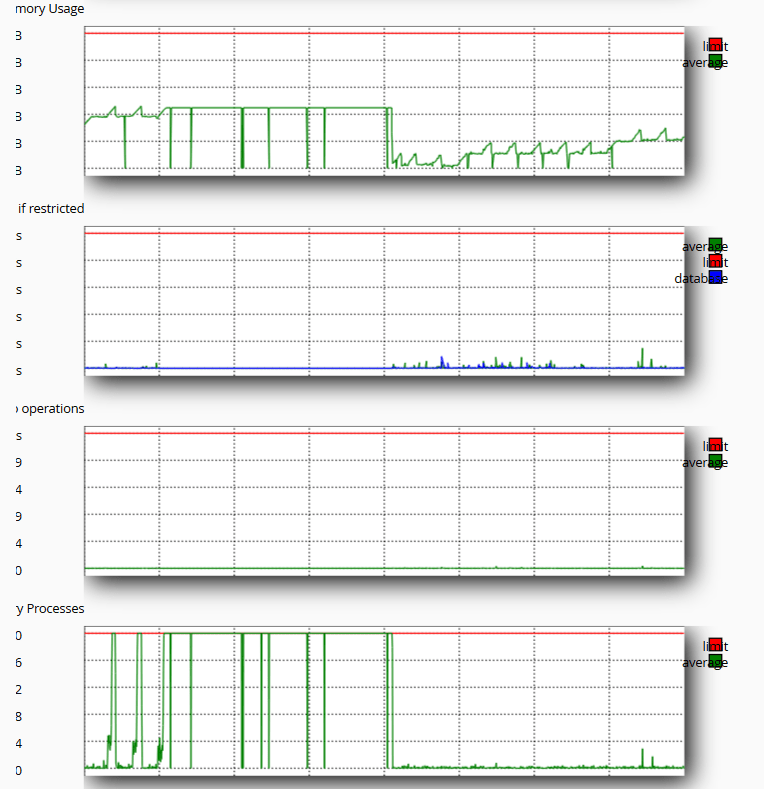
- Avg / Max CPU Usage and CPU Limit.
- Avg / Max MEM Usage and MEM Limit.
- Avg / Max EP (entry processes) and EP Limit.
- EP Faults and MEM Faults: how many times the site hit its process or memory limit.
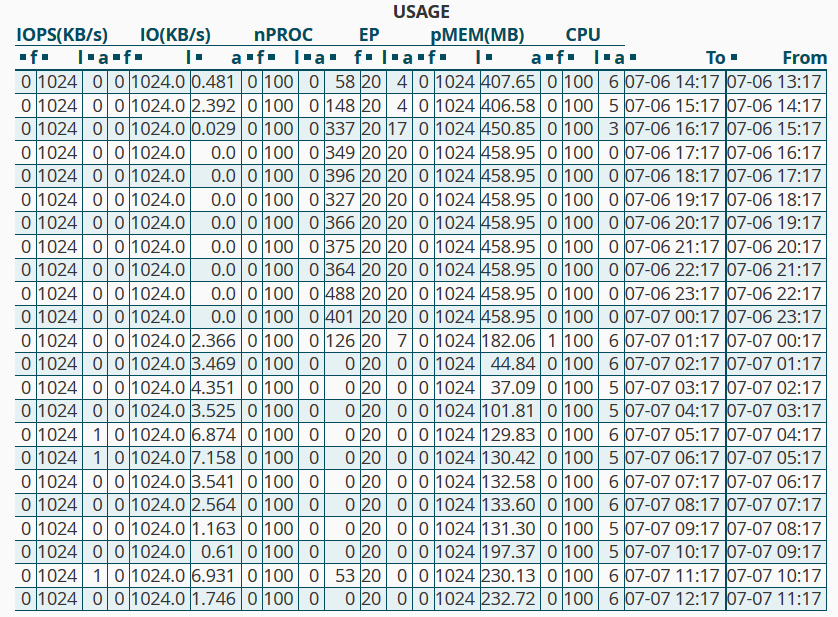
More details are in the Usage table at the bottom of the page.
If your site hits its limits often, optimize it (caching, fewer heavy plugins) or upgrade to a larger plan. See how to find what slows your site with PHP X-Ray.
Related service: Hyyat Host hosting runs on CloudLinux with fair resource limits for every site, and 24/7 support.


