

Creating an email account in cPanel takes less than a minute. You need your cPanel login details, which you received in your hosting welcome email.
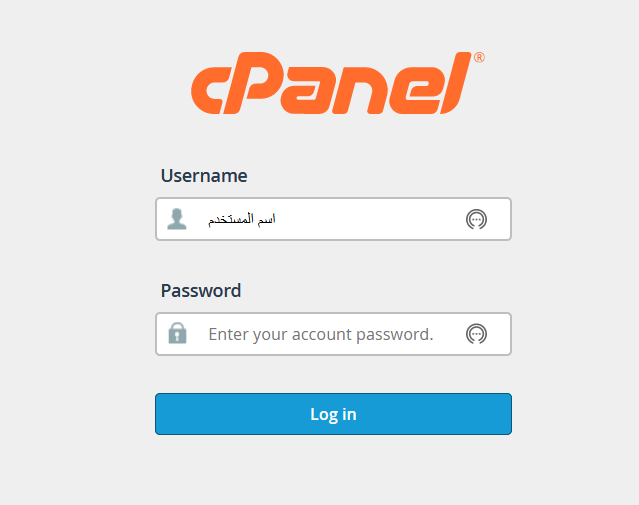
1. Log in to cPanel at https://yourdomain.com:2083, replacing yourdomain.com with your domain (see how to log in to cPanel).
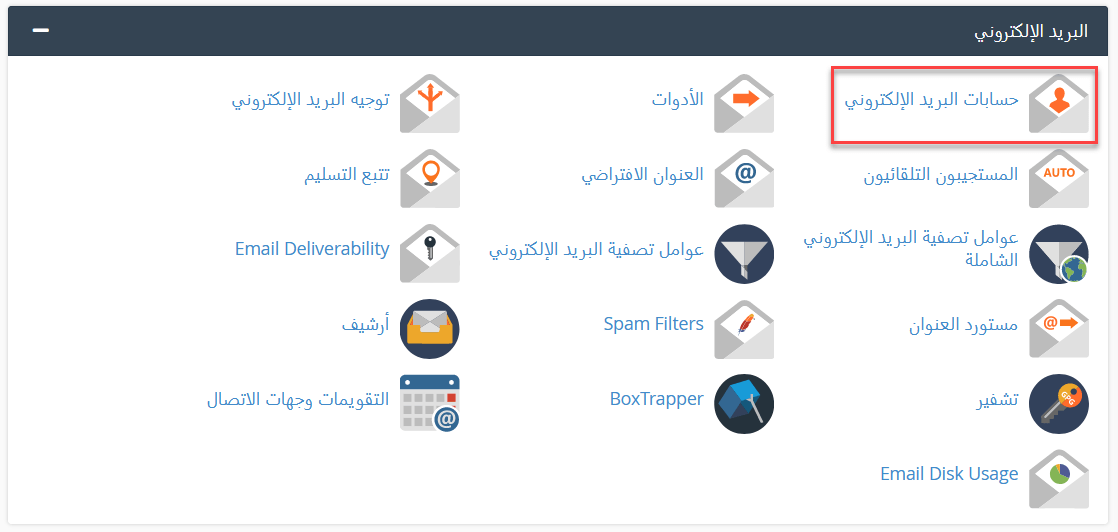
2. In the Email section, click Email Accounts.
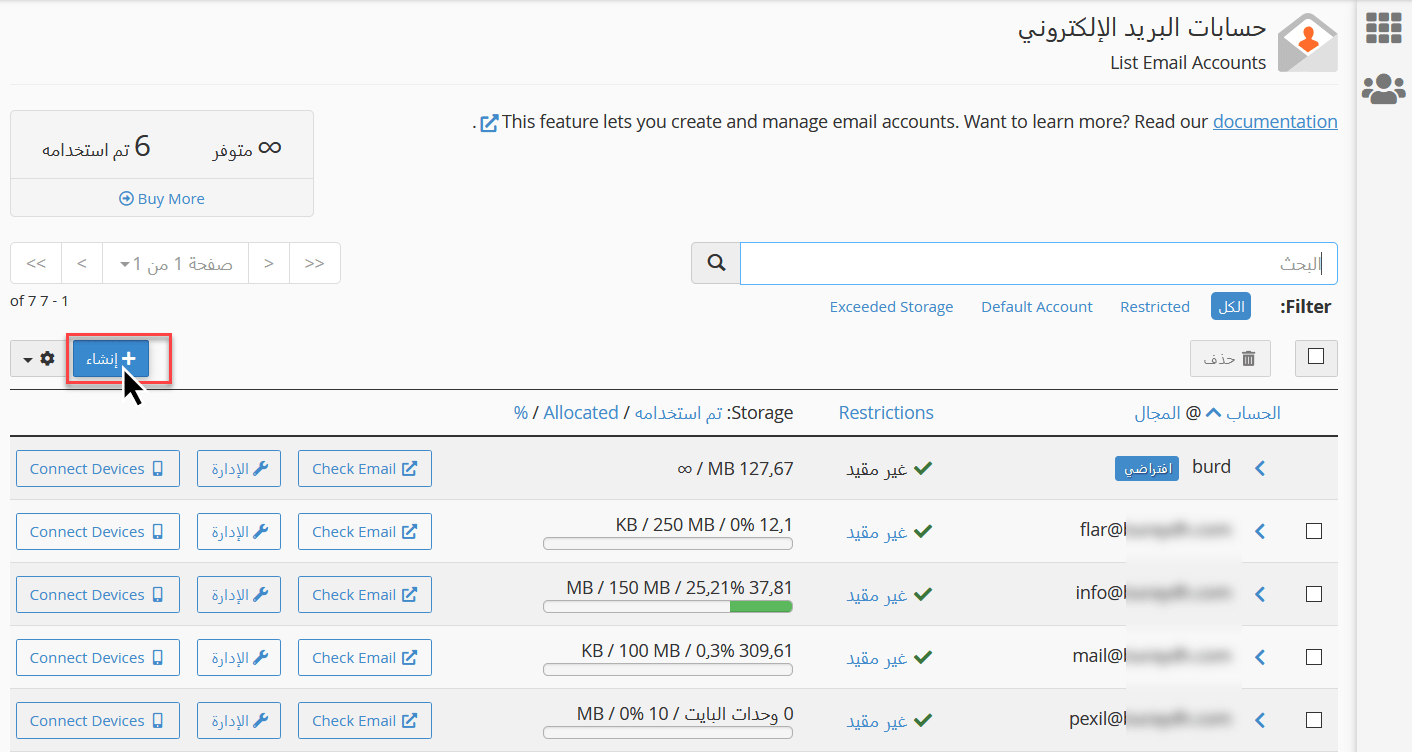
3. You will see your existing email accounts. Click Create.
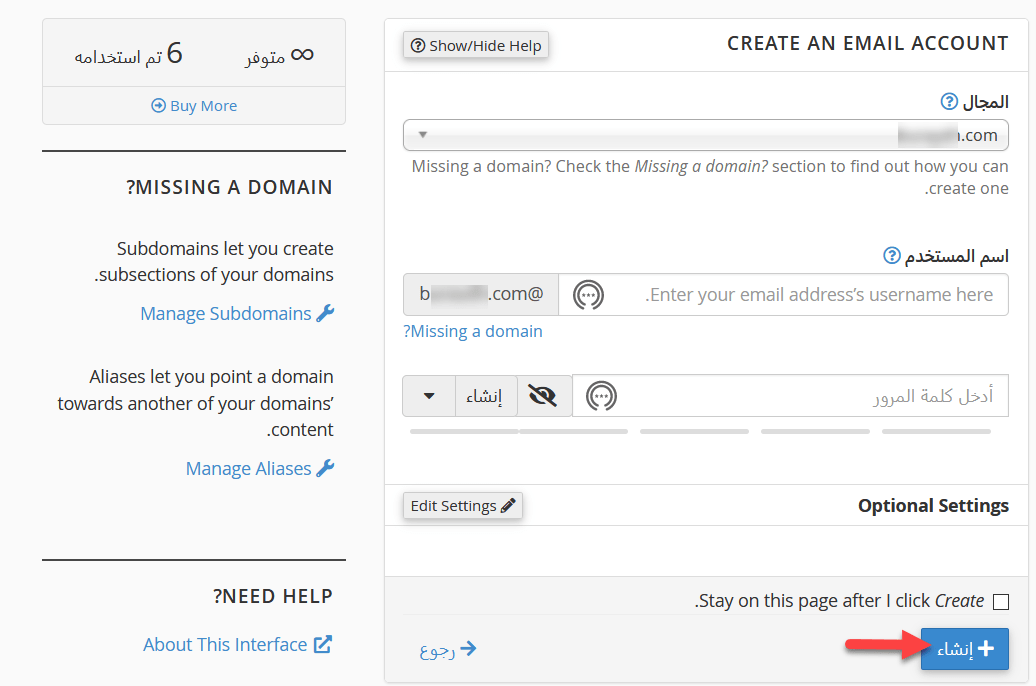
4. Fill in the form:
- Domain: your domain name.
- Username: the part before the @, such as info or sales.
- Password: a strong password, or use the Generate button.
Then click Create.
5. A success message appears, and the new address is added to your list.


Open your email in webmail #
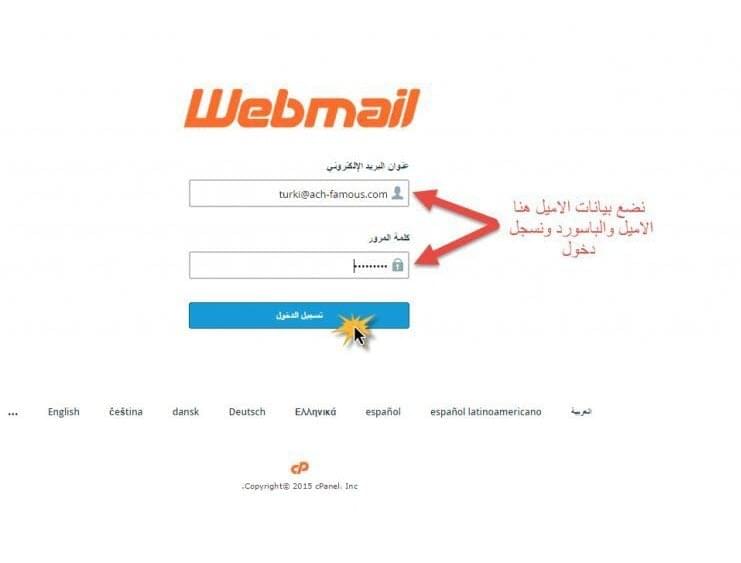
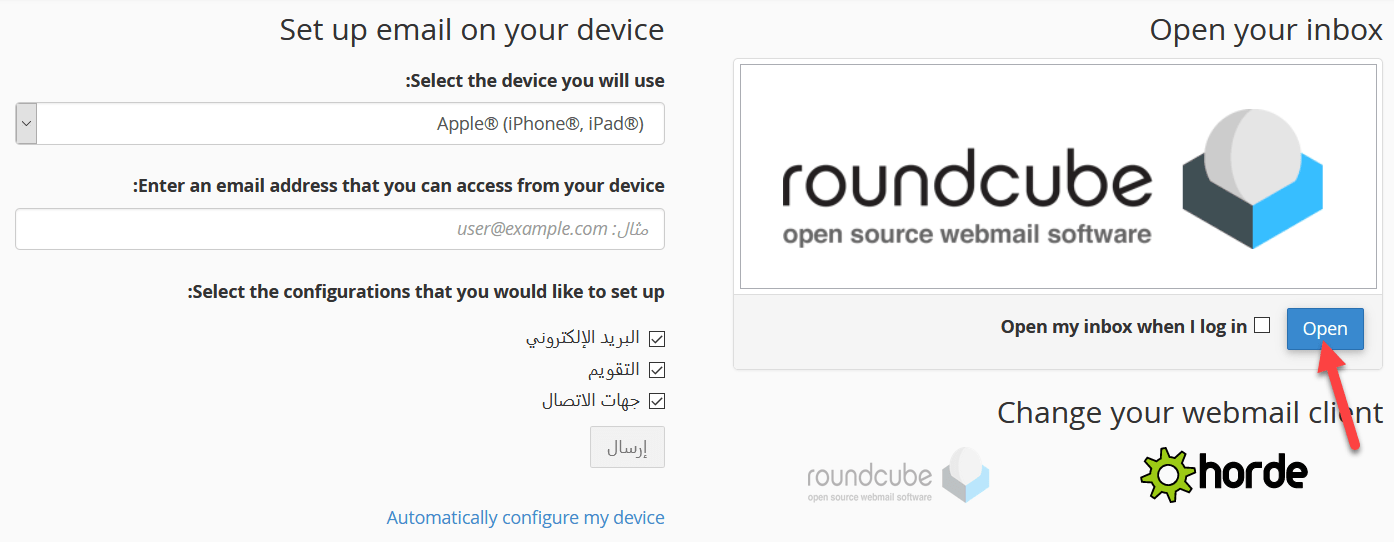
Go to https://yourdomain.com:2096, enter your full email address and password, and log in.
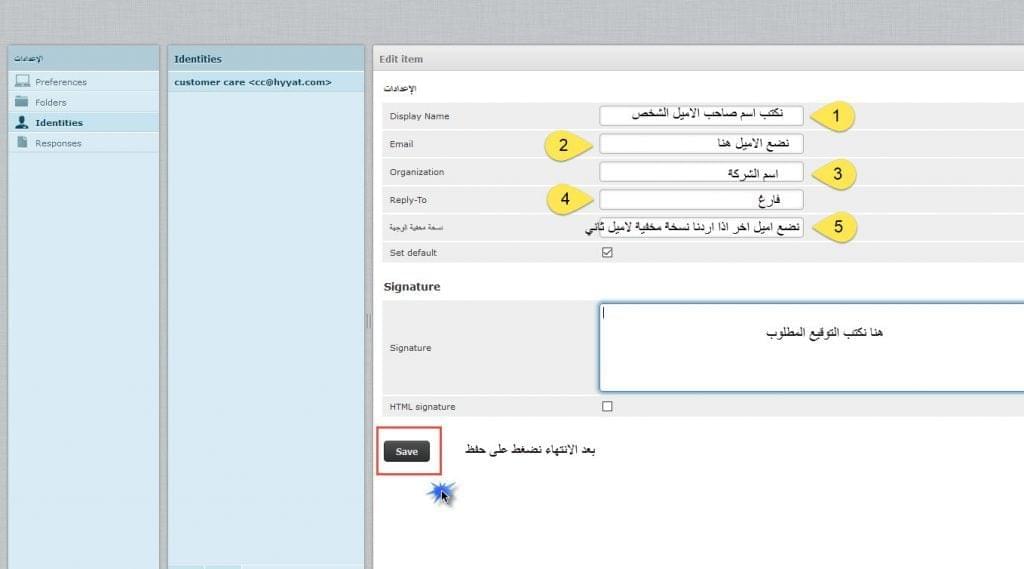
Add an email signature #
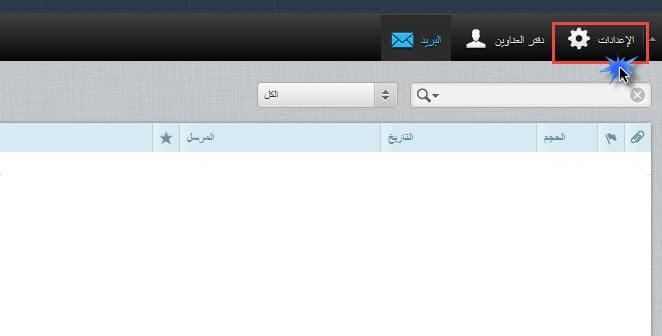
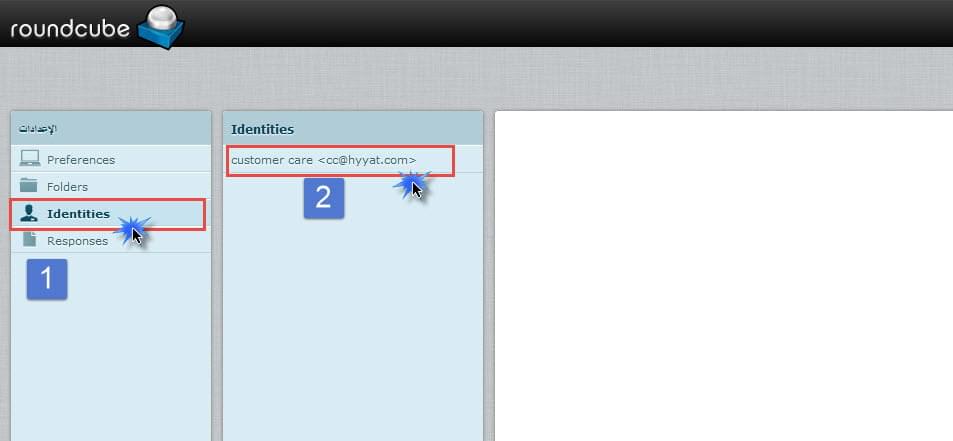
To add a signature that appears at the end of every message, open webmail settings, then Identities, choose your address and write your signature.
To use your email on your phone or in Outlook, see how to get your email settings.
Related service: Hyyat Host business hosting gives you unlimited email accounts on your own domain, from $77 a year, with 24/7 support.


