

Before importing, create the database and assign a user to it. See how to create a database and assign a user.
A) Import a database with phpMyAdmin #
1. Log in to cPanel.
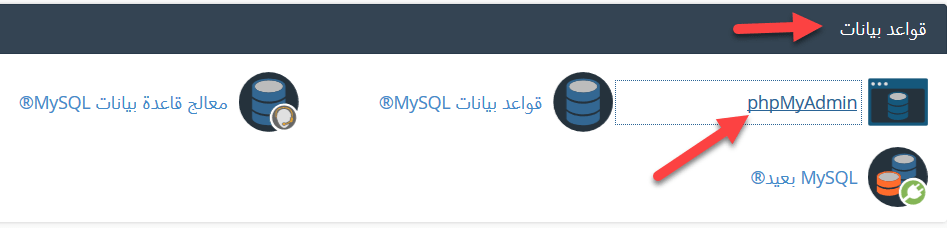
2. In the Databases section click phpMyAdmin.
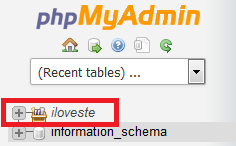
3. phpMyAdmin opens. Select your database from the list on the left.
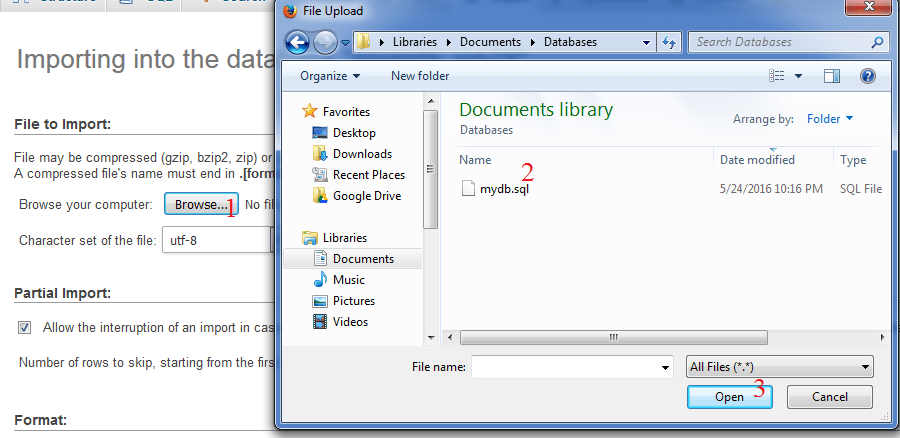
4. Click Import.

5. Choose the database file you want to upload.
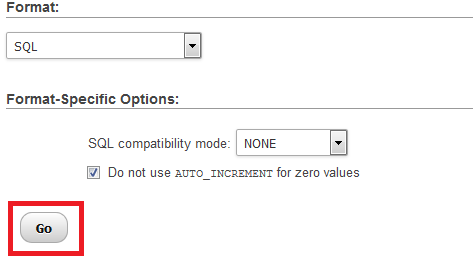
6. Click Go to upload and import it.
For very large files, compress the SQL file (.zip or .gz) before uploading, or ask our support to import it for you.
B) Export a database with phpMyAdmin #
1. Log in to cPanel and open phpMyAdmin from the Databases section.
2. Select the database or table you want to export.
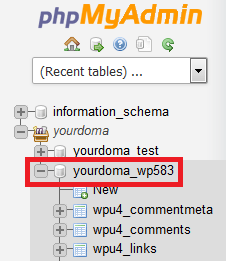
3. Click Export.

4. Click Go to download the SQL file.
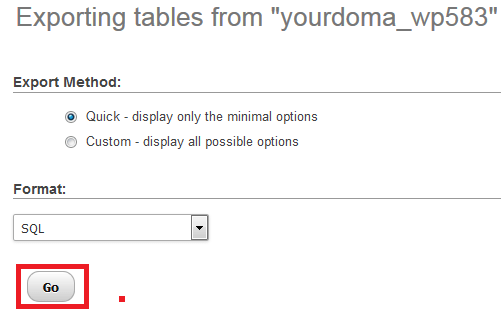
Note: the Custom export method lets you change many output settings, and the Format option lets you export as CSV, PDF, LaTeX and more. In most cases the default Quick method with SQL format is all you need.
Related service: Hyyat Host shared hosting includes cPanel, phpMyAdmin and unlimited databases on most plans, with 24/7 support.


